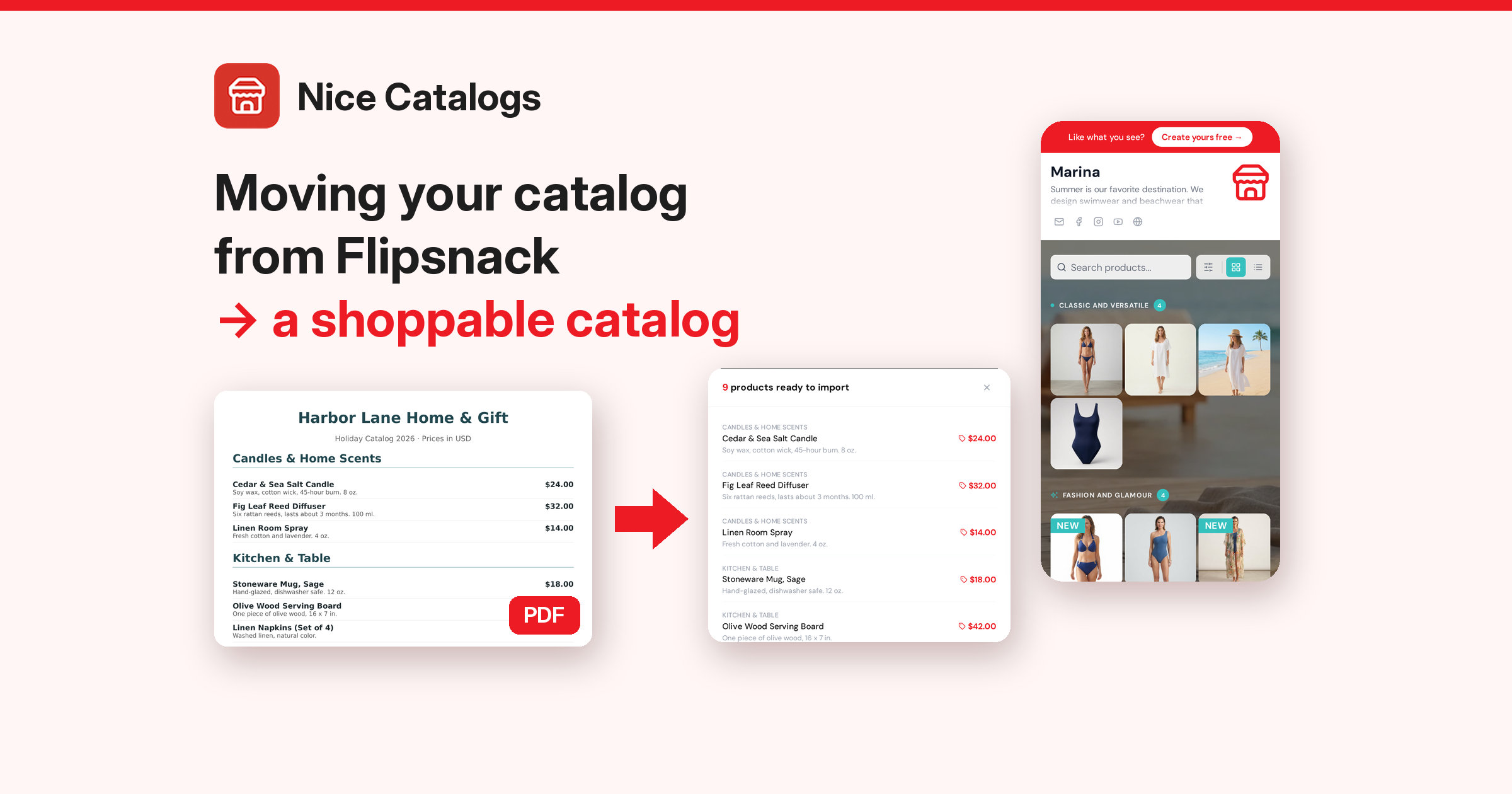
Flipsnack is good at what it was built for: turning a PDF into a flipbook that looks like a printed catalog. But a lot of retail catalogs aren't really read like magazines. Customers open them on a phone, look for one product, pinch to read the price, and then message you to ask if it's in stock. If that sounds like your catalog, you may be thinking about moving your retail catalog from Flipsnack to something people can search and order from.
This guide walks through the move step by step: getting your file out of Flipsnack, turning it into products in a shoppable online catalog, checking what came across, sharing it, and taking orders on WhatsApp. Everything about Flipsnack below comes from Flipsnack's own help pages, linked so you can check them, and everything about Nice Catalogs I tested on the live site on November 3, 2026.
Before you start: what you're actually moving
A flipbook is pages. A shoppable catalog is products. That difference shapes the whole move.
In Flipsnack, product details usually sit on the page itself (text and prices in your design) or inside interactive elements you added on top, like product tags or the Shopping list buttons, where you type a title, SKU, description and price for each product. Flipsnack's help pages list both as features of the Pro plan or above.
In an online catalog like Nice Catalogs, each product is its own item with a name, description, price, category and photos. So the job is to get your product data out of the pages and into rows. There are two ways to do that:
- From a PDF of your catalog, using a converter that reads the products off the pages.
- From a spreadsheet (CSV) if you already keep your products in one.
Pick the route that matches what you have. I'll cover both.
Step 1: Export your catalog from Flipsnack
Download the PDF
Flipsnack lets you download any flipbook as a PDF from its Overview page, published or not. According to their help page, the steps are:
- Open Content and click the flipbook to open its Overview page.
- Click Download in the right-hand panel.
- Choose PDF for web or PDF for print.
- Under Page selection, keep All pages or enter a page range.
- Click Download.
A few details from Flipsnack's help pages that matter for a migration:
- Choose PDF for web. Flipsnack describes it as the smaller file, sized for screens. PDF for print is 300 dpi CMYK and larger, and it drops links, buttons, videos and forms.
- Every plan can download, but on the Free plan the file carries a "Created in Flipsnack" badge on every page. That doesn't matter much if you're only using the PDF to pull products out.
- The file is named after the flipbook title, and you can download only some pages with Page selection. That's handy for the next step.
Or use the spreadsheet you already have
If you built your Flipsnack catalog from a product feed with Flipsnack Automation, you already have your products in rows. Flipsnack's guide to preparing a spreadsheet product feed describes it as a CSV, XLSX or Google Sheets file with one product per row (that feature is listed for the Enterprise plan). If that's you, skip the PDF and go straight to the CSV route in Step 2.
In the Flipsnack help pages I read, I didn't find an export that turns the details you typed into product tags or shopping buttons into a spreadsheet. If your products only live inside those elements, the PDF route, or copying them into a sheet once, is the practical way out.
Step 2: Turn the PDF into products
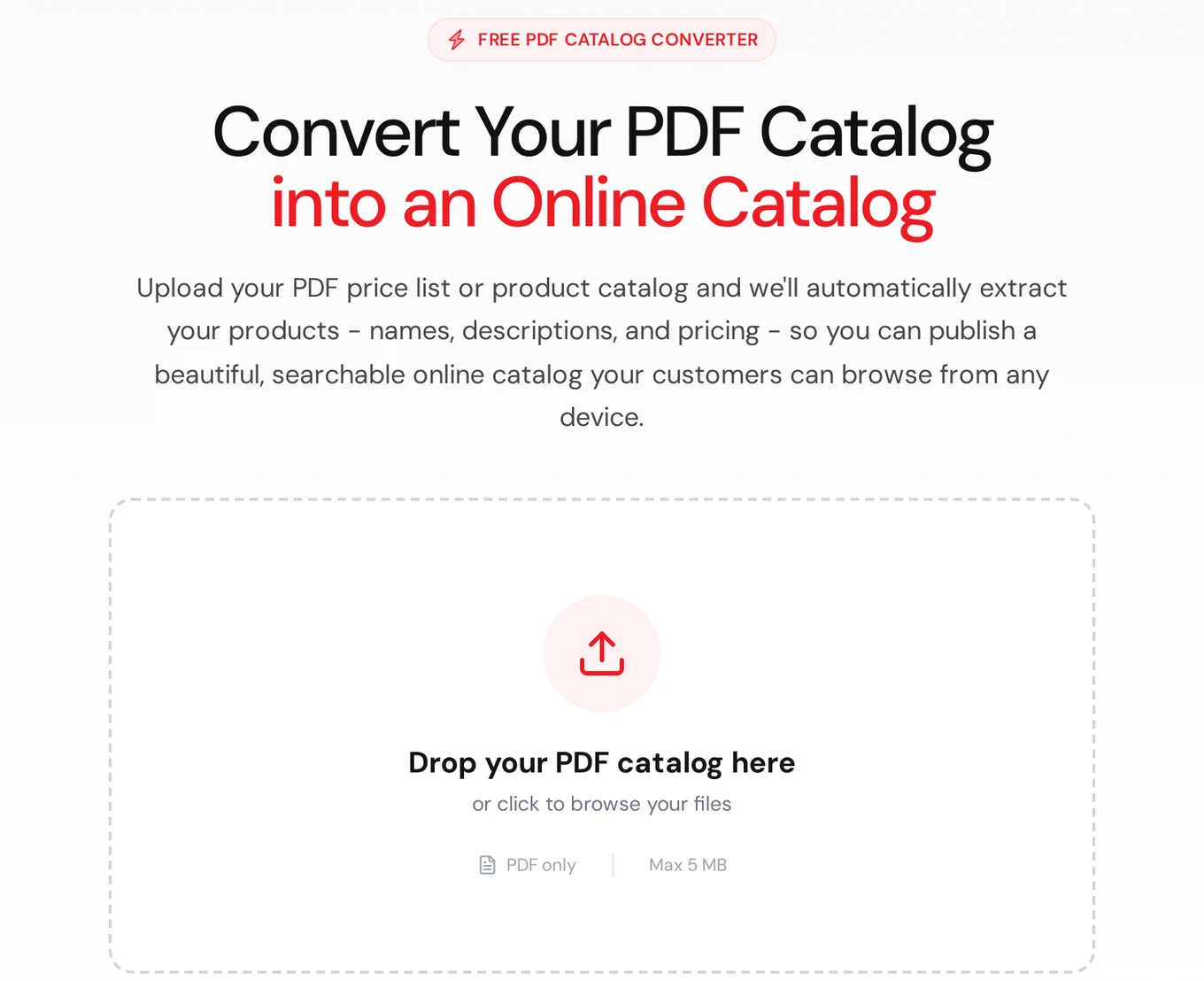
Nice Catalogs has a free PDF to catalog converter . You drop the PDF in, it reads the product names, descriptions, prices and section headings, and shows you what it found before you create an account. The page says PDF only, max 5 MB.
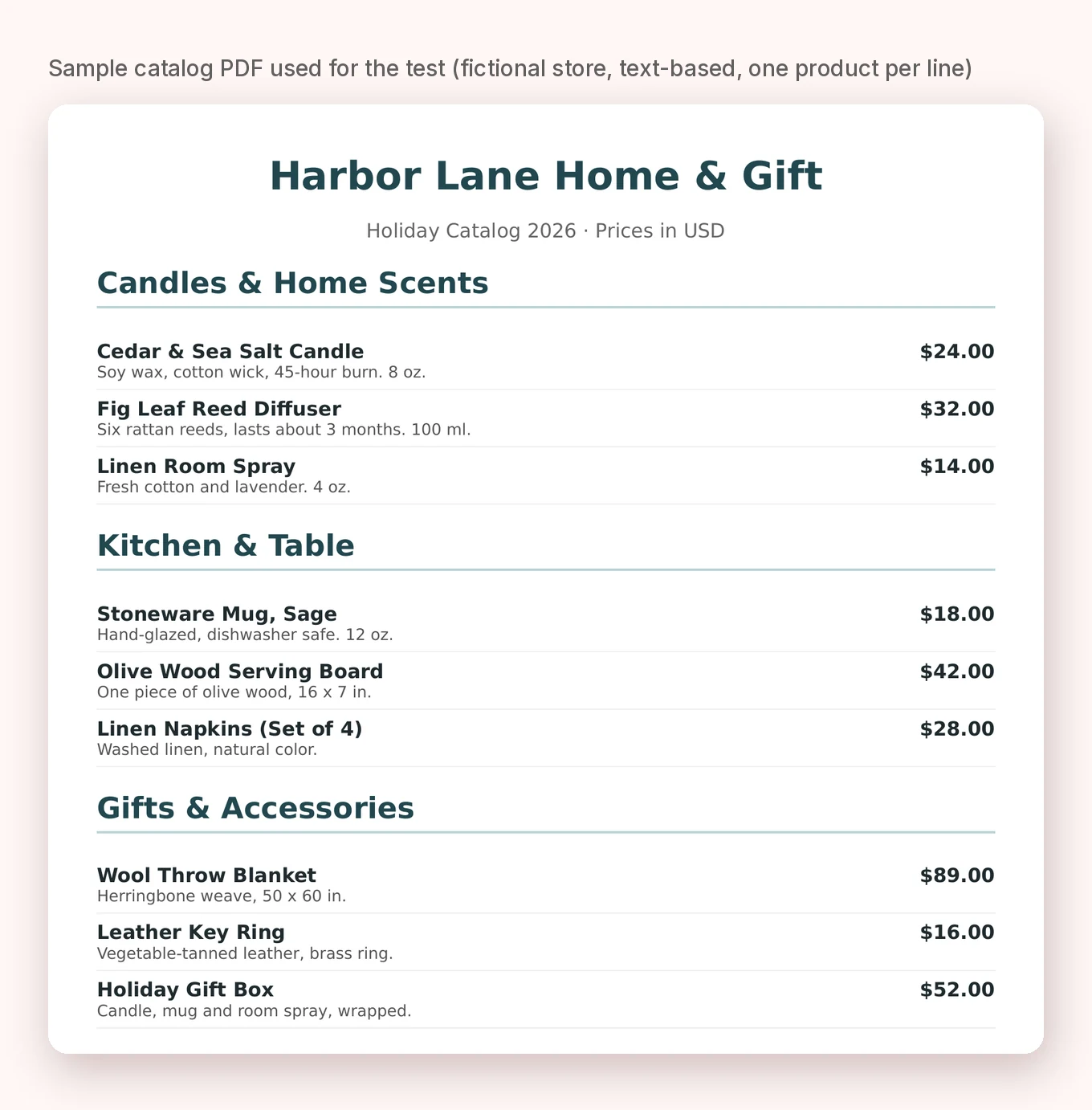
To test it for this guide, I made a small sample catalog for a fictional home and gift shop: 9 products in three sections, prices in dollars, one product per line.
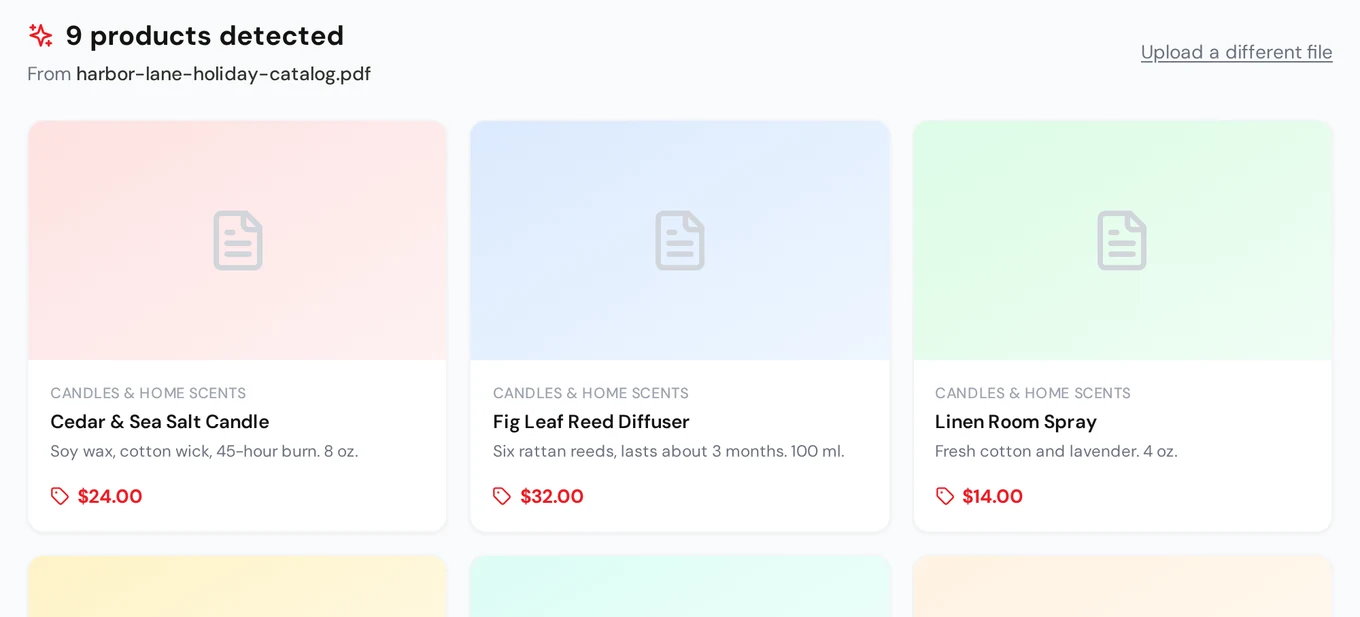
I uploaded it on November 3, 2026, and the converter found all 9 products, each with the right section, name, description and price:
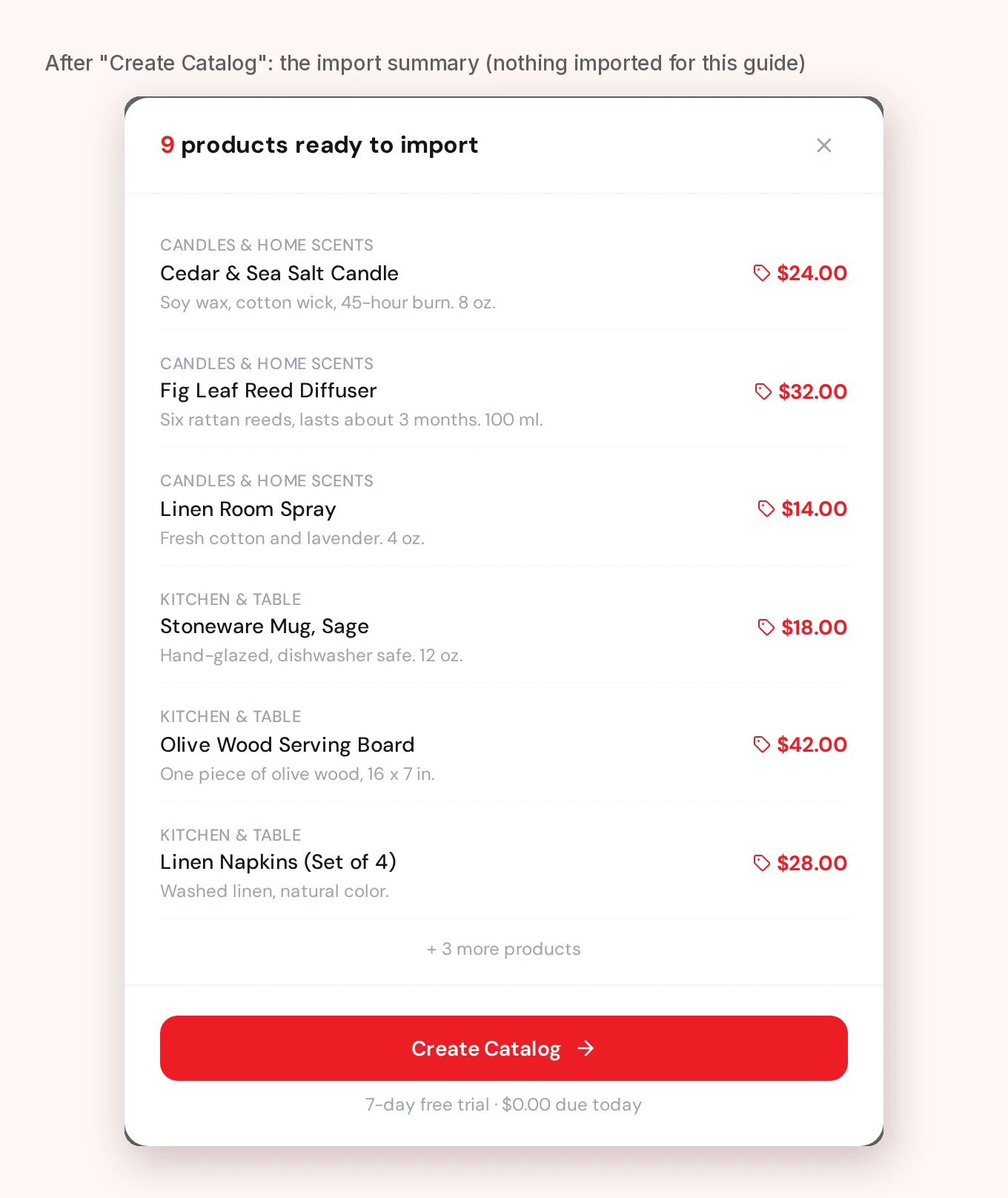
Clicking Create Catalog opens a summary of the products ready to import, and the next click asks you to sign in or create an account. That's the point where the products are actually imported. (I stopped there, so nothing was imported for this guide.)
Where PDF conversion struggles: multi-column pages
Designed catalogs often put products side by side. So I made a second version of the same PDF with the same 9 products in a three-column grid of product cards, and uploaded that too. This time the converter found only 4 products, and some of the names and descriptions were mixed together across columns:
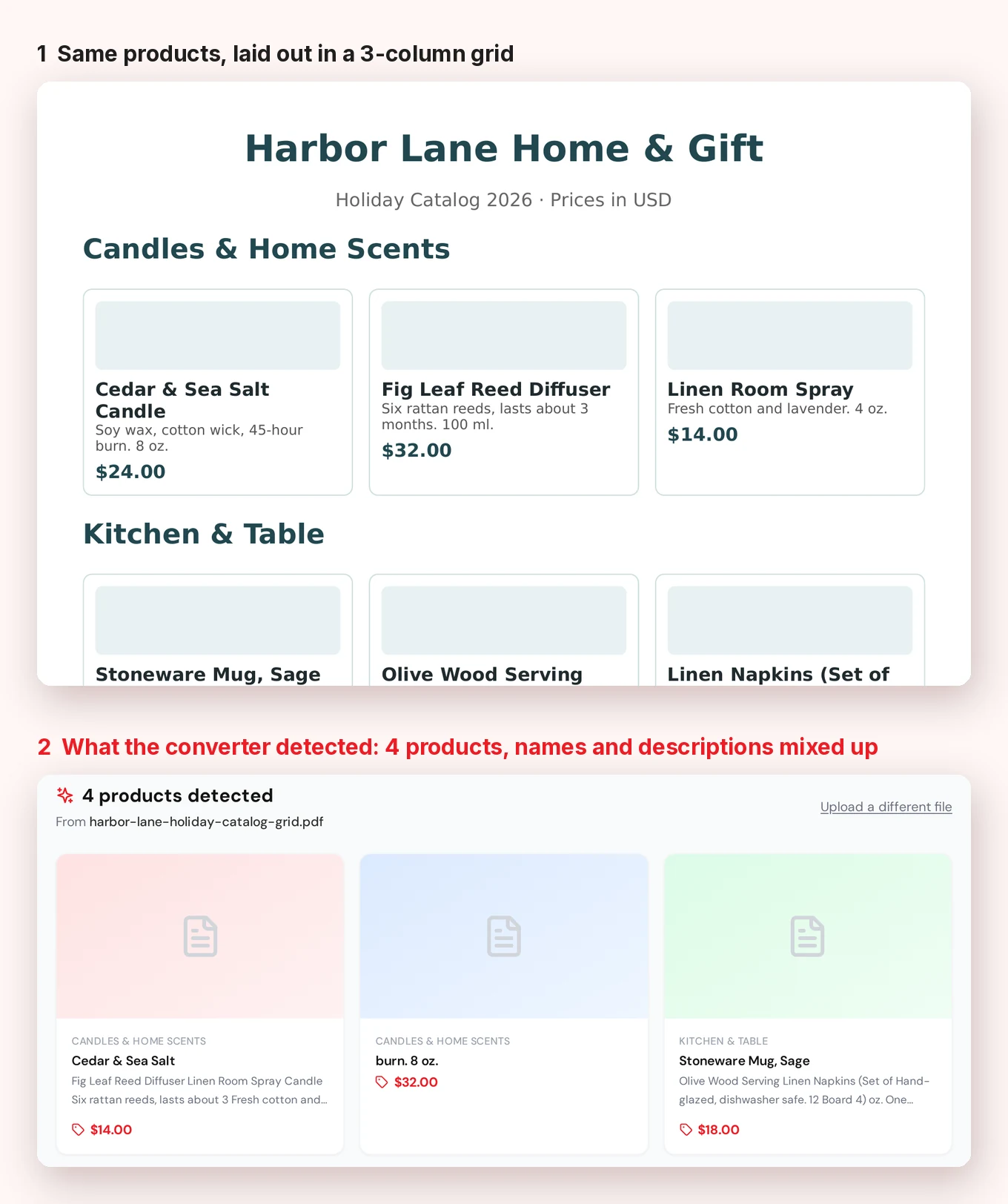
That's the honest limitation of any PDF route: a PDF stores text positions, not "products", so the cleaner and more list-like the layout, the better the result. What I'd do in practice:
- Try the PDF first. The preview is free and takes a few seconds, so you'll know right away.
- If your pages are grids or heavy layouts, try a smaller page range, or a simpler price-list version of the catalog if you have one.
- If it still comes out messy, use the CSV route. The converter's own FAQ suggests the same thing. Put your products in a spreadsheet with a name, price and category column, save it as CSV and upload it to the CSV to catalog converter . I tested that route step by step in how to turn a CSV into an online catalog .
I only tested text-based PDFs. If your PDF is made of images (scanned pages, or text flattened into pictures), I can't promise how it will read, so check the preview before you rely on it.
For a deeper walkthrough of the PDF route on its own, including how to prepare a price list, see how to turn a PDF into an online catalog .
Step 3: Check your products and add photos
The preview shows a placeholder instead of a photo for each product, and the converter's call to action talks about adding images after import, so plan on adding product photos yourself. For a retail catalog that's worth doing properly, since photos sell more than anything else on the page.
Once you're in, the Products page is where you clean things up: fix names and prices, set categories, hide items you don't want to show, and import or export more products later.
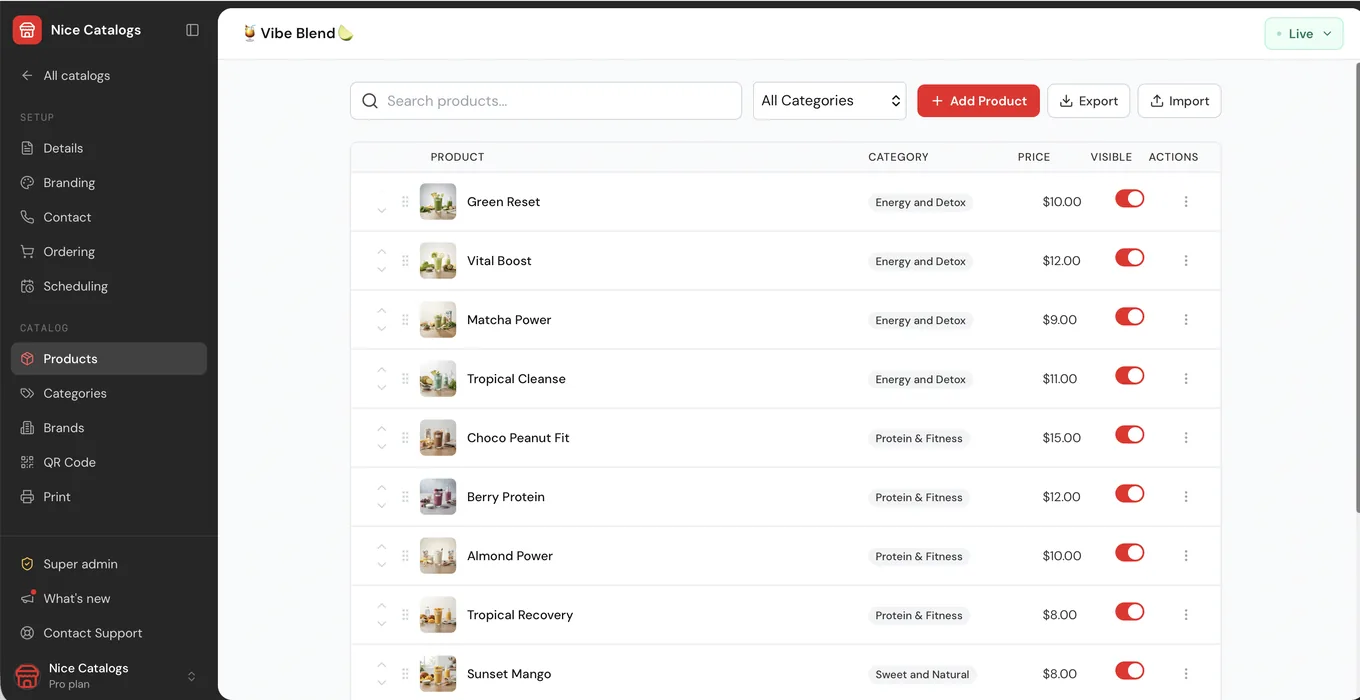
A quick checklist before you share anything:
- Prices: compare a handful against your current price list. The PDF you exported may already be out of date.
- Categories: the PDF section headings become categories. Rename them to what a shopper would look for ("Candles", not "Section 2").
- Names: shorten anything that only made sense next to a picture on a page.
- Photos: add at least one clear photo per product.
- Discontinued items: hide or delete them now, while the list is fresh in your head.
Step 4: Share the link and QR code
Your customers don't download anything. They open a link on their phone and get a searchable catalog with categories, like this retail demo:
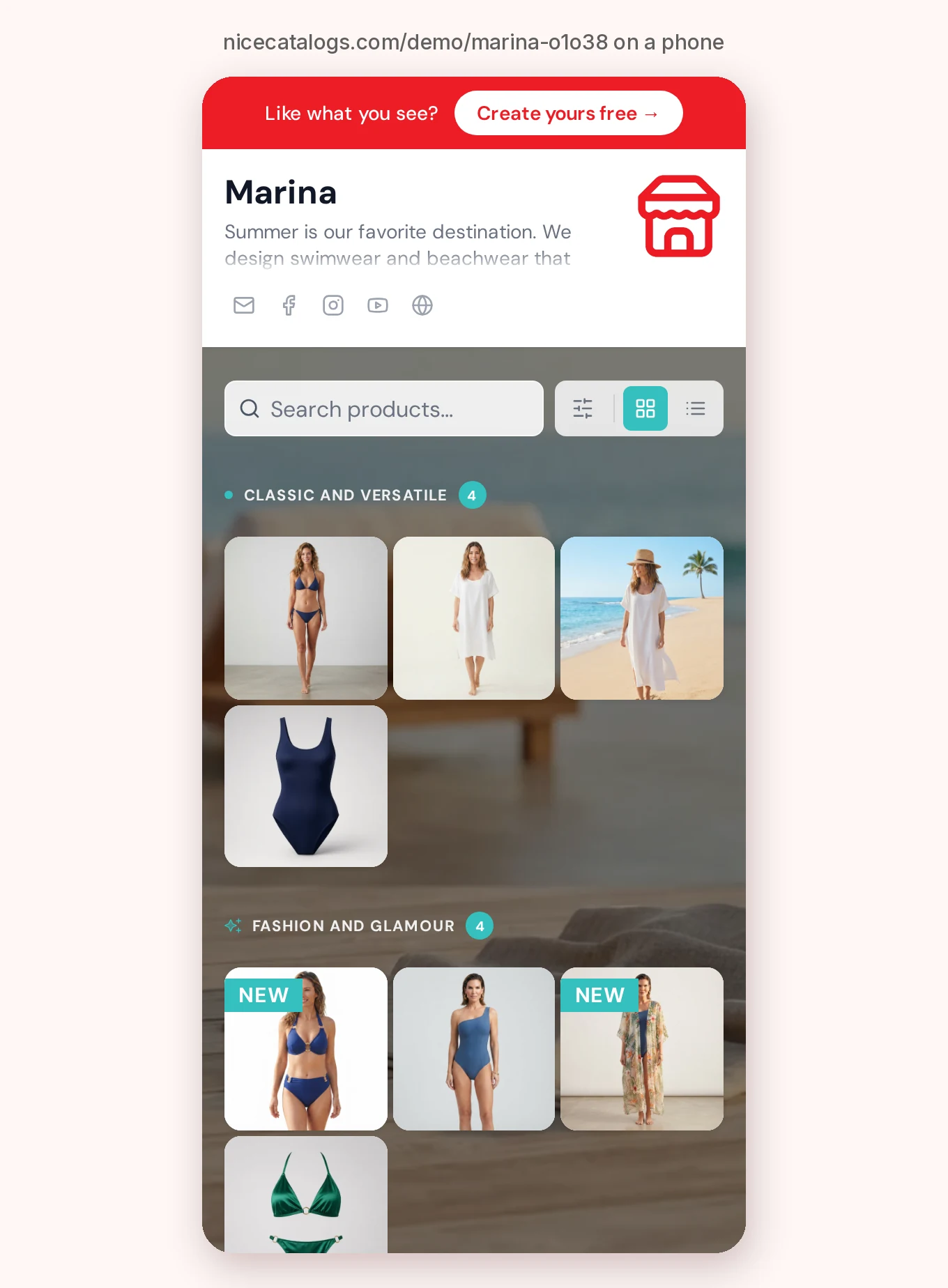
You can see the full demo catalogs at nicecatalogs.com/demo . From the dashboard, every catalog has its link and a QR code you can download or print, which is useful for a shop counter, packaging or flyers.
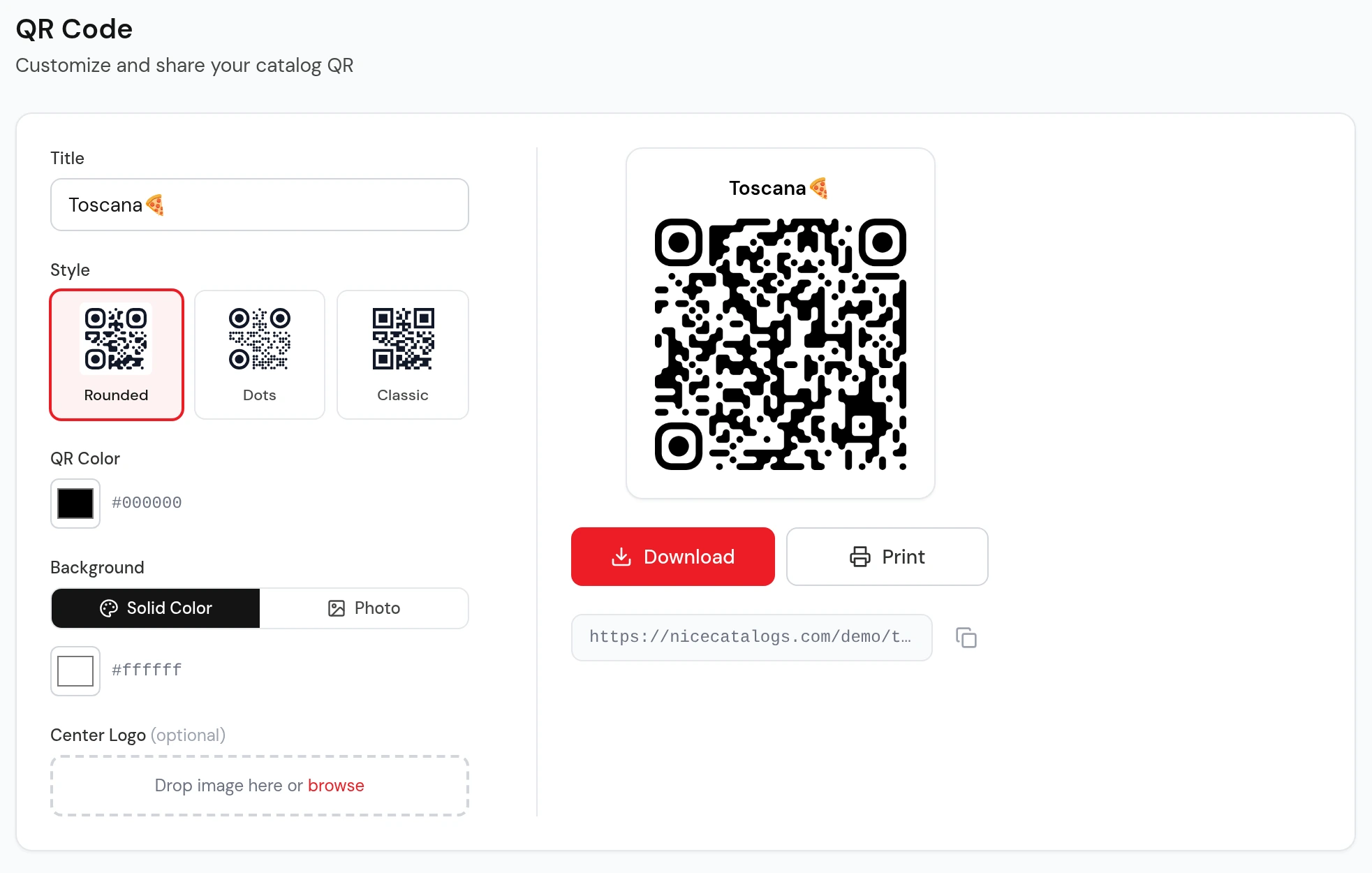
This is the part where an online catalog is easier to live with than a PDF: when a price changes, you change it once in the dashboard and everyone who opens the same link sees the new price. Nobody is holding last season's file.
Step 5: Take orders on WhatsApp
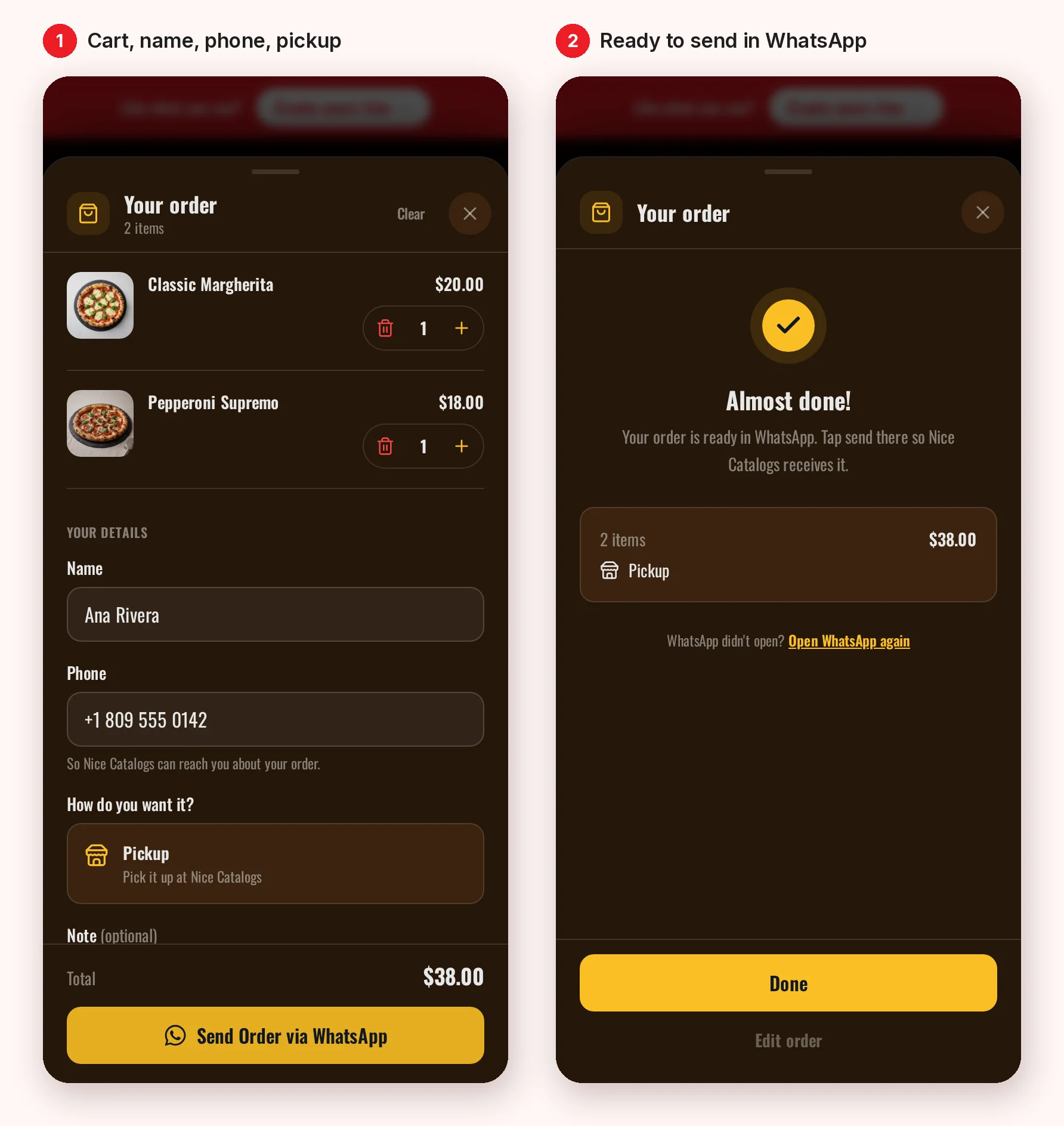
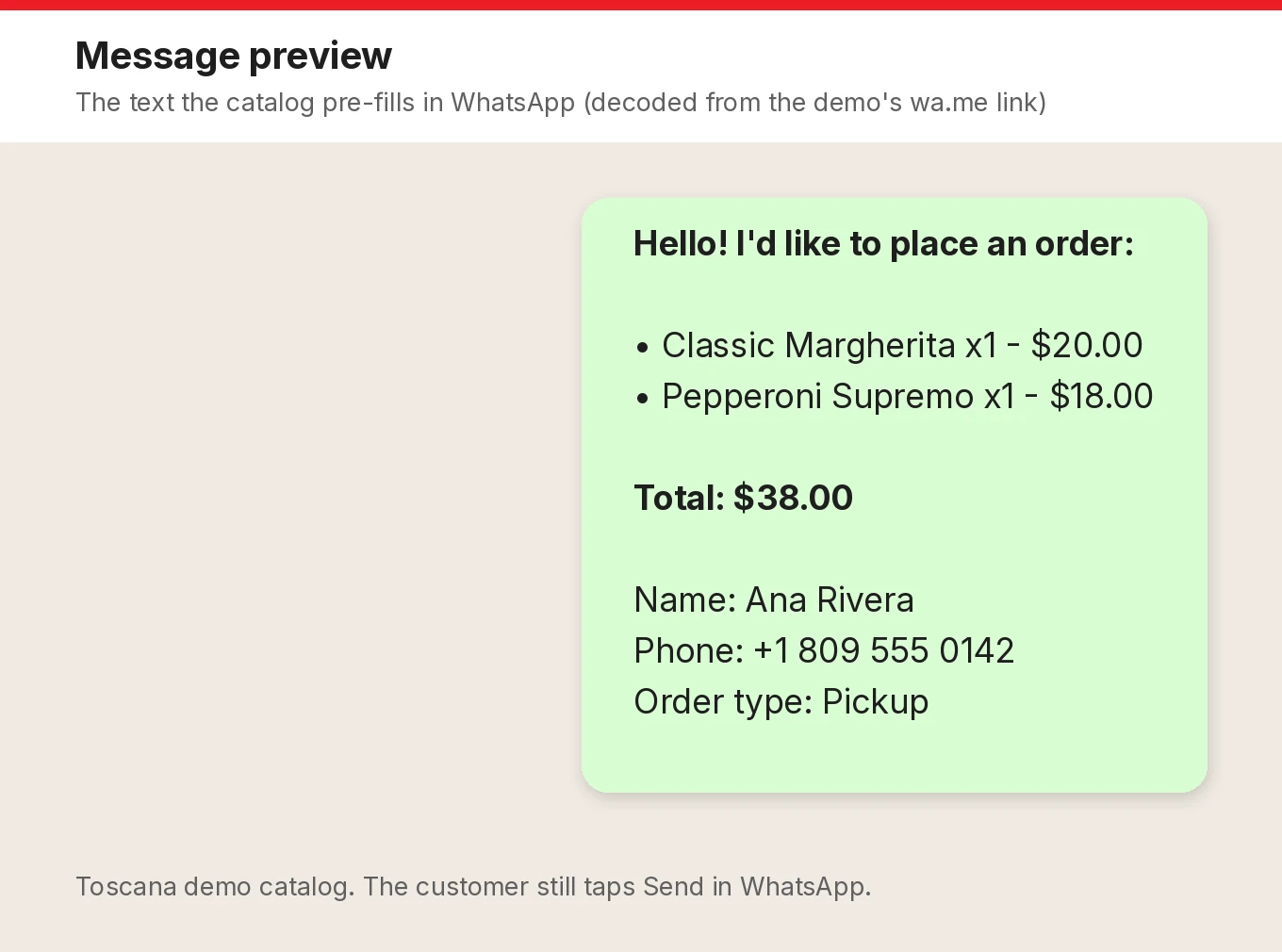
A browsable catalog is nice. A catalog people can order from is what makes it shoppable. With WhatsApp ordering , customers add products to a cart, enter their name and phone, choose how they want it, and send the order to your WhatsApp as a ready-made message.
I ran through it on the Toscana demo catalog (it's a pizzeria, but the cart works the same for any store). I blocked the final send, so no order was placed and no message went out:
This is the message the catalog prepared for WhatsApp, decoded from the demo's link:
To be fair to Flipsnack: its shopping list feature page also lists WhatsApp as a checkout option for pre-orders, along with email checkout, quotes and downloadable CSV and PDF lists. So WhatsApp alone isn't a reason to move. The reason to move is usually the format: a product list that's built for scrolling and searching on a phone, instead of a page that has to be zoomed.
Online PDF catalog vs. shoppable catalog: which one do you need?
If you're searching for an "online PDF catalog", it helps to be clear about what you want customers to do.
- Keep a flipbook or online PDF if the design is the product: lookbooks, magazines, brochures, a seasonal catalog where layout and photography carry the brand. Flipsnack is built for exactly that.
- Move to a shoppable catalog if customers mostly look up items and prices and then want to order: retail price lists, wholesale ranges, product line-ups that change often.
Plenty of businesses do both: the flipbook for the seasonal story, the catalog link for everyday ordering.
Is Nice Catalogs one of the best alternatives to Flipsnack?
It depends on the job. If you need a page-flip experience, no. If your catalog is really a product list that people shop from on their phones, it's a strong fit, and it's what we built it for. I put the side-by-side details on our Flipsnack alternative page, so you can compare features without me repeating them here.
On cost, according to our pricing page today: Basic is $5 a month (up to 3 catalogs and 50 products per catalog) and Professional is $10 a month (unlimited catalogs and products). Both include WhatsApp and Telegram ordering and QR code export. Every plan starts with a 7-day free trial with $0.00 due today, and paying yearly saves 20%.
One more free tool while you're setting up
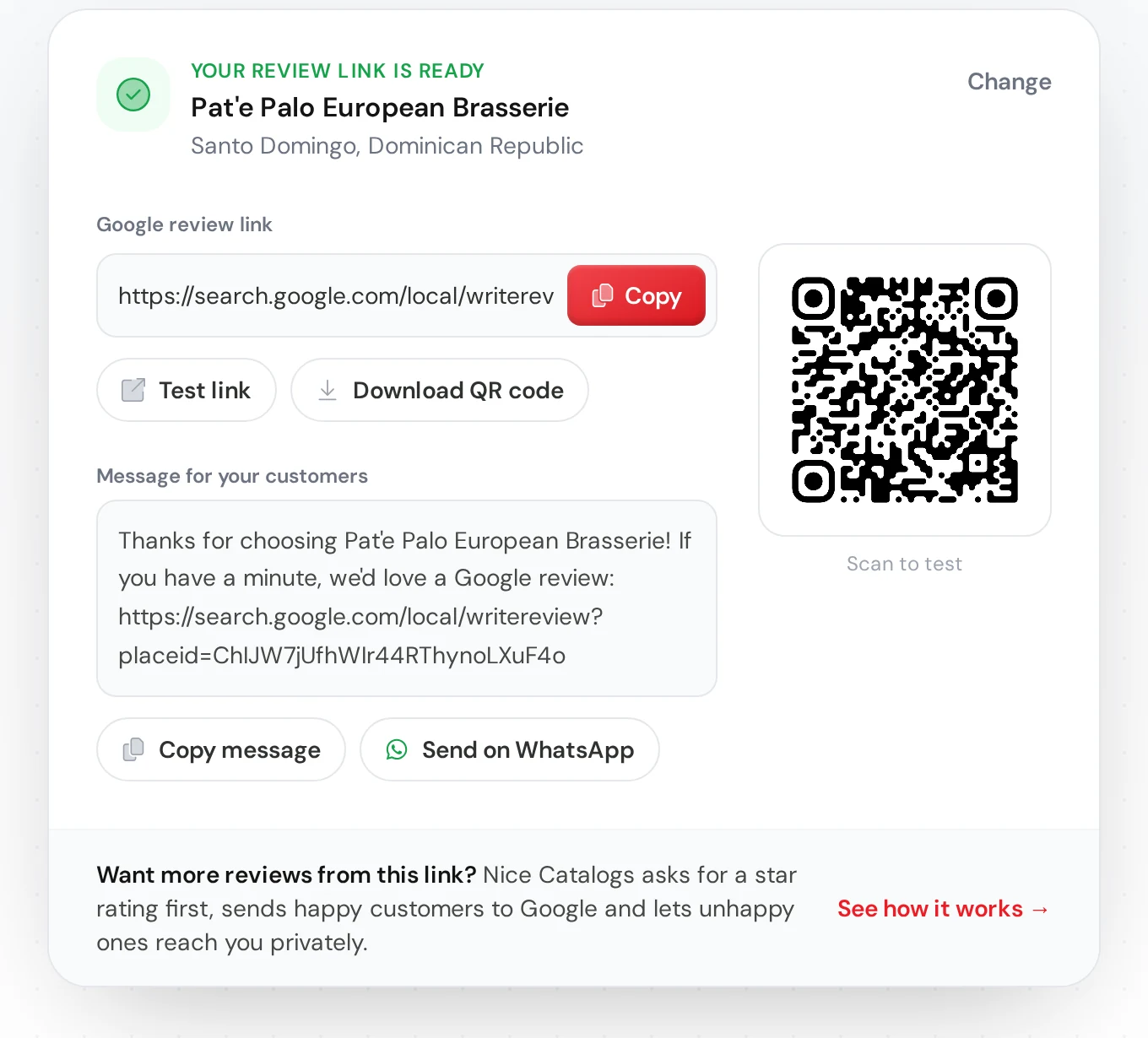
If customers already know your shop, a new catalog link is a good moment to ask for reviews too. Our free Google review link generator finds your business, gives you a direct link to the review box and a QR code, and writes a short message you can paste into a chat. No sign-up needed.
FAQ
Can I download my Flipsnack catalog as a PDF on the Free plan?
Yes. Flipsnack's help center says every plan can download a PDF, but downloads from a Free workspace carry a small "Created in Flipsnack" badge on every page. Paid plans don't.
PDF for web or PDF for print for the migration?
PDF for web. It's the smaller file, and you're only using it so the converter can read your products. The Nice Catalogs converter accepts PDFs up to 5 MB, so if your catalog is big, download a page range at a time.
Will the converter bring over my product photos?
Not in my test. The preview showed placeholders instead of photos, so plan to add photos after import.
What if my catalog has products in columns or grids?
Try it, because the preview is free. In my test a three-column layout came out with only 4 of 9 products and mixed-up text. If that happens, use the CSV route: one product per row with name, price and category, uploaded to the CSV converter.
Do my customers need an app or an account?
No. They open your catalog link or scan the QR code in their phone's browser.
Do I have to cancel Flipsnack first?
No. You can build and check the new catalog first, and keep your flipbook live until you're happy with it.
Ready to try it with your own catalog? Drop your PDF into the free converter to see what it finds, or create your account and start the 7-day trial.