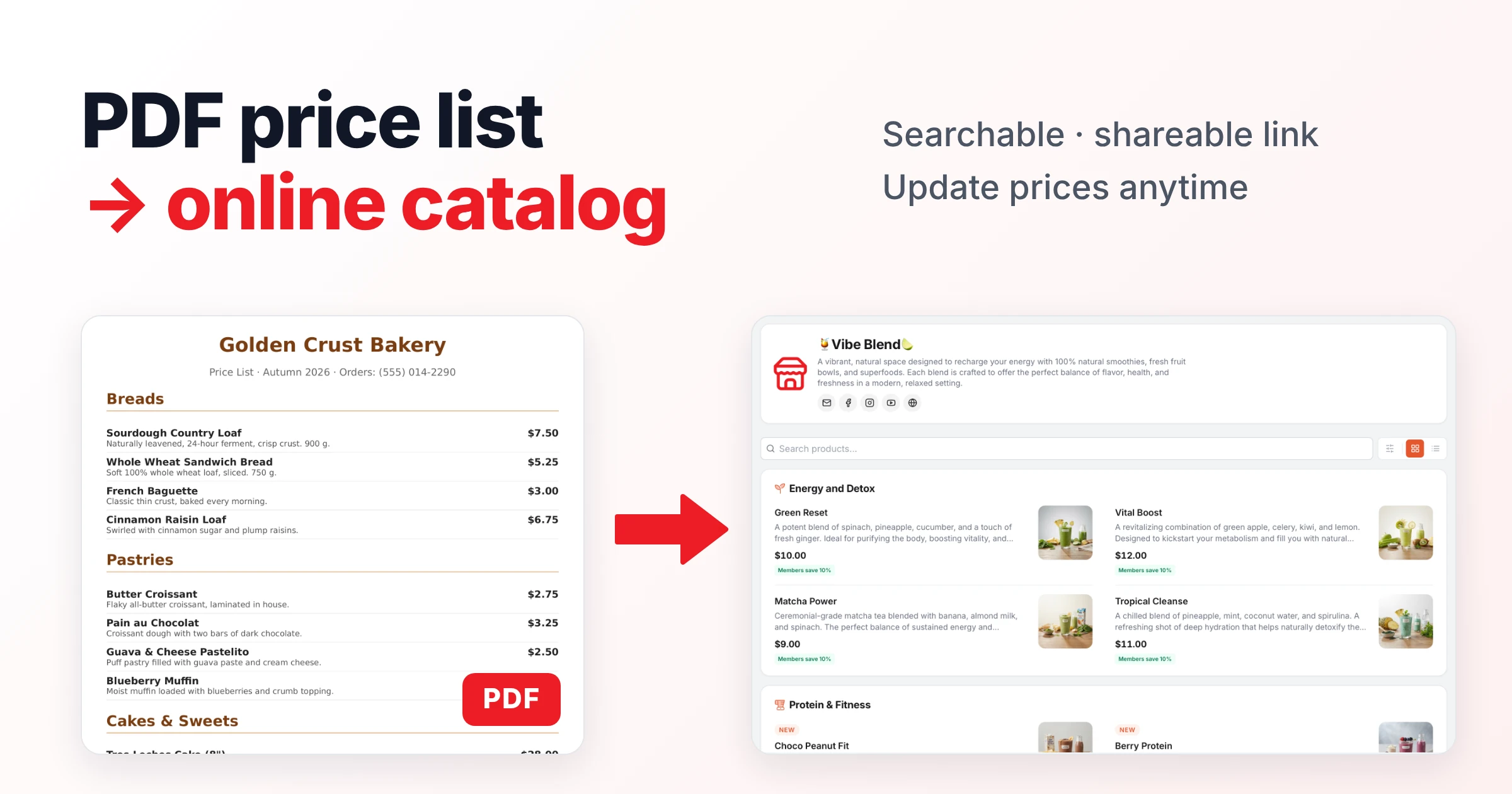
A lot of the businesses I talk to already have a catalog. It's a PDF. Somebody designed it once, it lives in a WhatsApp chat or an email attachment, and every time a price changes, a new version has to be made and sent again. Customers pinch and zoom on their phones, can't search it, and half the time they're looking at last season's prices.
The good news is that you don't have to start from scratch to fix that. In this guide I'll show you how to turn a PDF into an online catalog: a mobile-friendly page with a link you can share, where customers can search your products and always see the current prices. I'll use Nice Catalogs for the examples, because it's what I build, and the first steps are free and don't need an account.
Why move your PDF catalog online
A PDF was the best option for a long time. It's easy to make and easy to send. But it was designed for paper, and your customers are reading it on a phone. An online product catalog fixes the problems a PDF can't:
- It's easy to read on a phone. No zooming into a letter-size page to read a price.
- Customers can search it. They type "croissant" and get the croissant, instead of scrolling through twelve pages.
- Prices update instantly. You change a price or mark an item unavailable and everyone with the link sees it right away. No more "v3-final-FINAL.pdf".
- One link for everything. You send your catalog as a link on WhatsApp, Instagram, email or a QR code, and it's always the same link.
- You can keep some prices private. A password-protected catalog is handy for wholesale price lists you don't want everyone to see.
A PDF still has one advantage: it works offline and prints well. I'll come back to that at the end.
What you need before you start
Grab the PDF you send to customers today. The method below works best with a text-based PDF, meaning one exported from Word, Excel, Google Docs, Canva or a similar tool, where you can select the text with your cursor. Scanned pages and image-only PDFs (a photo of a printed menu, for example) can't be read automatically.
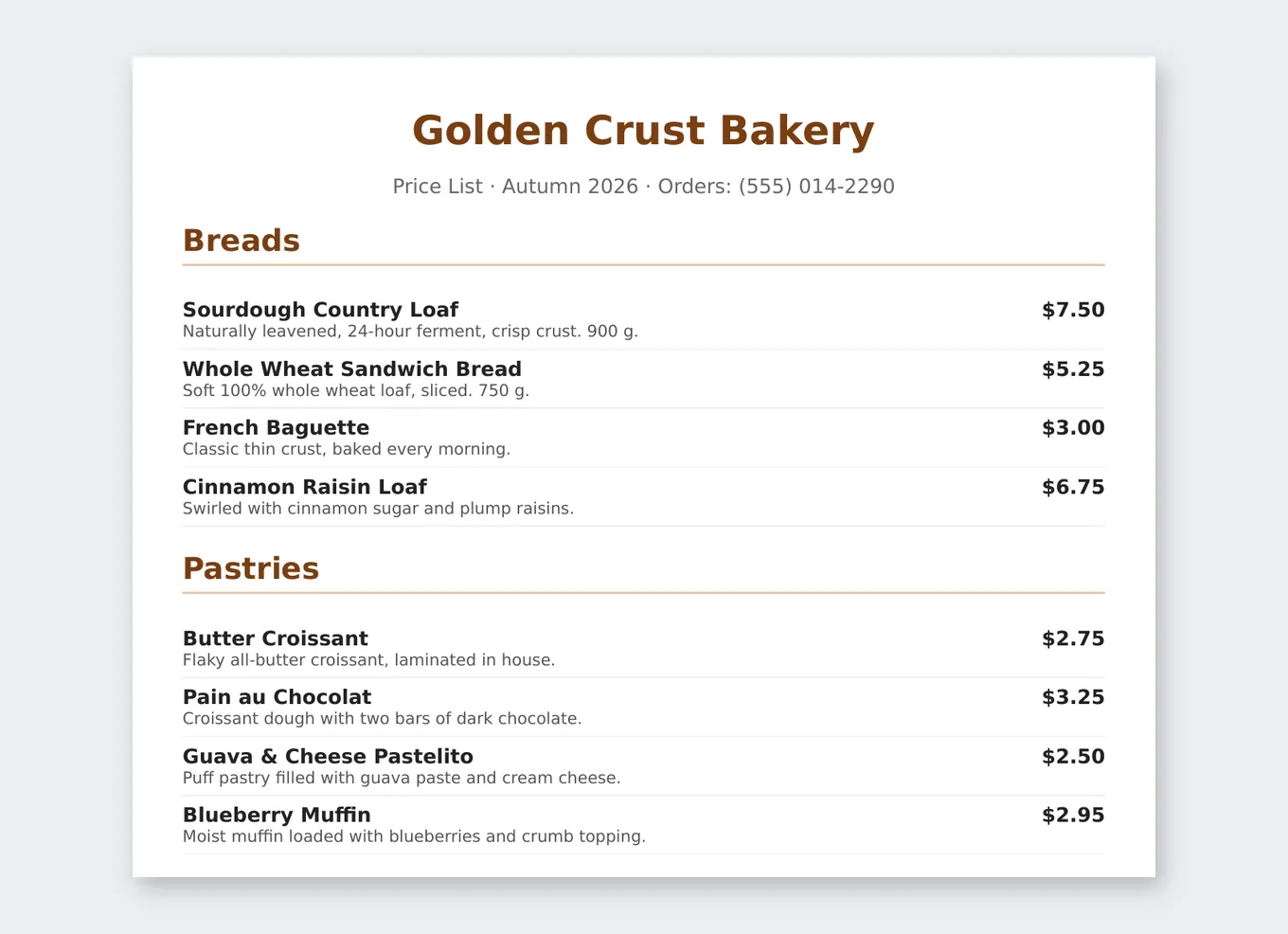
For this guide I made a small sample price list for a made-up bakery, "Golden Crust Bakery", with 12 products in three categories, each with a name, a short description and a price:
Step 1: Upload your PDF to the free converter
Open the free PDF catalog converter . You don't need an account to try it. Drag your PDF onto the upload area or click to pick the file. It accepts PDF files only, up to 5 MB.
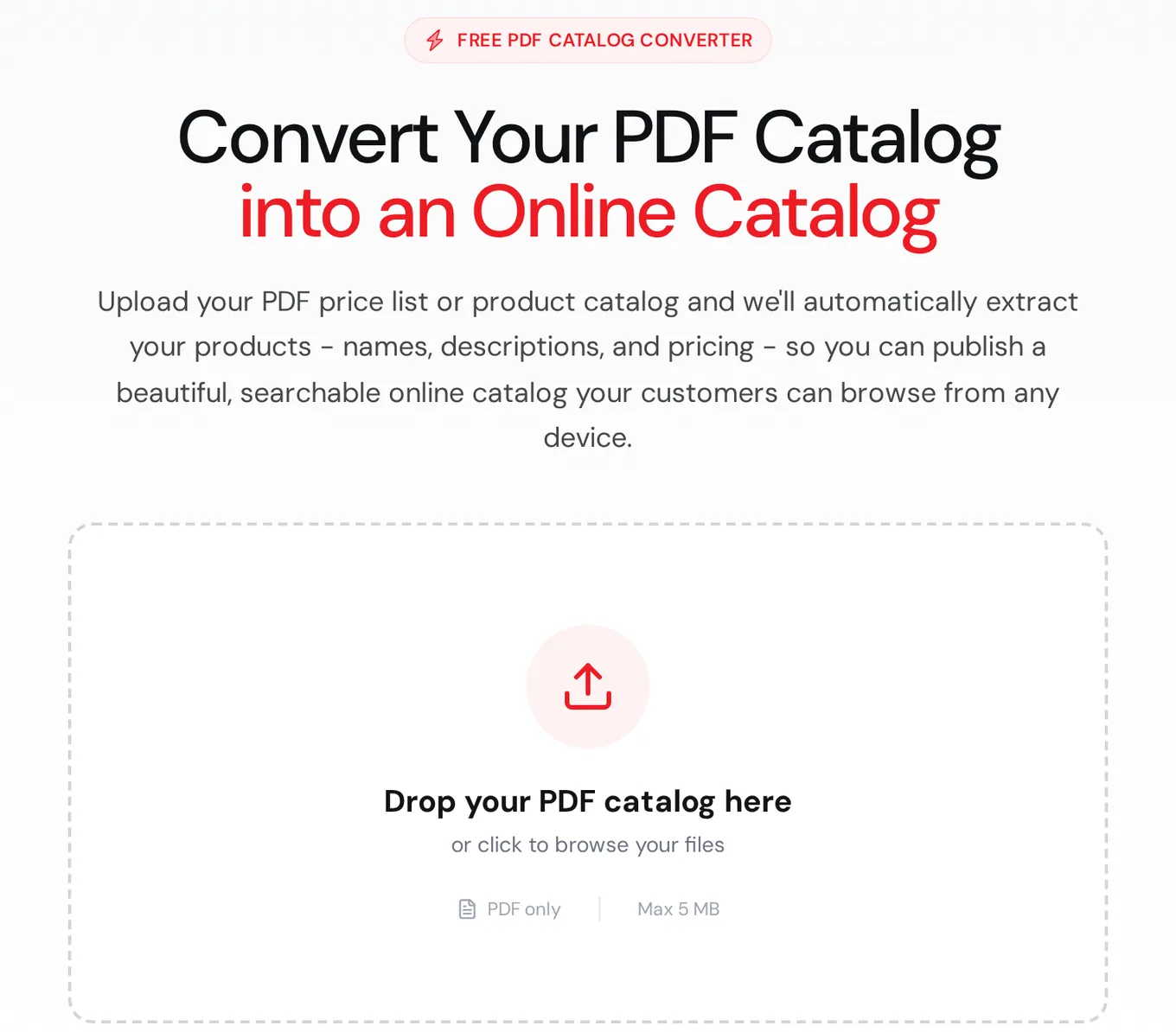
The converter scans the document and tries to pull out each product's name, description and price, so you can review what it found before you create an account.
Step 2: Review the extracted products
If the converter finds your products, you'll see them listed so you can check the names, descriptions and prices before importing. From there, step 3 is to create your account and import them.
If you get a "No products detected" message instead, the converter couldn't read product data from that file. That always happens with scanned or image-only PDFs, and it can also happen with some layouts. Don't type everything in by hand yet. There's a faster route.
Step 2b: The spreadsheet route (works with any PDF)
Most price lists started life as a spreadsheet anyway. If you have the original Excel or Google Sheets file, export it as CSV. If you only have the PDF, copy the table into a spreadsheet (or ask whoever designed the PDF for the source file) and keep one row per product.
Then use the free CSV to catalog importer . It recognises common column names: name, title or product name for the product; description, desc or notes for the description; and price, cost, unit price or retail price for the price. The page says the file is processed in your browser, the limit is 10 MB, and you can download a demo CSV if you want to see the expected format.
I uploaded the bakery price list as a CSV with name, description and price columns. All 12 products were detected and shown in a preview right away:
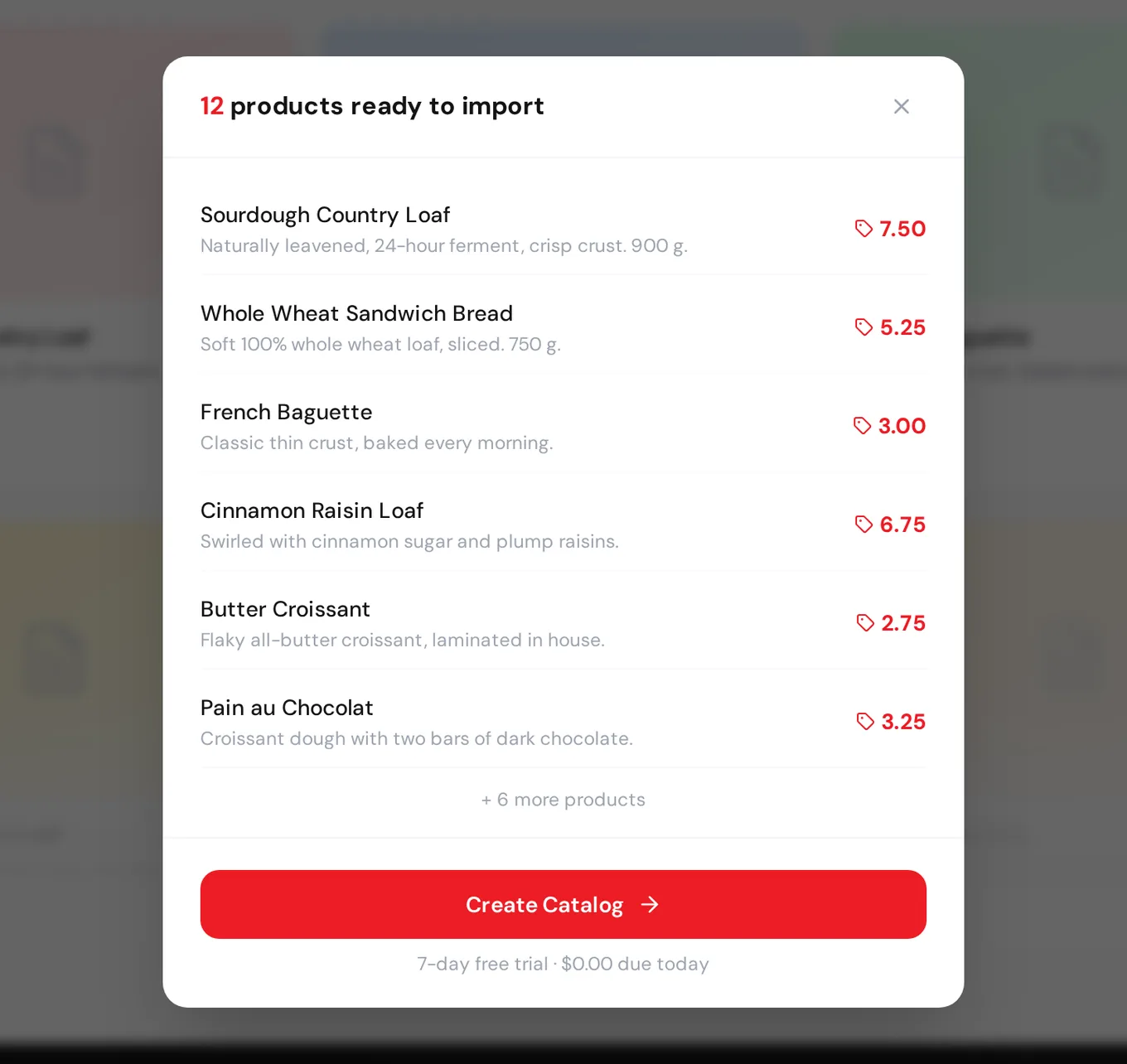
My CSV also had a category column. The preview only shows names, descriptions and prices, so plan to set up categories (Breads, Pastries, Cakes & Sweets) in the dashboard after importing.
Step 3: Create your account to import and publish
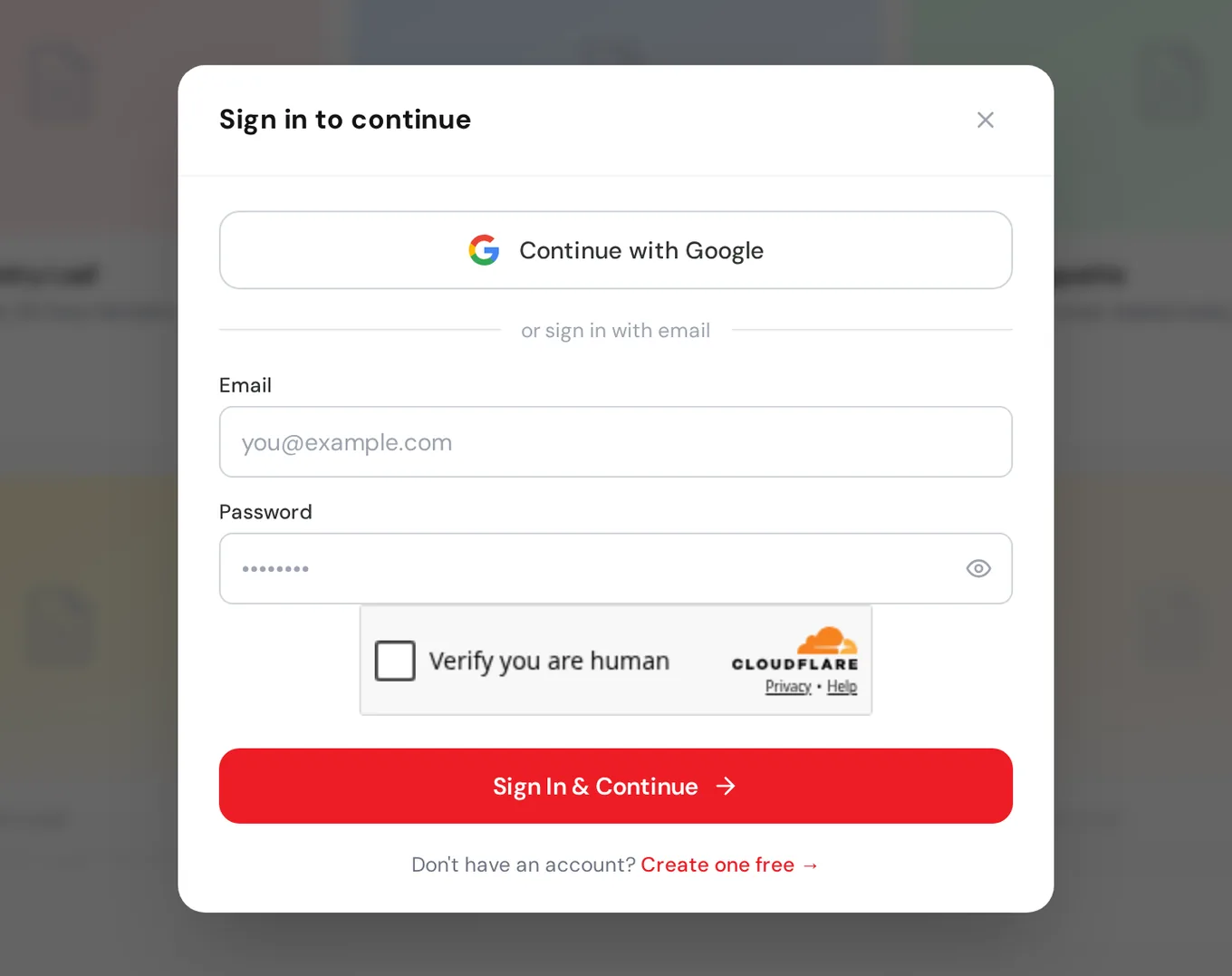
When you click Create Catalog, the importer asks you to sign in to continue. You can continue with Google or use an email and password, and if you're new there's a "Create one free" link. Every plan starts with a 7-day free trial and $0.00 due when you sign up.
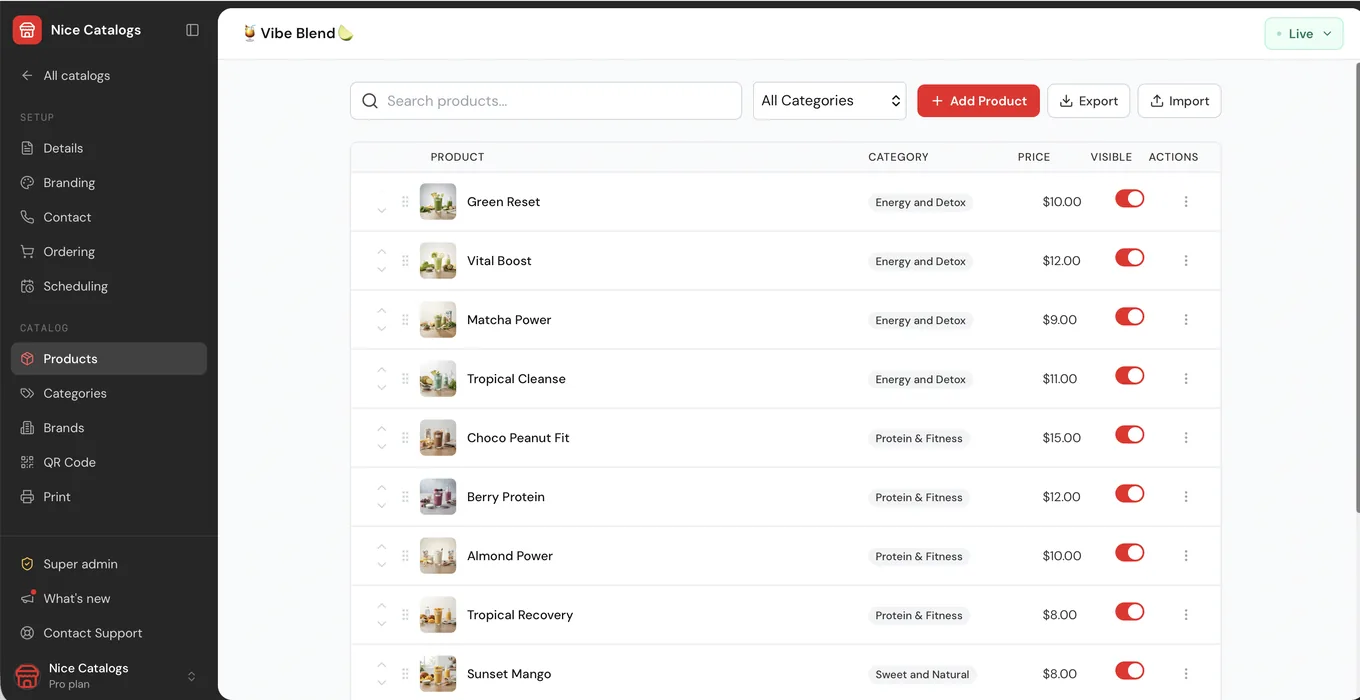
You can also sign up first and build your catalog from the dashboard. The Products page has an Import button next to Export, plus search, categories and a visibility switch for each product:
Step 4: Polish your catalog
Before you share anything, spend ten minutes on the details that make an online catalog better than the PDF:
- Add photos. A PDF price list is often text only. Even a few product photos make a big difference.
- Group products into categories, so customers can jump to what they need.
- Add your logo and colours. You can start from one of the built-in themes and match it to your brand.
- Check the prices one more time. Imports save a lot of typing, but a quick look beats a wrong price.
If you want more detail on structure, photos and descriptions, I wrote a full guide on how to set up an online product catalog .
Step 5: Share the link
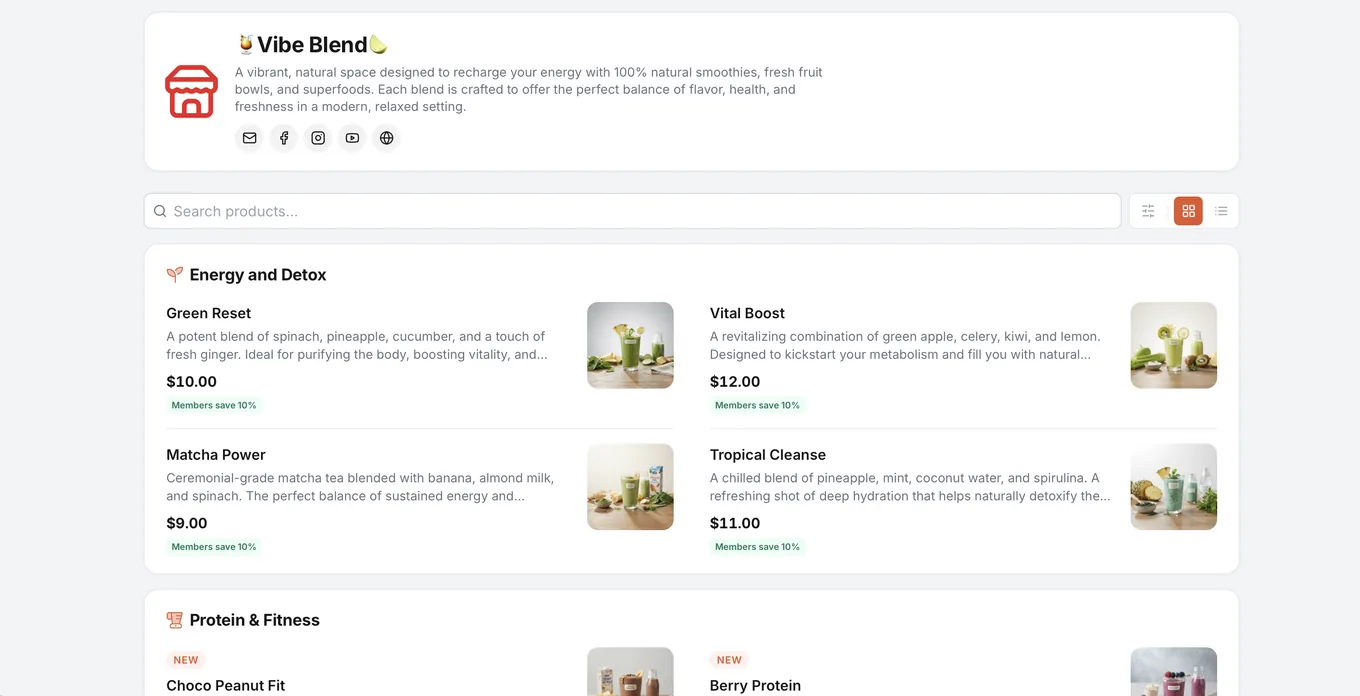
When it's ready, publish it and share the link. Customers open it in their browser, with no app to install and no account needed to browse, and they can search your whole range. This is what a published catalog looks like (this one is a smoothie bar):
A few places to put the link:
- WhatsApp: pin it in your business profile and send it whenever someone asks for prices. With WhatsApp ordering , customers can add items to a cart and send you the order as one itemised message.
- Instagram bio and your Google Business Profile.
- A QR code at the counter, on packaging or on printed flyers.
- Email signatures and quotes for B2B customers.
If you want to look around before setting yours up, you can open a live demo catalog without signing up.
Do you need a PDF to digital catalog conversion service?
If you search for this, you'll find agencies that will convert your PDF catalog into a flipbook or a website for you. That can make sense if you have hundreds of pages of complex layouts and a budget for it.
For most small businesses, a service isn't necessary. The catalog itself is the easy part. What matters is that you can update it yourself when a price changes. With the free converters you can preview your products in a few minutes, then manage the catalog yourself.
What it costs
Uploading a PDF or CSV and previewing your products is free and needs no account. To import, publish and share your catalog, you need a plan. Both come with a 7-day free trial:
- Basic, $5/month: up to 3 catalogs with up to 50 products each, password protection, a custom catalog URL, QR code export and no Nice Catalogs branding.
- Professional, $10/month: unlimited catalogs and products, plus a custom domain, analytics, AI photo and text improvements, and a printable PDF export.
Yearly billing saves 20%. All the details are on the pricing page .
Keep a PDF for print (and let it point to the live catalog)
Remember the one thing PDFs do better: print and offline. You don't have to give that up. On the Professional plan, Nice Catalogs can generate a branded, print-ready PDF price list or menu from your online catalog, with category headings and an optional QR code linking back to the live version. So the printed copy and the online catalog come from the same source, and the QR always leads to current prices.
Quick checklist
- Check that your PDF is text-based (you can select the text).
- Upload it to the free PDF catalog converter and review the products.
- If it says "No products detected", export or copy your list to a CSV and use the CSV importer .
- Create your account and import your products (7-day free trial).
- Add photos, categories and your branding.
- Publish and share the link on WhatsApp, Instagram and a QR code.
Your PDF did its job. Now let it become a catalog your customers can actually use on their phones. Try the free PDF converter with the file you already have.
More free tools: if you're also trying to get more reviews, our Google review link generator gives you a direct link to your Google review form, a QR code to print and a ready-to-send message. No sign-up needed.