Most small businesses already have a product catalog. It just lives in a spreadsheet: one row per product, a price column you update when costs go up, maybe a category column you added so you could sort it. The problem is that a spreadsheet is a terrible thing to send to a customer. It opens tiny on a phone, columns get cut off, and the copy they saved last month still has last month's prices.
A catalog generator from CSV fixes that without making you rebuild anything. You keep the spreadsheet you already maintain, export it as a CSV file, and the generator turns each row into a product on a clean, mobile-friendly page you can share as one link. In this guide I walk through exactly how that works with the free CSV to catalog converter we built at Nice Catalogs, including the small file details that decide whether your import comes out clean or messy. I tested everything below on the live converter on October 30, 2026.
What a CSV catalog generator actually does
CSV stands for "comma-separated values". It's the plain-text version of a spreadsheet: every line is a row, and commas separate the columns. Excel, Google Sheets, Numbers and almost every inventory or POS system can save or export one.
A catalog generator reads that file, figures out which column holds the product name, which holds the price and so on, and builds a catalog from it. The difference from a PDF or a shared sheet is what your customer gets: a page with search, categories and a single link that stays up to date . When you change a price, you change it once and everyone who opens the link sees the new one.
The Nice Catalogs converter lets you see the result before you sign up for anything. Here's the whole flow.
Step 1: Get your spreadsheet into shape
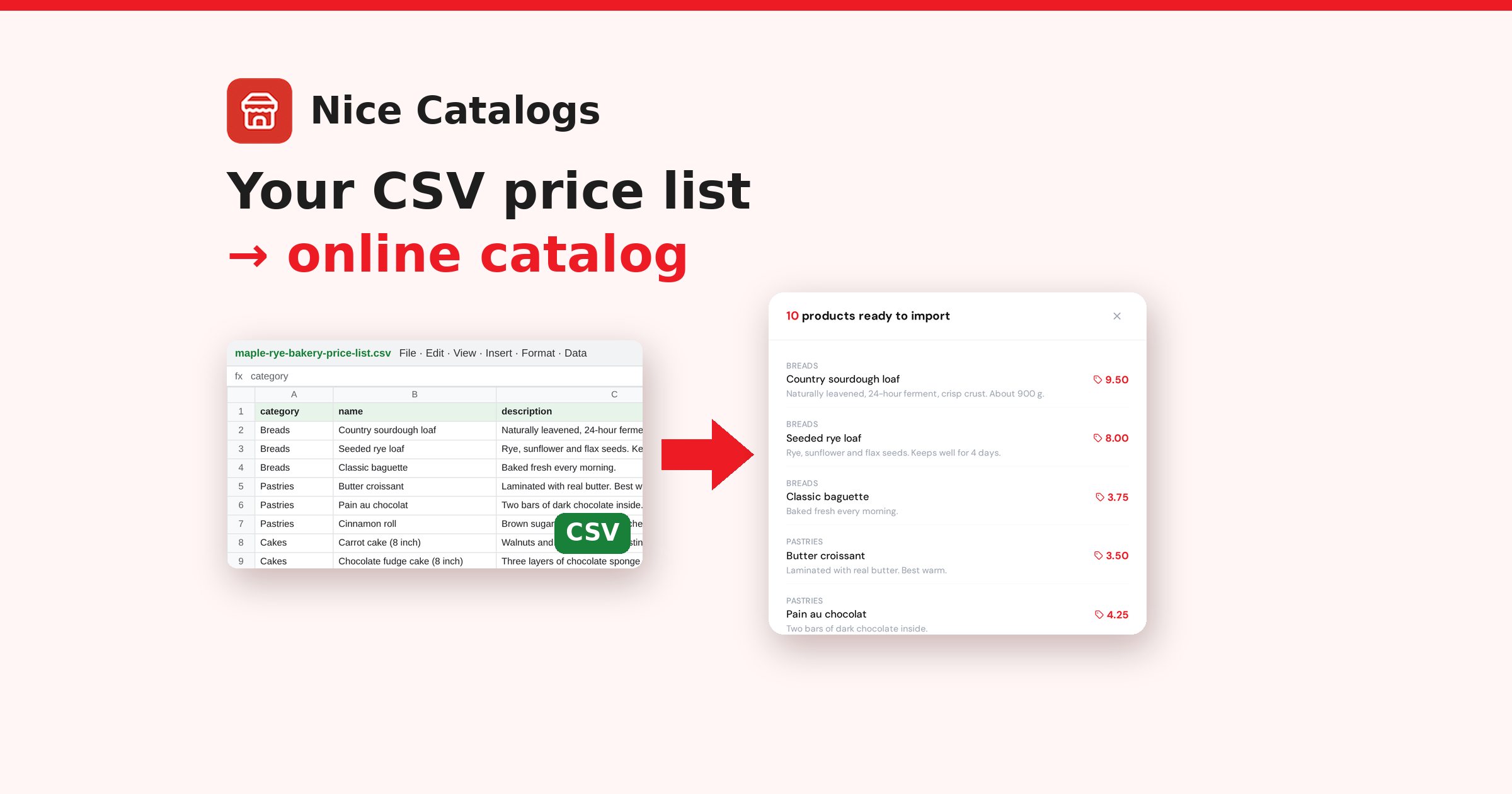
To test it, I made a price list for a made-up neighborhood bakery, "Maple & Rye", with 10 products across breads, pastries, cakes and cookies:
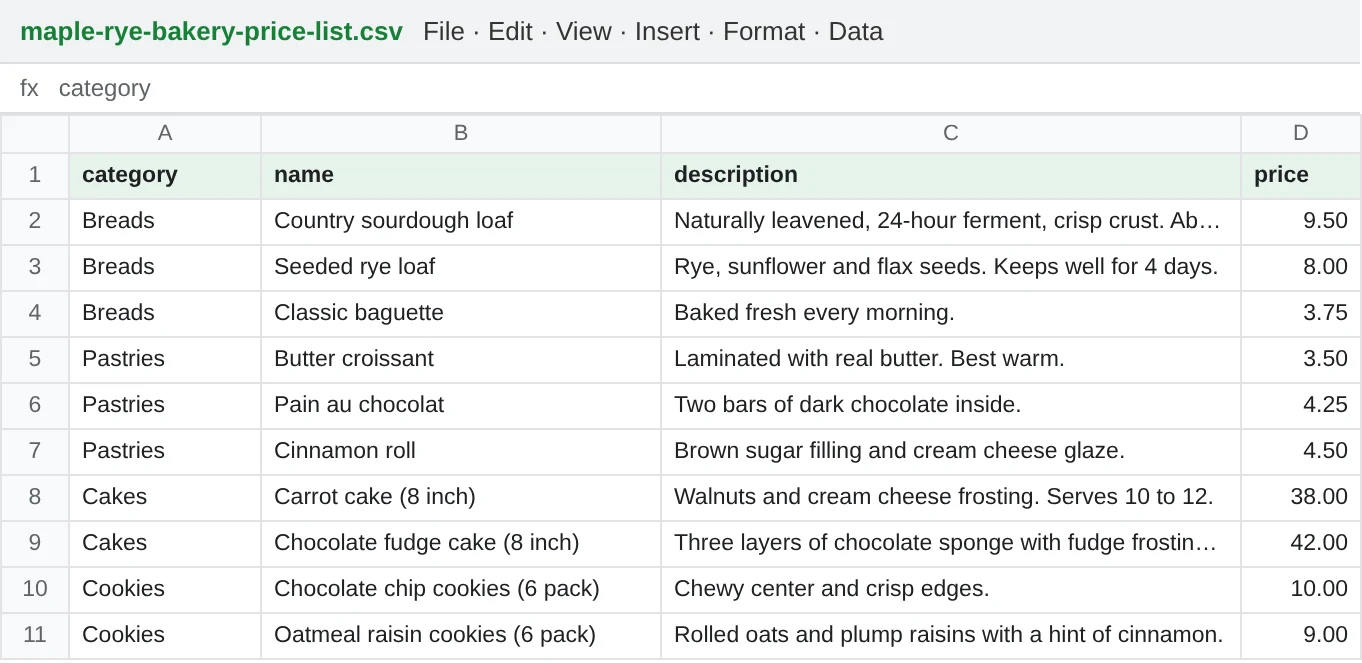
That layout is all the converter needs: a header row on top, then one product per row. You don't need a fixed template. The page lists the column names it recognizes:
- Name: name, title or product name
- Description: description, desc or notes
- Price: price, cost, unit price or retail price
I also added a category column, and the converter used it to group the products (BREADS, PASTRIES and so on). To check how flexible the header detection is, I renamed my columns to "Category", "Product Name", "Notes" and "Unit Price", and it still picked up all 10 products correctly.
A few things I learned from testing that are worth fixing in the sheet before you export:
- Keep the header row. When I uploaded the same file without headers, the converter treated my first product as the header row. It found 9 products instead of 10 and couldn't tell which column was the name.
- Write prices as plain numbers. Use 9.50, not "$9.50". With a currency symbol in the cell, the preview showed the price exactly as typed, "$9.50" with the dollar sign as text. A clean numeric column is the safe choice.
- One row per product. If a cake comes in two sizes, make two rows: "Carrot cake (8 inch)" and "Carrot cake (10 inch)".
- Keep descriptions short and plain. Size, flavor, how many it serves. If your text came out of an online store, watch for HTML: in a test file laid out like a Shopify product export, the names and prices came through, but the descriptions showed the raw tags, like "<p>…</p>".
If you'd rather start from a known-good file, the converter page has a "Download demo CSV" button with a sample you can copy.
Step 2: Export your spreadsheet as CSV
This is the step that trips most people up: the converter only accepts CSV files. I uploaded the same bakery list as an Excel .xlsx file and got "Only CSV files are supported." So export first. It takes a few seconds:
- Excel: File > Save As (or Save a Copy) and choose "CSV UTF-8 (Comma delimited) (*.csv)".
- Google Sheets: File > Download > "Comma-separated values (.csv)".
- Numbers on Mac: File > Export To > CSV.
- An inventory or POS system: look for an "Export products" or "Export to CSV" option, then open the file once to check it still has a header row and a price column.
Pick UTF-8 when you're offered the choice, so accented characters and symbols survive the trip. If your copy of Excel saves CSV files with semicolons instead of commas (common in regions that use a comma as the decimal mark), that's fine: I tested a semicolon-separated version and all 10 products came through.
Step 3: Upload the CSV to the free converter
Open the CSV to online catalog converter and drop your file on the box that says "Drop your CSV file here", or click it to browse. The page shows the limits right under the box: CSV only, max 10 MB. That's far more than a price list needs; when I tried an 11 MB file it answered "File is too large. Maximum size is 10 MB."
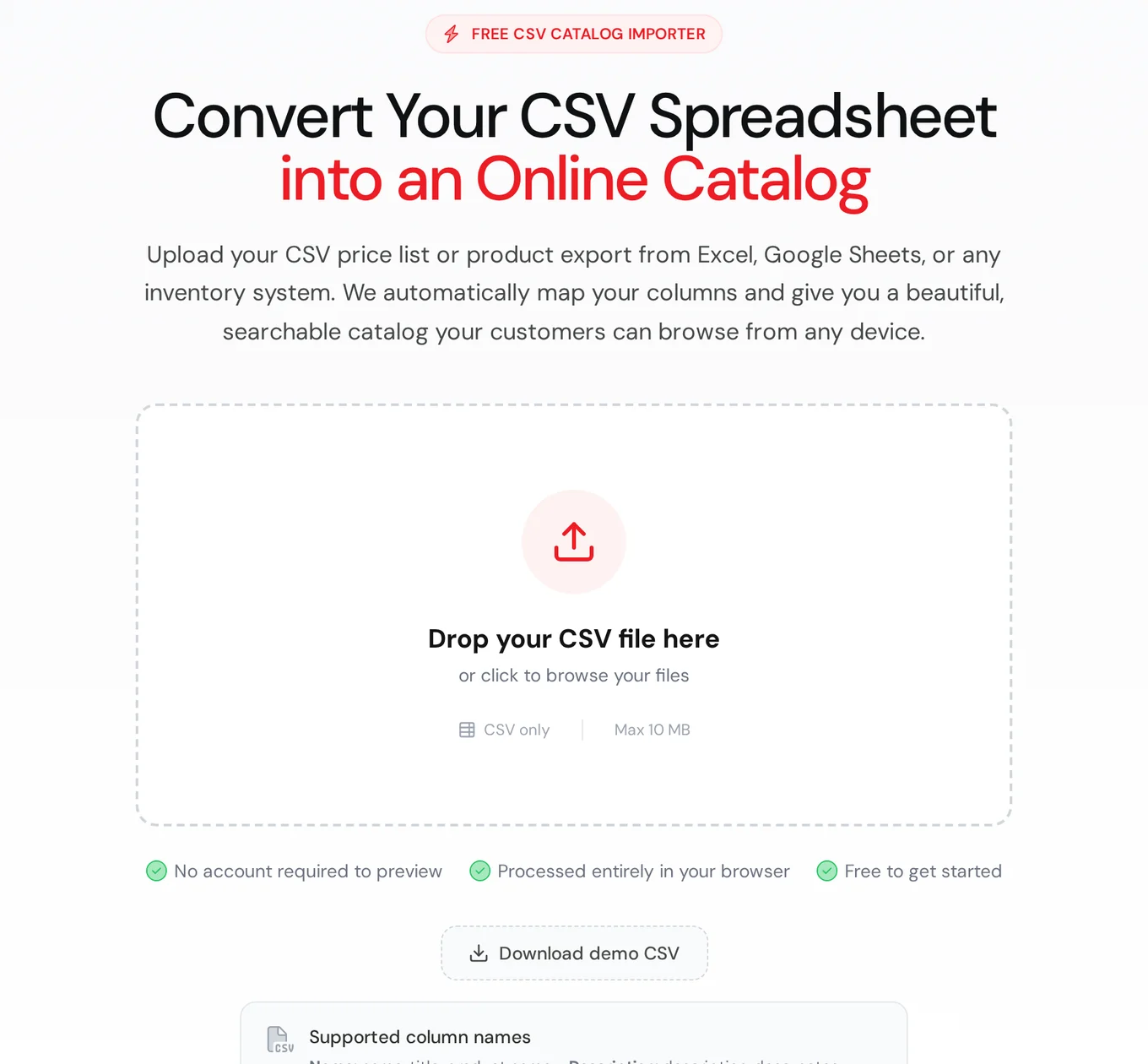
You don't need an account for this part. According to the page, the CSV is processed entirely in your browser for the preview, and when I watched the network traffic during my tests, the file wasn't sent anywhere while it built the preview.
Step 4: Check the products it detected
A couple of seconds after the upload, a window pops up with the count. For the bakery it said "10 products ready to import", with each product's category, name, description and price, the way they were in the sheet:
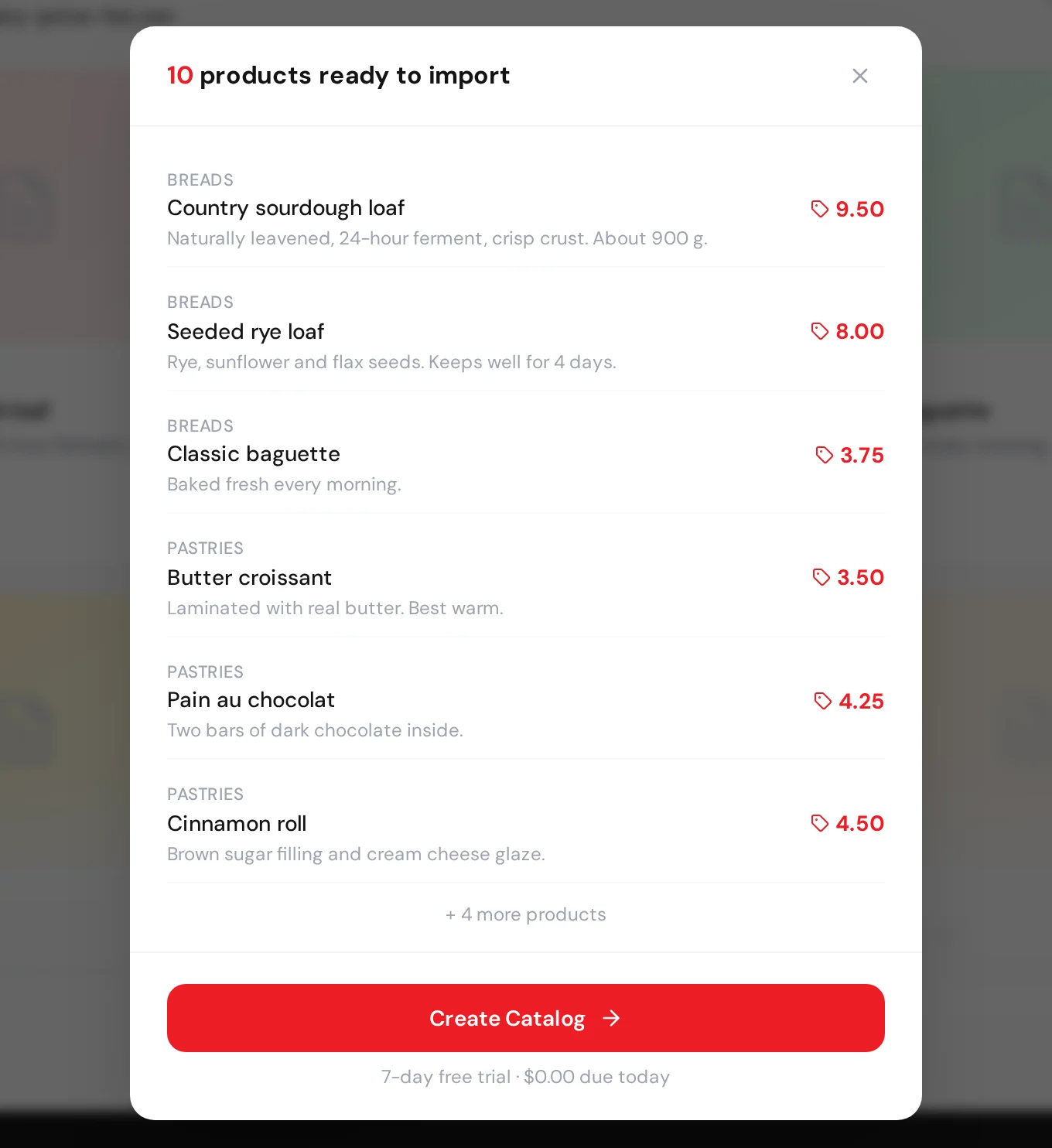
This is your chance to spot problems. If a price looks wrong or a description is in the wrong column, it's faster to fix it in the spreadsheet, export again and re-upload than to fix products one by one later. There's an "Upload a different file" link on the page for exactly that.
Step 5: Sign in and import
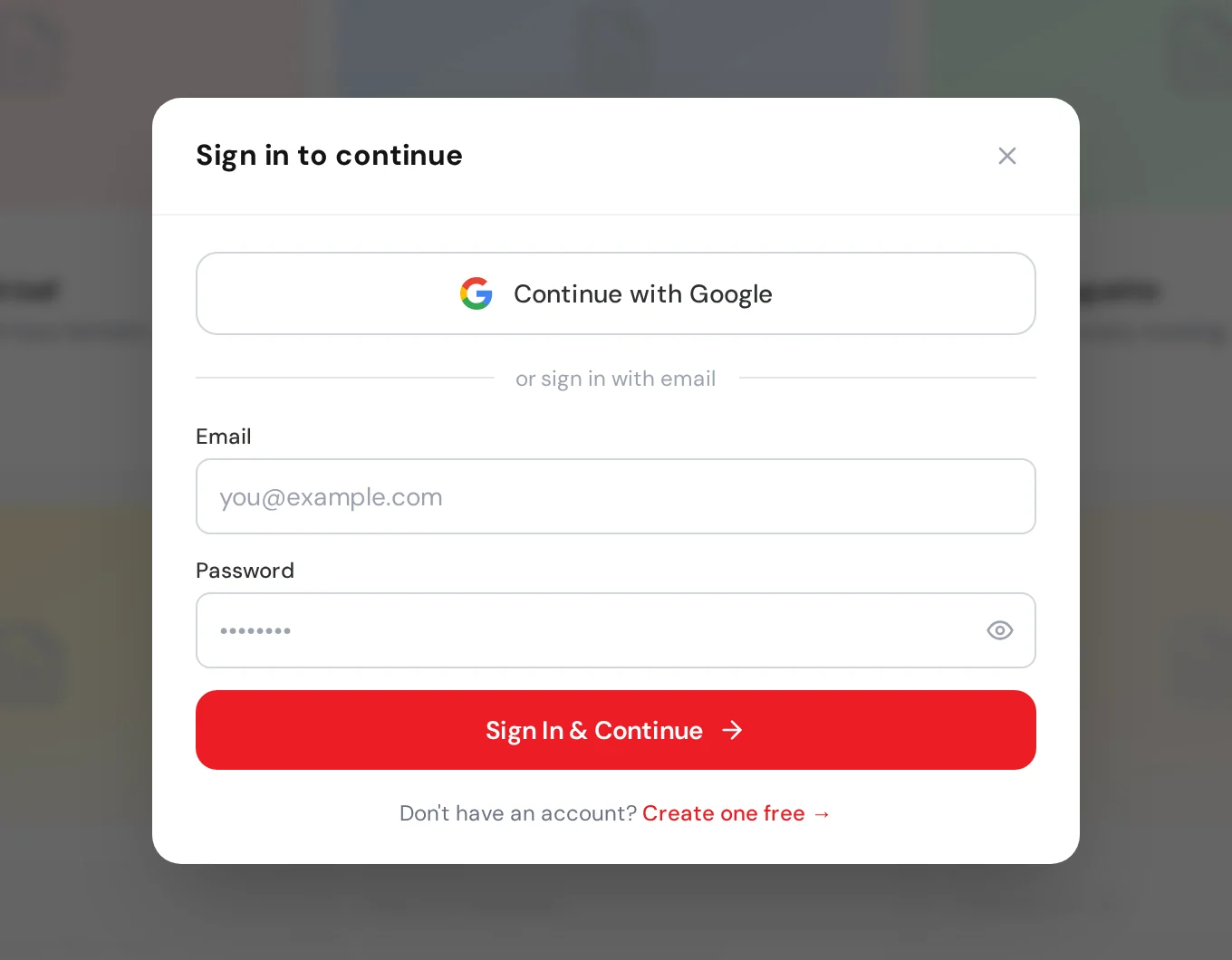
When the preview looks right, click "Create Catalog". That's the point where the converter asks you to sign in or create an account ("Sign in to continue"), with Google or with email and password. Once you're in, your products are imported into your account.
What it costs, from our pricing page today: every plan starts with a 7-day free trial, $0.00 due today, cancel anytime. After that, Basic is $5/month (up to 3 catalogs and 50 products per catalog) and Professional is $10/month (unlimited catalogs and products, plus extras like a custom domain and analytics). Paying yearly saves 20%. If your CSV has more than 50 products, keep that Basic limit in mind. And if you'd rather start from scratch without a file, you can create your account here .
Step 6: Polish the catalog and share the link
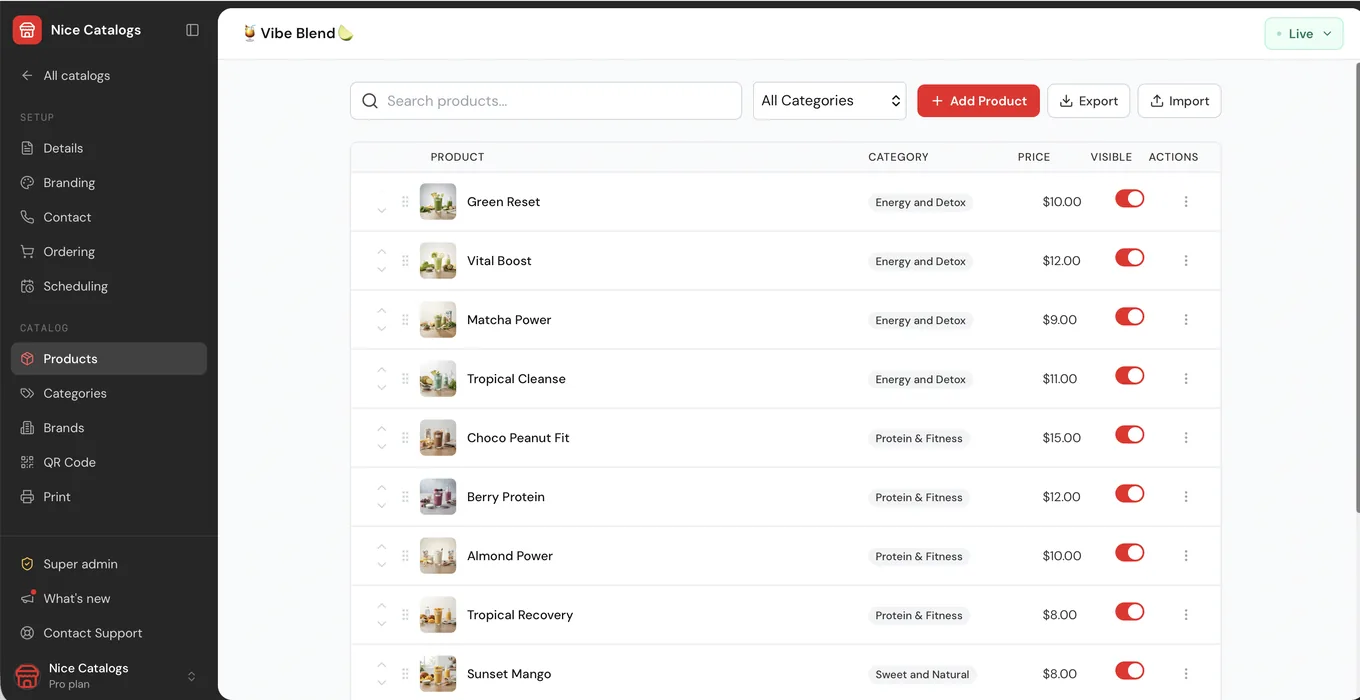
Imported products show up on the Products page of your dashboard. That's where you add photos, adjust prices, switch products off when they sell out, and keep using spreadsheets if you like, with Import and Export buttons right at the top:
What your customers see is a public catalog with search and categories that opens on any phone, no app to install. This is the Vibe Blend demo catalog:
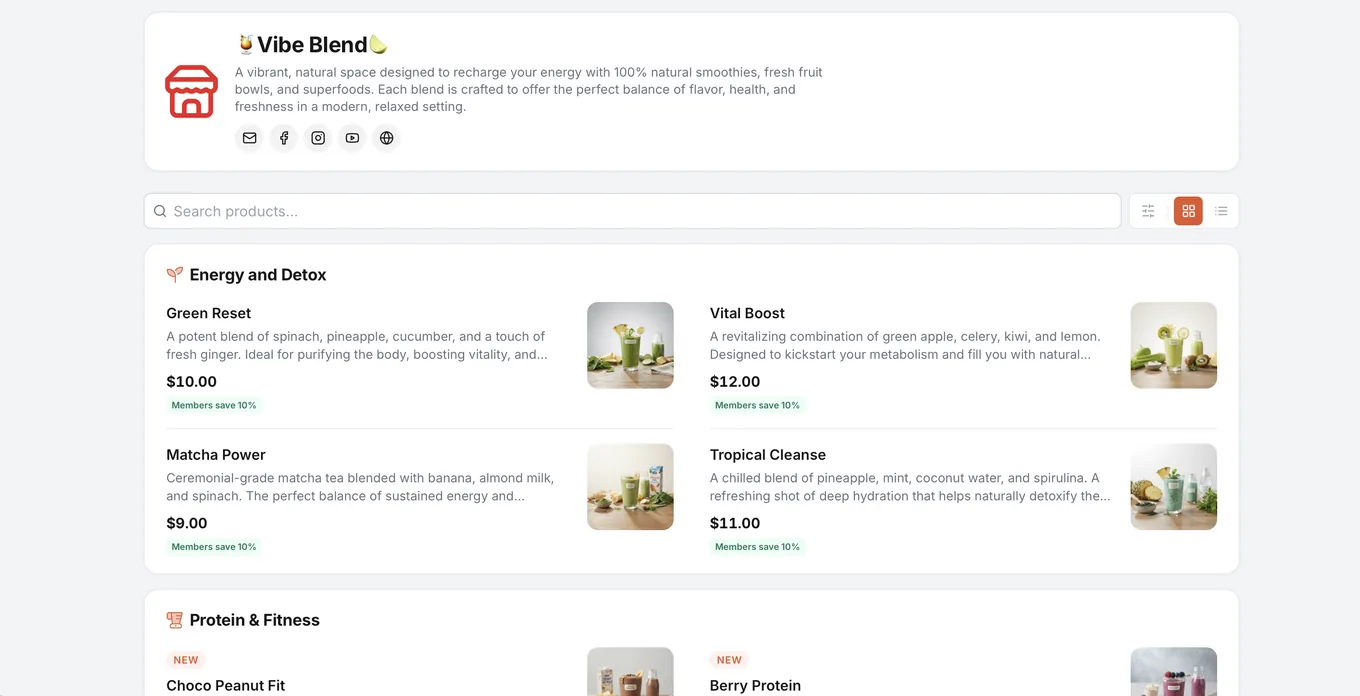
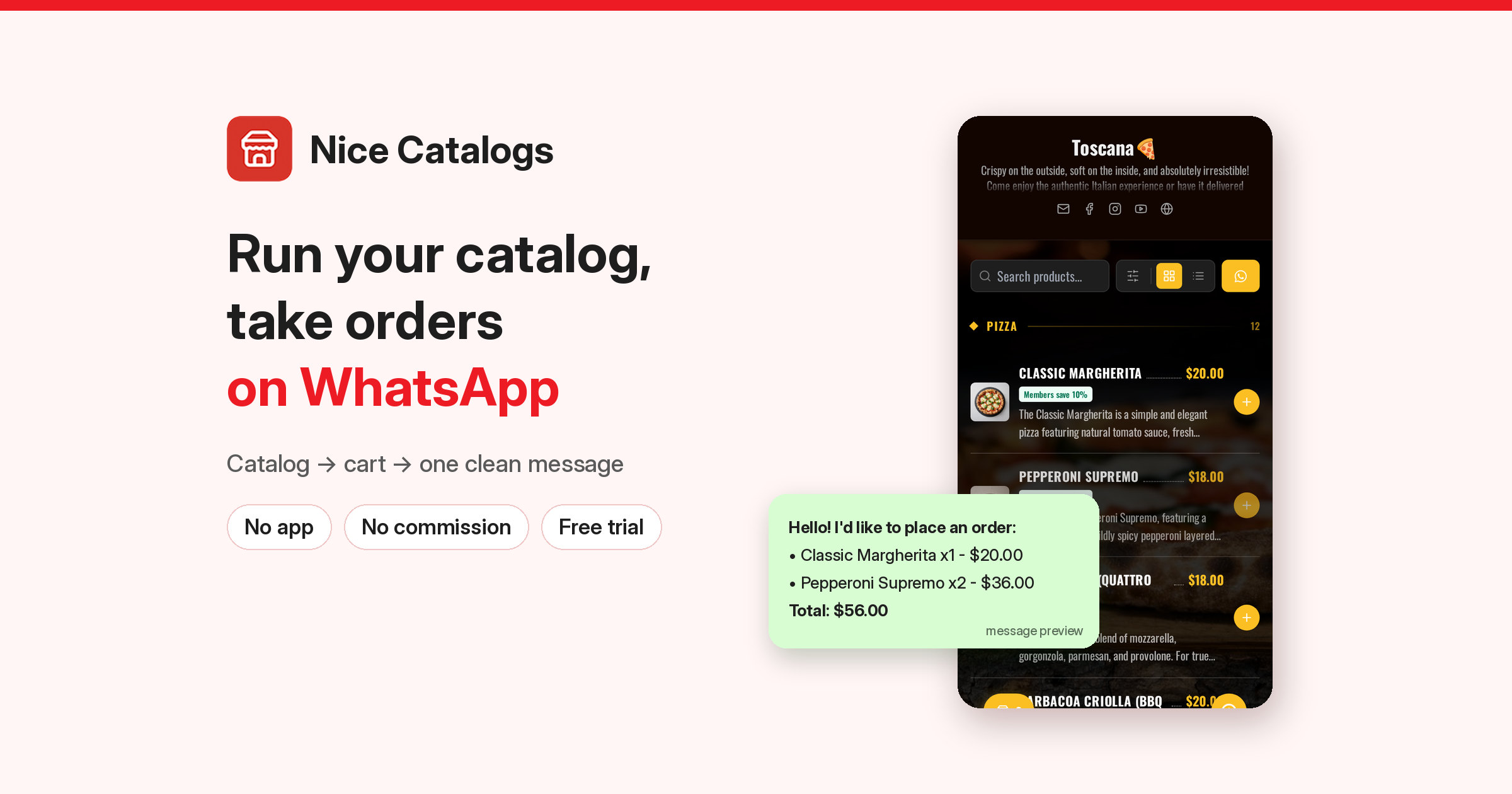
You can click through it yourself on the live demo catalogs . From there, the link goes wherever your customers are: your WhatsApp status, your Instagram bio, a QR code on the counter, or the reply to "can you send me your price list?". I wrote a whole guide on sending your product catalog as a link if you want ideas. Turn on WhatsApp ordering and customers can pick products and send you the order as one itemized message.
CSV, PDF or by hand: choosing your catalog conversion route
There are three common ways to get an existing product list into an online catalog, and the right one depends on what you have:
- You have a spreadsheet (or can export one): use the CSV catalog converter . It's the most predictable route, because the columns tell the generator exactly what each value is.
- You only have a PDF price list: there's a separate PDF to catalog converter . I cover that route, what to expect and what to do when it doesn't pick up your products in how to turn a PDF into an online catalog . If you have both the PDF and the original spreadsheet, start from the spreadsheet.
- You have a handful of products: just add them in the dashboard. My step-by-step guide on how to set up an online product catalog covers it.
Reading Spanish? There's also a Spanish version of this process with a different example: cómo convertir tu lista de precios de Excel o CSV en un catálogo online .
Bonus: a free tool for the reviews that come next
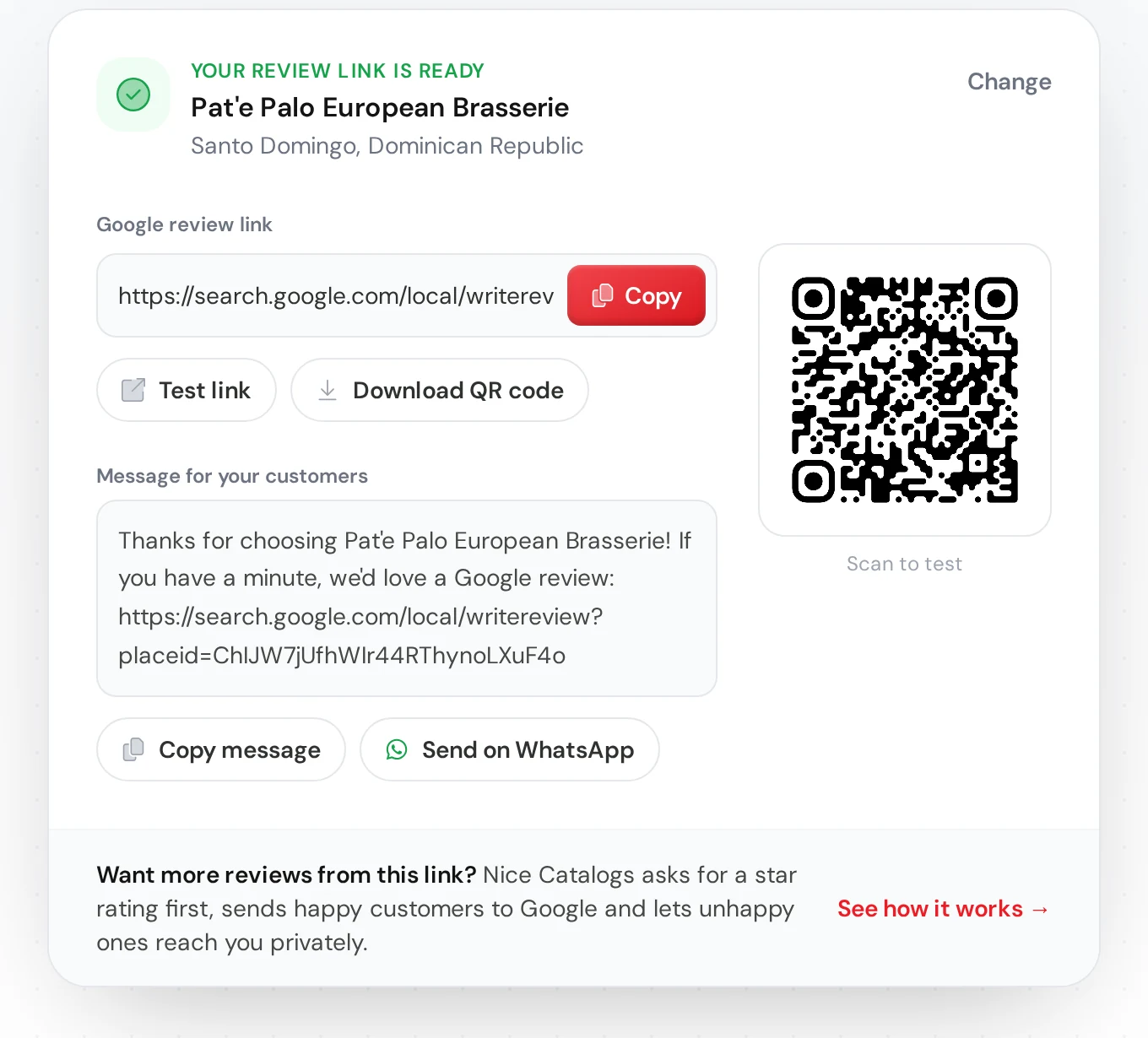
Once orders start coming in, the next thing that helps you sell is Google reviews. We also have a free Google Review Link Generator : search your business and it gives you a direct review link, a QR code and a ready-to-send message, no sign-up needed.
FAQ
Can I upload an Excel file directly?
No. The converter accepts CSV only; when I uploaded an .xlsx it said "Only CSV files are supported." Save or download your sheet as CSV from Excel or Google Sheets first (Step 2).
What columns does my CSV need?
A header row plus at least a name and a price column. Recognized names include name, title or product name; description, desc or notes; and price, cost, unit price or retail price. A category column groups your products in the preview.
Should prices include the currency symbol?
Better not. In my test, "$9.50" showed up in the preview exactly as typed, symbol included. Plain numbers like 9.50 are the safe format.
Is there a file size limit?
Yes, 10 MB. A price list with hundreds of products is usually a tiny fraction of that.
Is the catalog generator free?
Uploading and previewing your products is free and needs no account. To import and publish, you create an account and start the 7-day free trial; after that, plans start at $5/month (see pricing ).
Do I have to re-upload the CSV every time a price changes?
No. Once your products are imported, you edit them in the dashboard and the catalog updates at the same link. The Products page also has Import and Export if you prefer to keep working in a spreadsheet.
If your products already live in a spreadsheet, you've done the hard part. Export it as CSV, drop it into the converter , and see your catalog before you sign up for anything.