A lot of the messages I get from shop owners boil down to one question: how can I run a product catalog and take orders directly on WhatsApp, without building a full online store? You already sell over chat. You just want people to see what you have, pick what they want, and send you an order you can actually read.
There are two honest ways to do it. In this guide I go through both, then show the second one screen by screen with a real demo catalog: what you set up, what your customer taps, and the exact message that lands in your WhatsApp.
Option 1: the free catalog inside WhatsApp Business
If you want to spend $0, start here. The WhatsApp Business app is free to download and free to use , and it comes with a catalog. According to Meta's own help pages:
- You can upload up to 500 items , each with up to 10 images , a name, and optional price, sale price, description, link and product code.
- Every item goes through a review, and it only becomes visible to customers after WhatsApp approves it . Pending or rejected items stay hidden.
- Customers can add items to a cart and send the cart to your chat , then you agree on payment.
- Adding prices is only available in certain countries .
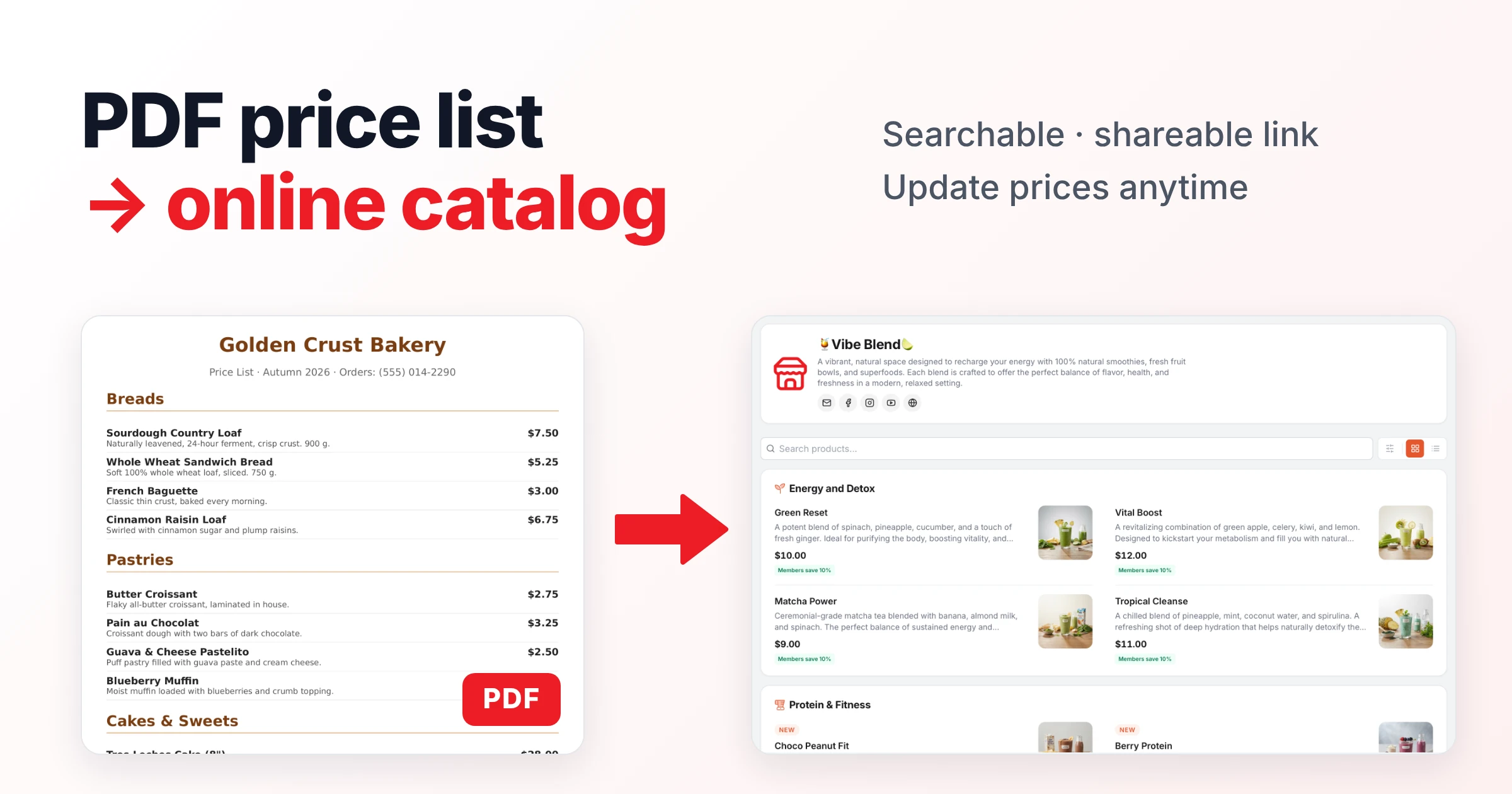
So yes, the WhatsApp Business catalog is free, and for a small list that changes rarely it does the job. Where it gets tight is everything around it: the catalog lives inside WhatsApp, every edit waits for review, and you can't really print it on a table or treat it like a menu people open from your Instagram bio. I went through those trade-offs in detail in WhatsApp Business Catalog Alternative , so I won't repeat all of it here.
Option 2: a catalog link with a cart that sends the order to WhatsApp
This is the setup I built Nice Catalogs for. Your catalog is a normal web page with its own link. Customers open it in the browser, tap products into a cart, and the cart turns into one WhatsApp message addressed to your number. They press send, and the order shows up in your normal chat.
Nobody installs anything. It works through a standard wa.me link, so your number can be a personal WhatsApp or a WhatsApp Business account. And there's no commission: you pay a flat monthly price for the catalog, and what the customer pays you stays with you.
Here's the whole thing, start to finish.
Step 1: Put your products in the catalog
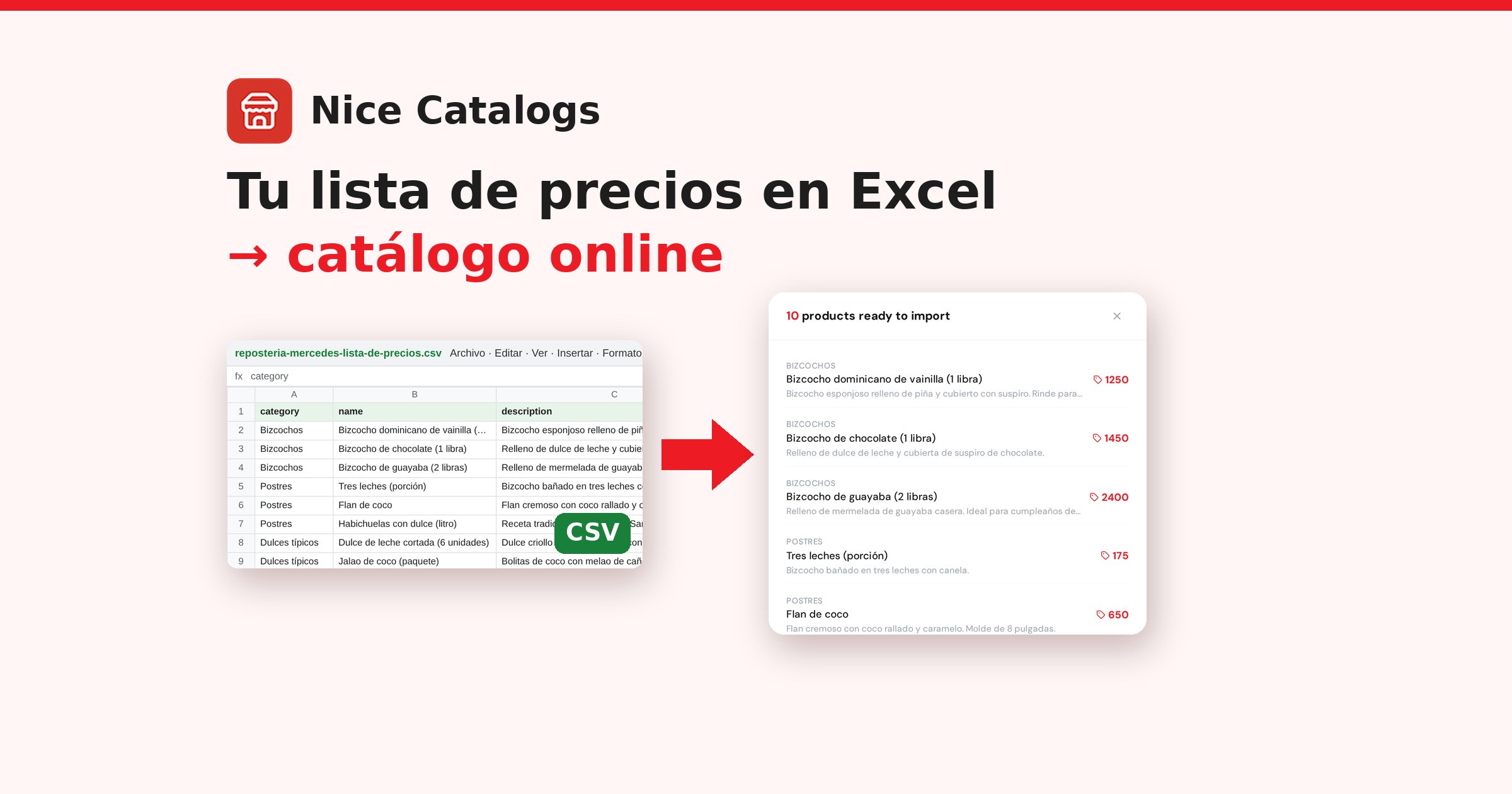
Name, price, a short description and a photo for each item. Group them in categories the way your customers think ("Pizza", "Drinks", "Men's sets"), not the way your supplier labels them. If your list already lives in a spreadsheet, the free CSV importer reads it and shows you the products before you create anything. I wrote a longer walkthrough in How to Set Up an Online Product Catalog .
Step 2: Turn on ordering and add your WhatsApp number
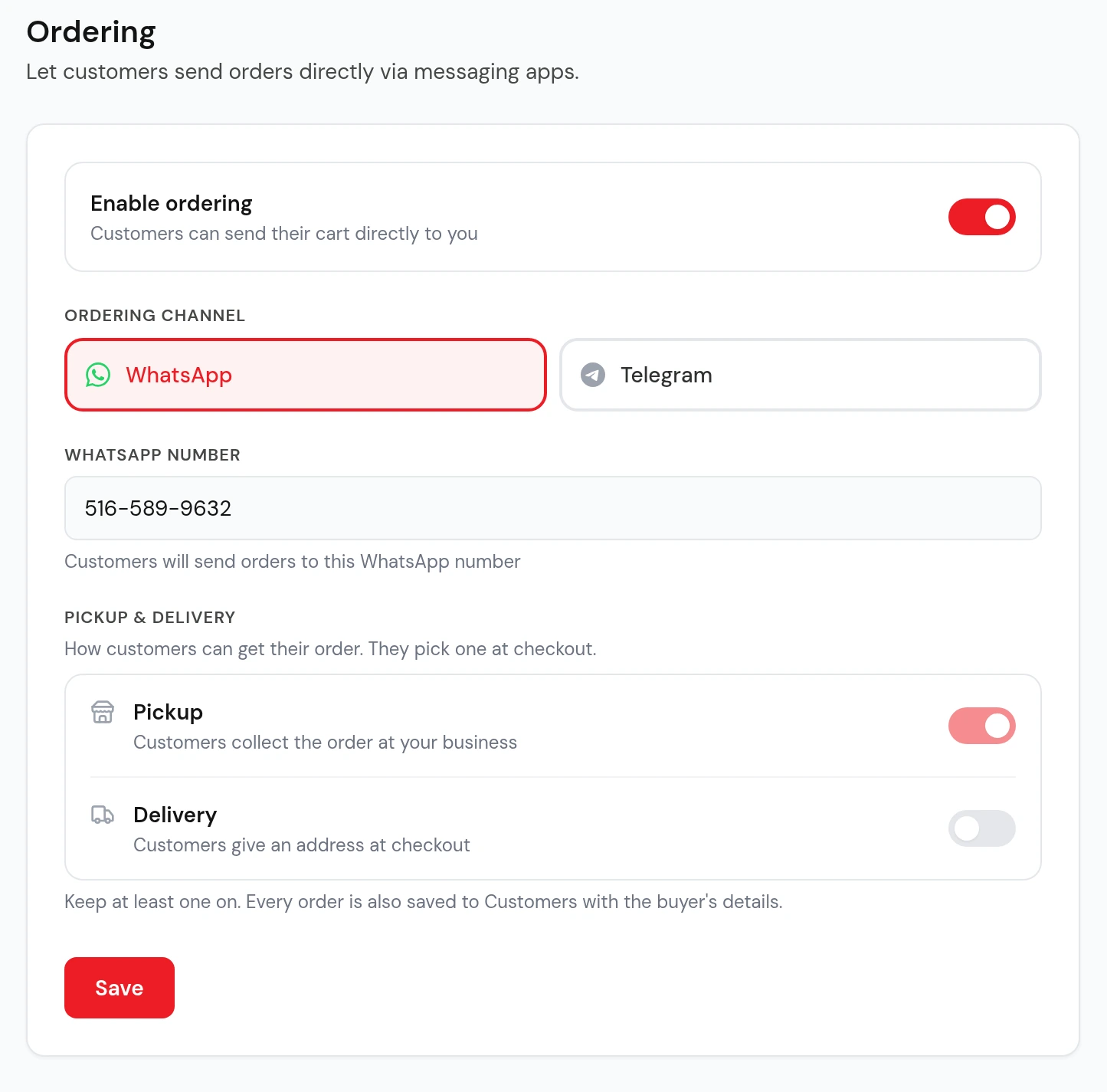
In the catalog editor, open Ordering and switch on Enable ordering. Pick the channel (WhatsApp or Telegram) and type the number orders should go to.
Right below, choose how people get their order: Pickup, Delivery, or both. If you turn on delivery, the customer types an address at checkout. Hit Save and that's the whole setup. No developer, no API, no integration.
Step 3: What your customer sees
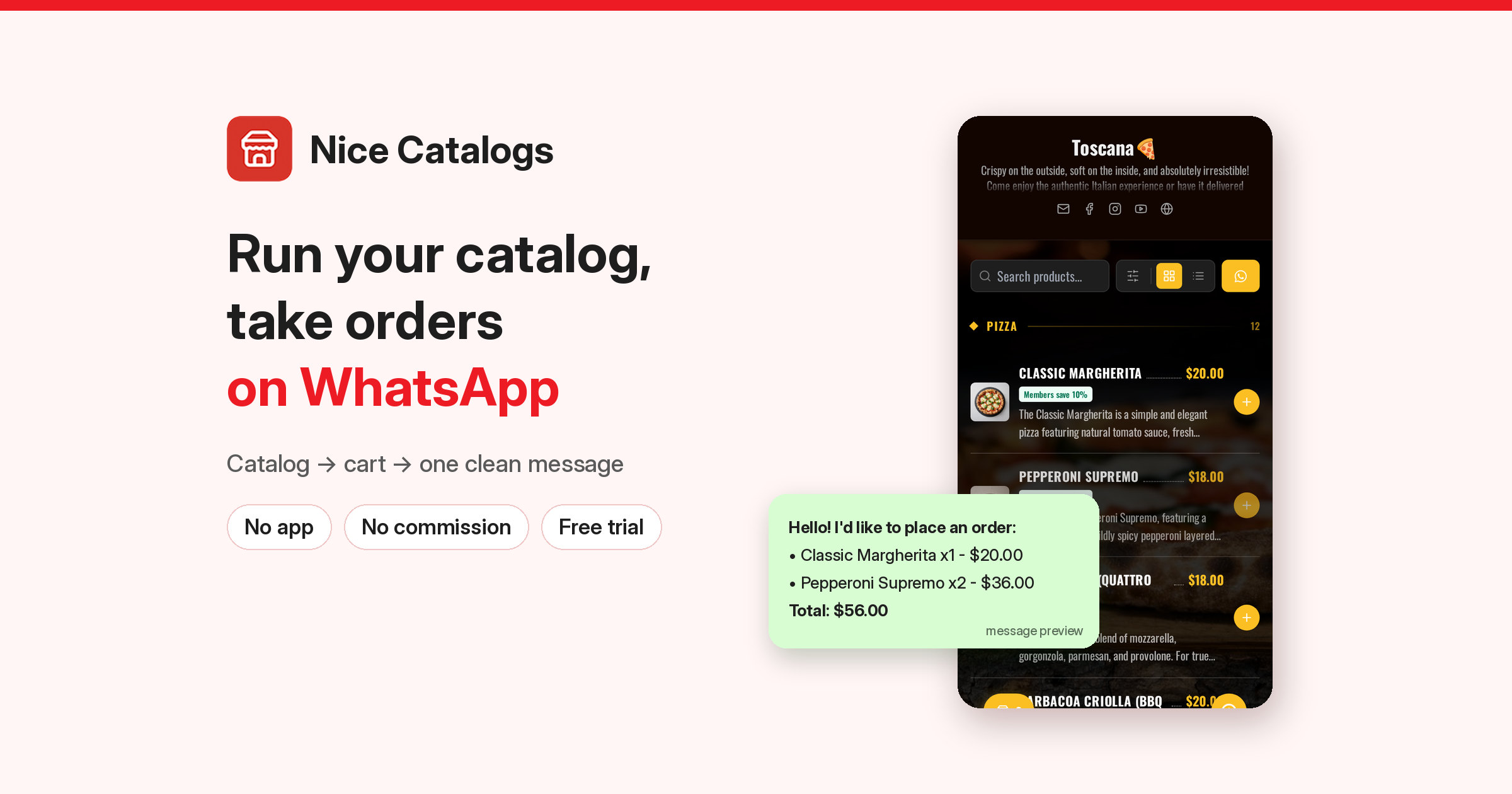
I used the Toscana pizza demo for these screenshots, but the flow is the same for a clothing shop, a bakery or a hardware store. Each product has an add button (a + in this theme). Tap it and the item goes into the order; a cart button with the item count stays at the bottom of the screen. Opening the cart shows every item, the quantity controls and a running total.
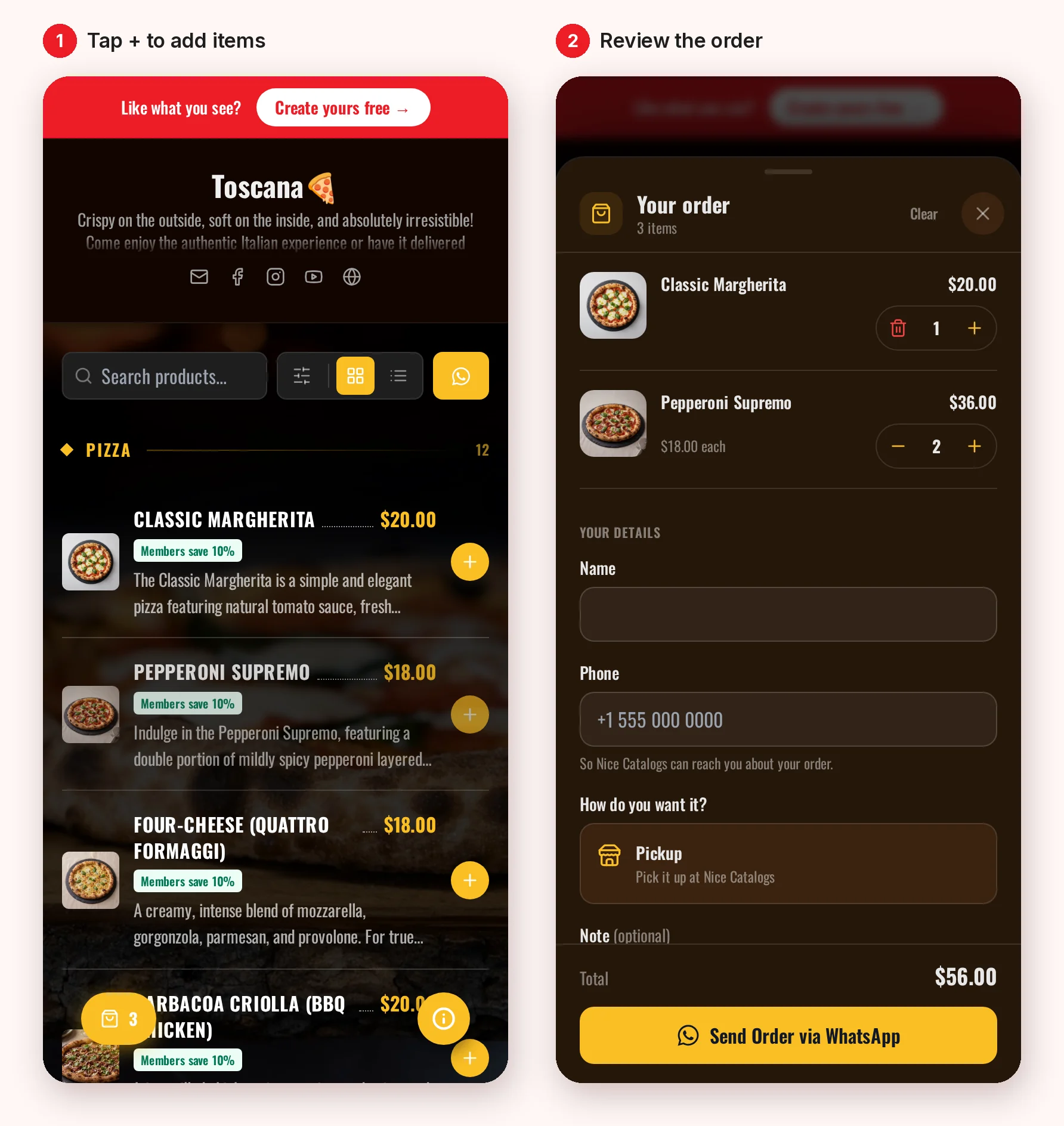
Below the items, the customer fills in their name and phone, picks pickup or delivery, and can leave a note. Then they tap Send Order via WhatsApp. WhatsApp opens with the message already written, and the catalog shows an "Almost done!" screen reminding them to press send there. If WhatsApp didn't open, there's an "Open WhatsApp again" link.
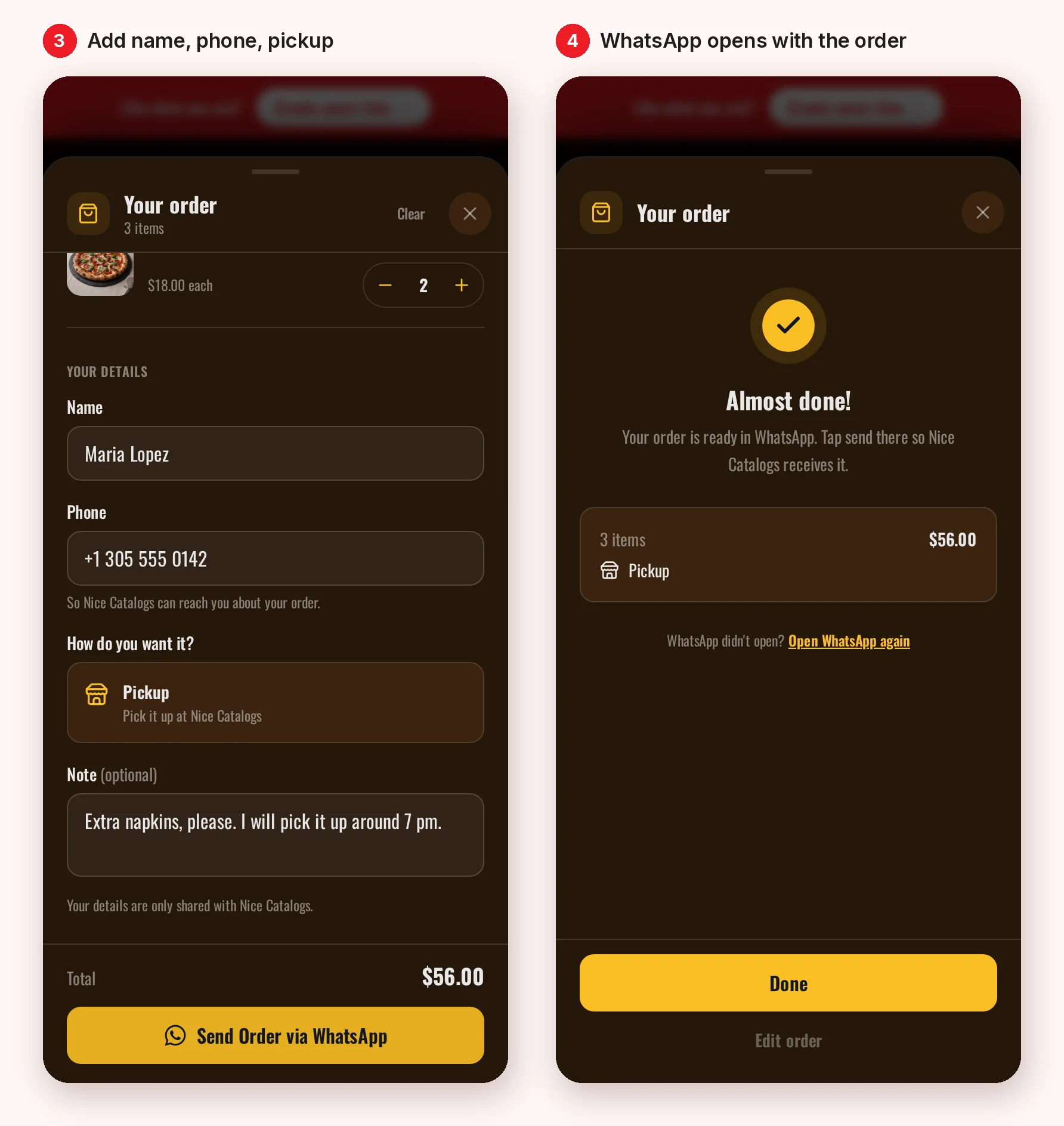
One thing I want to be clear about: the catalog doesn't take payment. It takes the order. You agree on payment in the chat the way you already do: cash, transfer, card on pickup, or a payment link you send back.
Step 4: The message that lands in your chat
This is the part that saves you time. Instead of "the red one and 2 of the other", you get this:
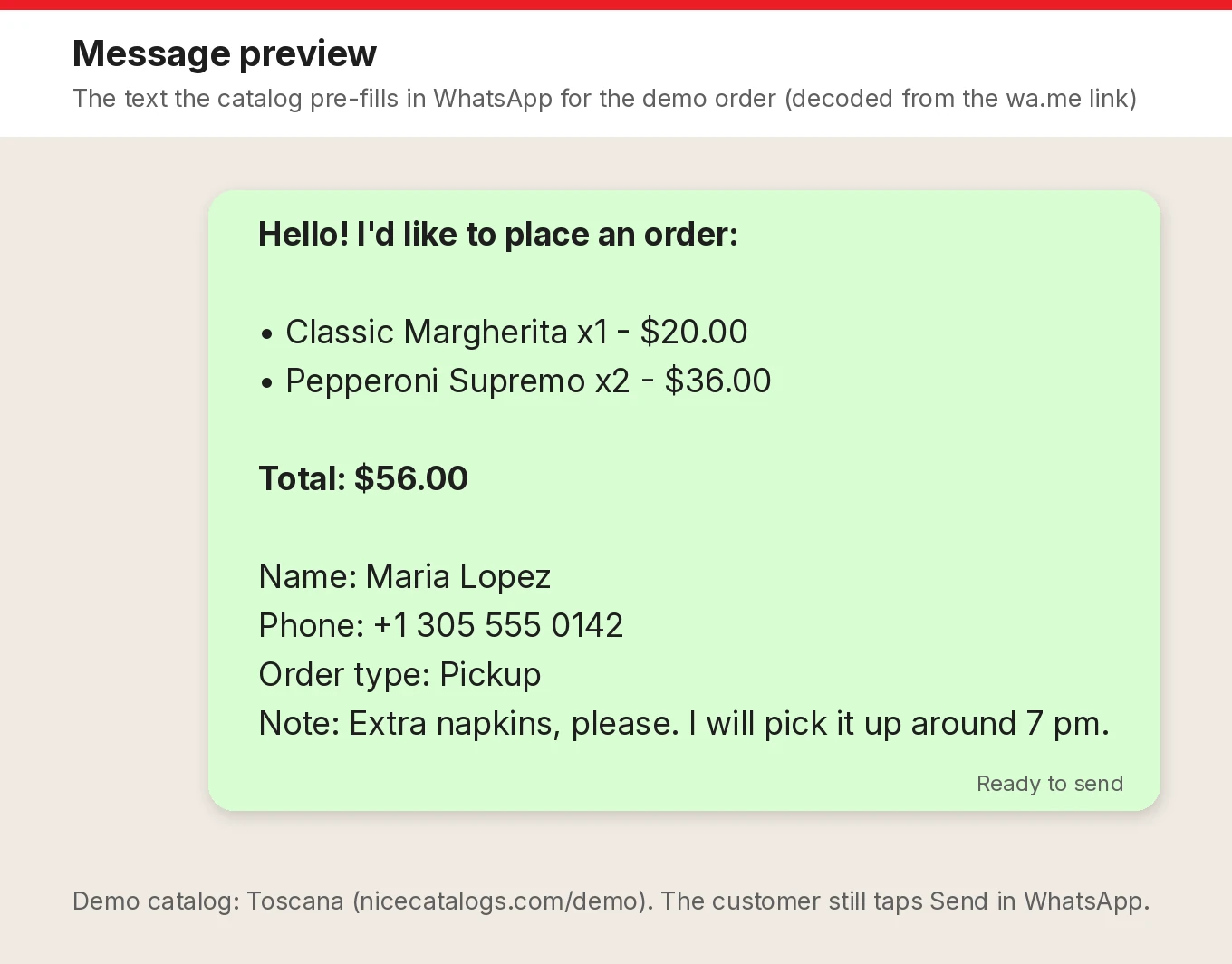
Every item on its own line with quantity and line total, the order total, the customer's name and phone, pickup or delivery, and their note. If a product has options like size, flavor or add-ons, whatever the customer picked is listed under that item, so a "Large, no onions" doesn't get lost.
Your job from here is the same as any WhatsApp conversation: confirm, give a pickup time or delivery fee, and agree on payment. A quick "Got it, ready at 7" goes a long way.
Step 5: Run it day to day
A catalog only works if it's honest. When something sells out, hide it. When a price changes, edit it from your phone. The next customer who opens the link sees the update right away, so you don't have to resend a PDF to anyone.
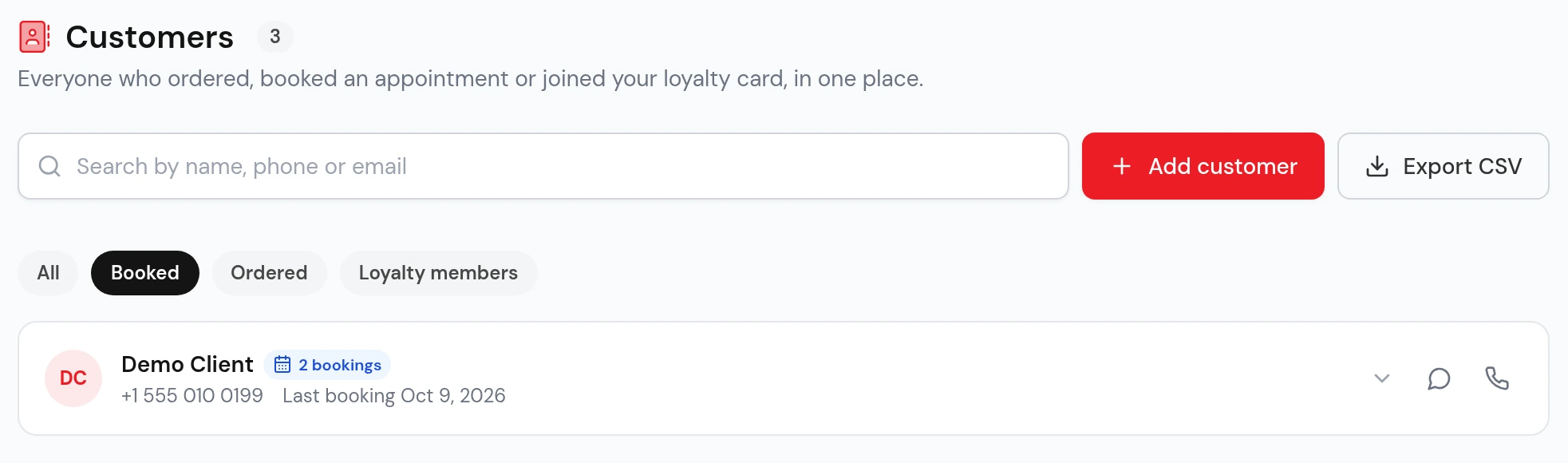
Every order also gets saved in the Customers section of your dashboard with the buyer's details, next to people who booked or joined your loyalty card. You can filter by who ordered and export the list to CSV, which beats scrolling through chats to find a phone number from last month.
Step 6: Share the link everywhere
The catalog is only as good as the number of people who open it. Put the link where your customers already are:
- Your Instagram or TikTok bio
- Your WhatsApp Business profile, status and quick replies
- The website field of your Google Business Profile
- A printed QR code on the counter, the table, the bag or the shop window
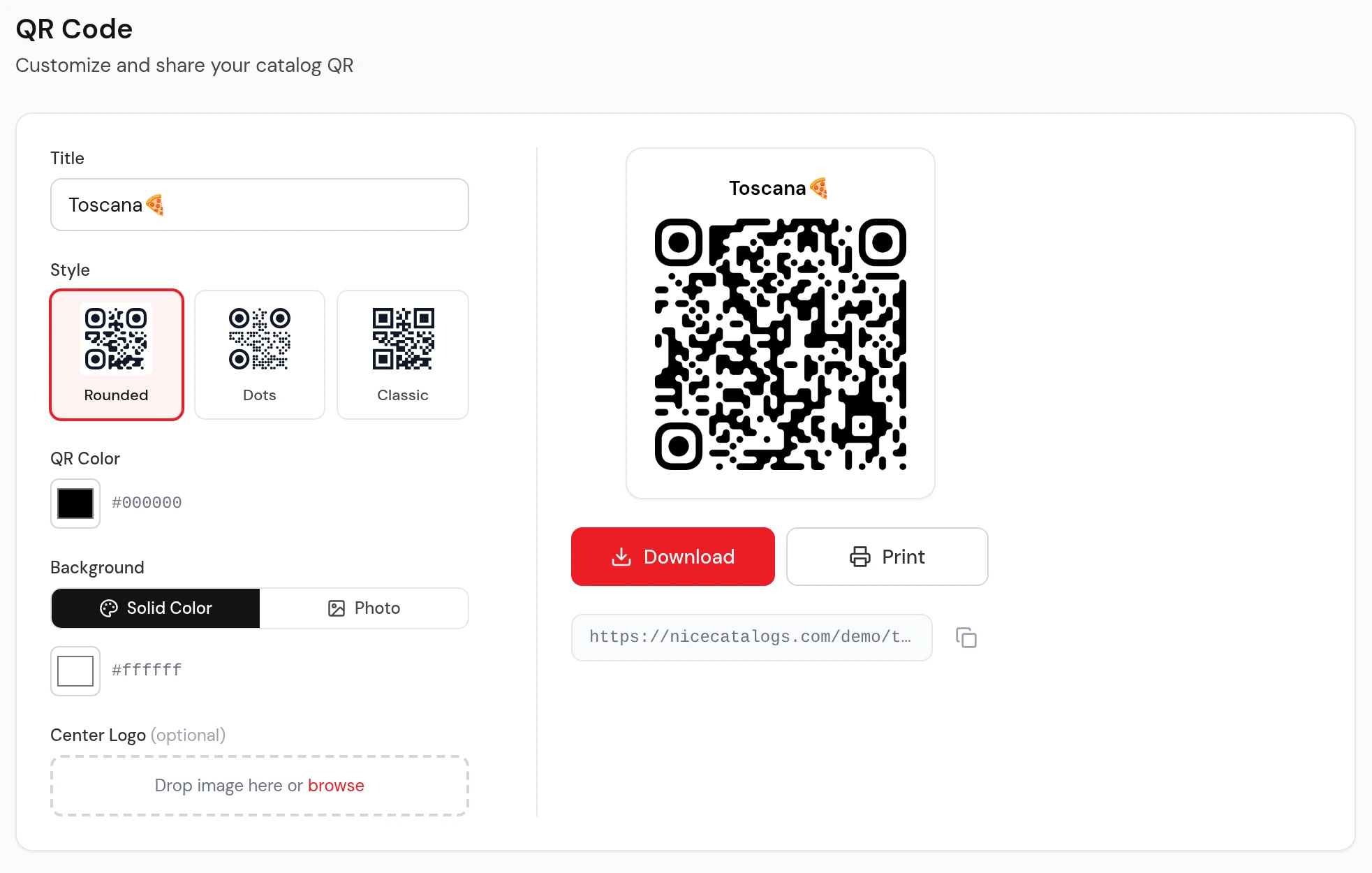
Every catalog has a QR code you can style, download or print from the dashboard. If you're still sending product photos one by one, I explained why a single link works better in Send Your Product Catalog as a Link, Not a PDF .
Free vs paid: what it actually costs
Let me be straight with you. If you need $0, use the WhatsApp Business catalog. It's free, and for a handful of products it's fine.
Nice Catalogs isn't free. There's a 7-day free trial with $0.00 due today, then Basic is $5/month (up to 3 catalogs, 50 products each, WhatsApp and Telegram ordering and QR code export included) and Professional is $10/month with unlimited catalogs and products, plus a custom domain, analytics, appointment booking, loyalty cards and the AI tools. There's no per-order fee on either plan.
What you get for that $5 is a catalog with its own link that anyone can open without the app, edits that go live right away, and orders that arrive already written out.
After the order: ask for a review
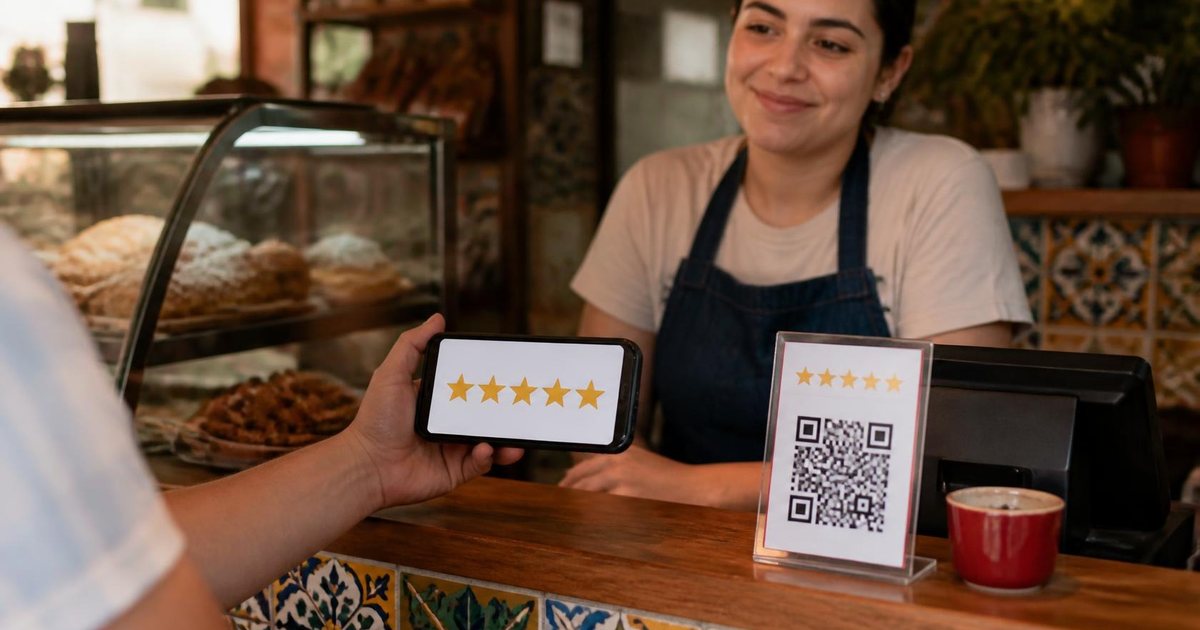
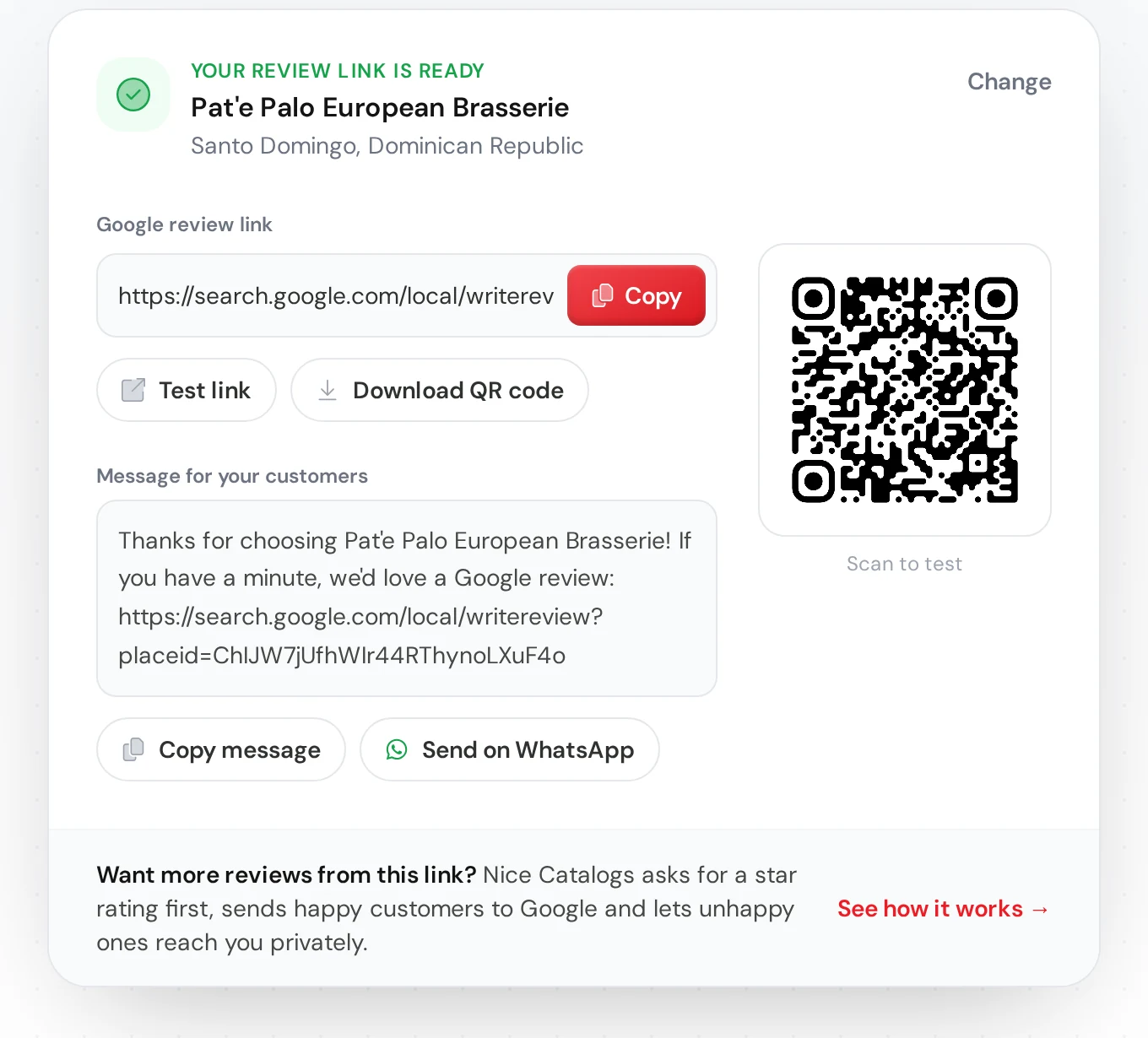
Once orders start coming in, the easiest win is asking happy customers for a Google review. I made a free Google Review Link Generator for that: search your business, and it gives you a direct review link, a QR code and a short message you can paste into the same WhatsApp chat after you deliver. No signup needed.
Quick answers
Do my customers need an app or an account? No. They open the link in their browser and order with the WhatsApp they already have.
Does it work with Telegram? Yes. Choose Telegram in the ordering settings and enter your username instead of a number.
I already wrote about WhatsApp orders. Which guide should I read? If you want the why and the tips for handling orders, read How to Take WhatsApp Orders for Your Small Business . If you're deciding between Meta's catalog and a catalog link, read the WhatsApp Business Catalog Alternative . Selling in Spanish? There's a full guide in Cómo crear un catálogo digital para WhatsApp .
Try it on a real catalog first
The easiest way to get it is to tap through one yourself. Open a demo catalog , add a couple of items and look at the order screen. When you're ready, create your catalog , turn on ordering, and send the link to your best customer today.