If you run a salon or a barbershop, your WhatsApp probably doubles as your front desk. "Do you have anything Saturday?" "What about 4?" "How much is a fade with a beard trim?" One booking can take five or six messages, and half of them arrive while you have clippers in your hand.
WhatsApp is a great place to talk to clients. It is a poor place to find a free time. Neither of you can see the calendar, so you trade guesses until something fits, and it is easy to promise the same hour to two people.
This guide walks through a simpler setup: keep WhatsApp for the conversation, and move the "find a time" part to a booking link your clients open from the chat. I'll use Nice Catalogs as the example because it's what I build, and I'll be upfront about what it doesn't do yet.
Why booking appointments over chat breaks down
The back-and-forth. Every booking turns into a small negotiation. You check the notebook, offer two times, wait, offer two more.
After-hours messages. A request sent at 11 pm waits until you reply in the morning, and some people won't wait.
Double bookings. When the schedule lives in your head, a paper planner, or three different chats, it's easy to give the same slot to two clients, especially when more than one person is cutting.
No record. The appointment ends up as a message buried in a chat, and a client's history is scattered across conversations.
None of this means you should stop using WhatsApp. It means WhatsApp shouldn't be doing the calendar math.
WhatsApp appointment booking without a bot
A lot of tools sold as "WhatsApp appointment booking" are chatbots built on the WhatsApp Business API. They can be powerful, but they usually mean signing up with a provider, building conversation flows, and paying for the bot. For a shop with one to a few chairs, that's a lot of machinery to answer "what time works?"
The lighter option is a booking page you share in WhatsApp:
- You send the link in a chat, a pinned message, your status, or your Instagram bio.
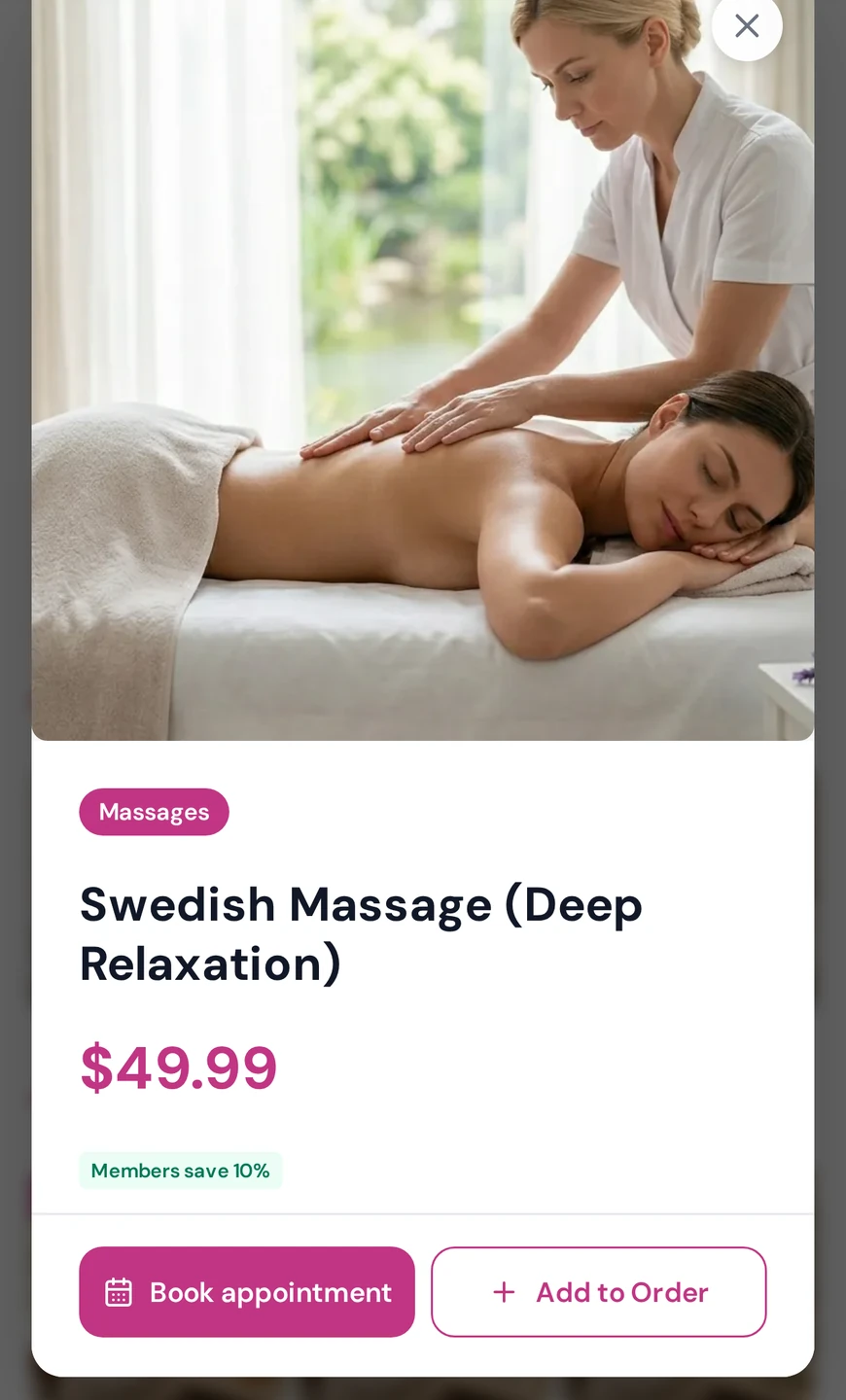
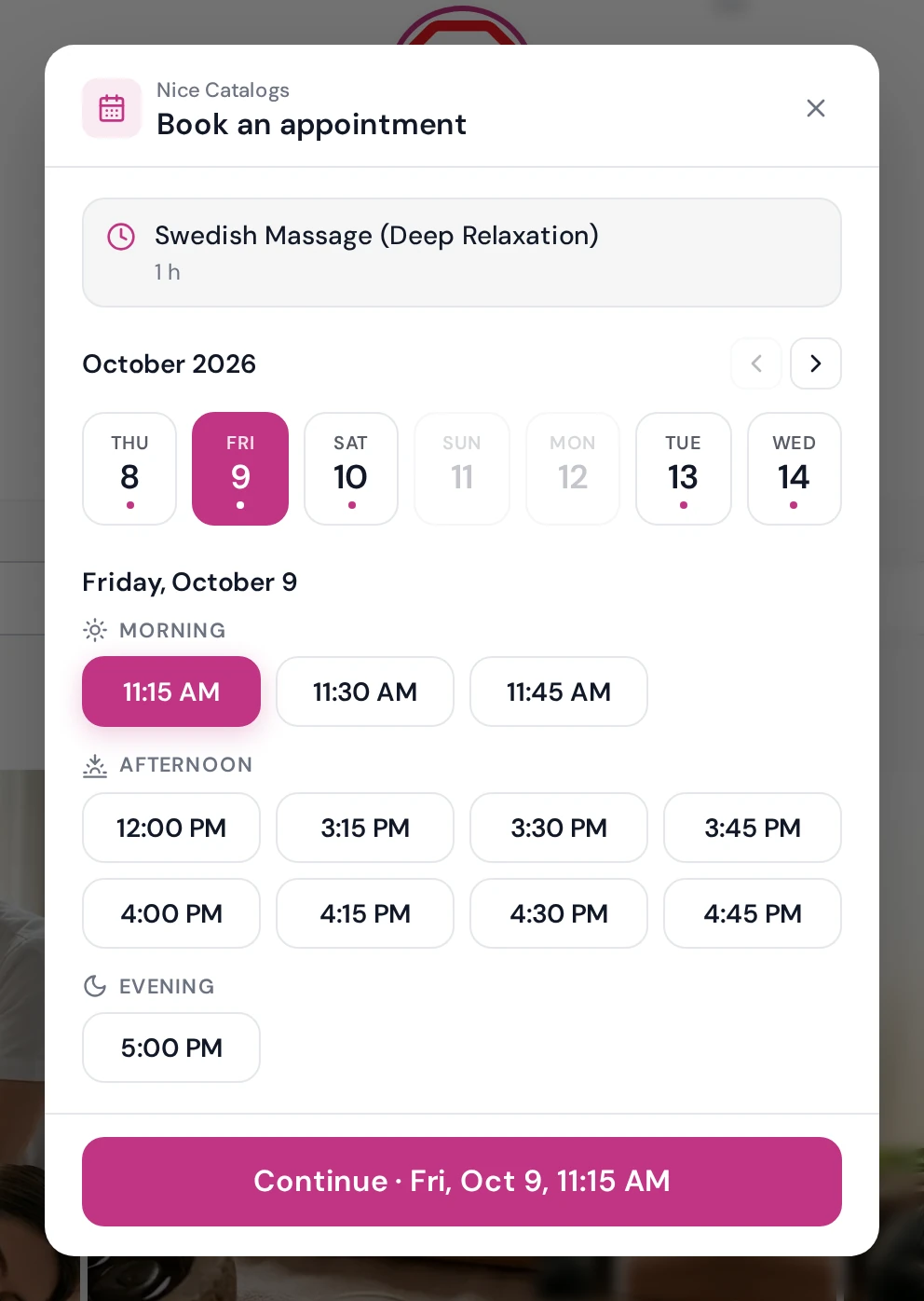
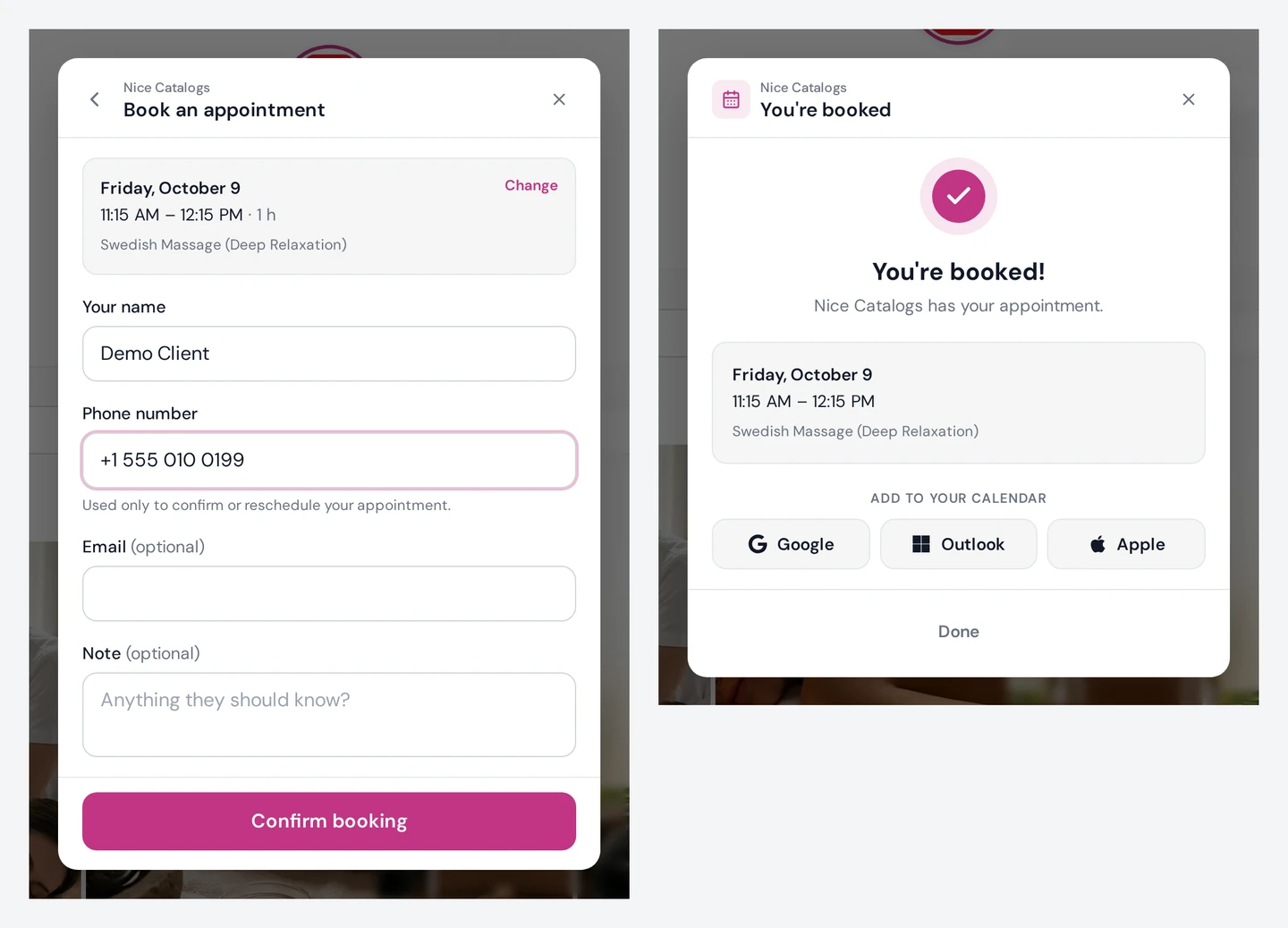
- The client opens a service, taps "Book appointment", picks a day and one of the times you actually have free, and leaves a name and phone number. The phone is used only to confirm or reschedule, and email and a note are optional.
- The booking lands on your Appointments page and in your email straight away. If you add your WhatsApp number or Telegram username, the client can also send you the details in chat with one tap.
No bot, no API setup, and nothing for the client to download. You still chat with clients on WhatsApp. You just stop negotiating times there.
How it works in Nice Catalogs
Appointment booking is part of the Professional plan. It sits on top of the service menu in your catalog: when a client opens a service, the Book appointment button is right there in its details, next to Add to Order. If you haven't put your menu online yet, start with how to share your salon service menu online .
1. Mark your services as bookable
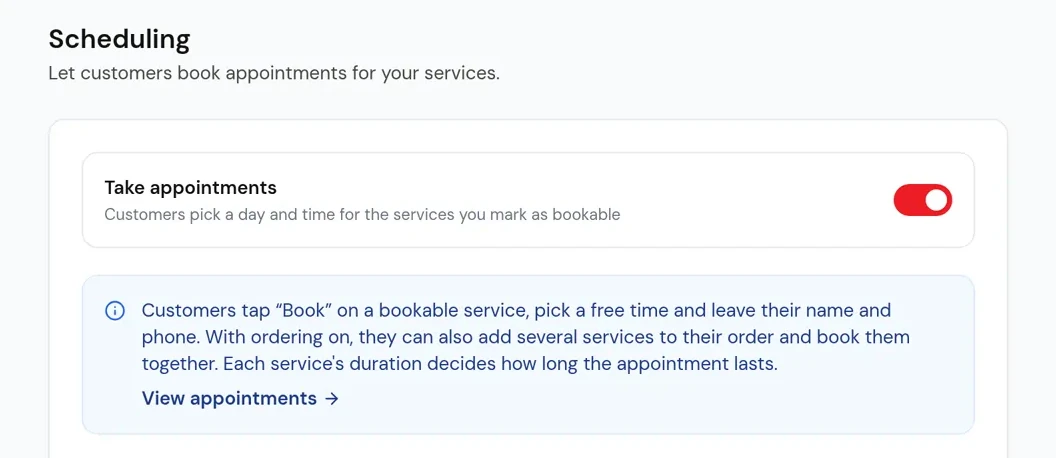
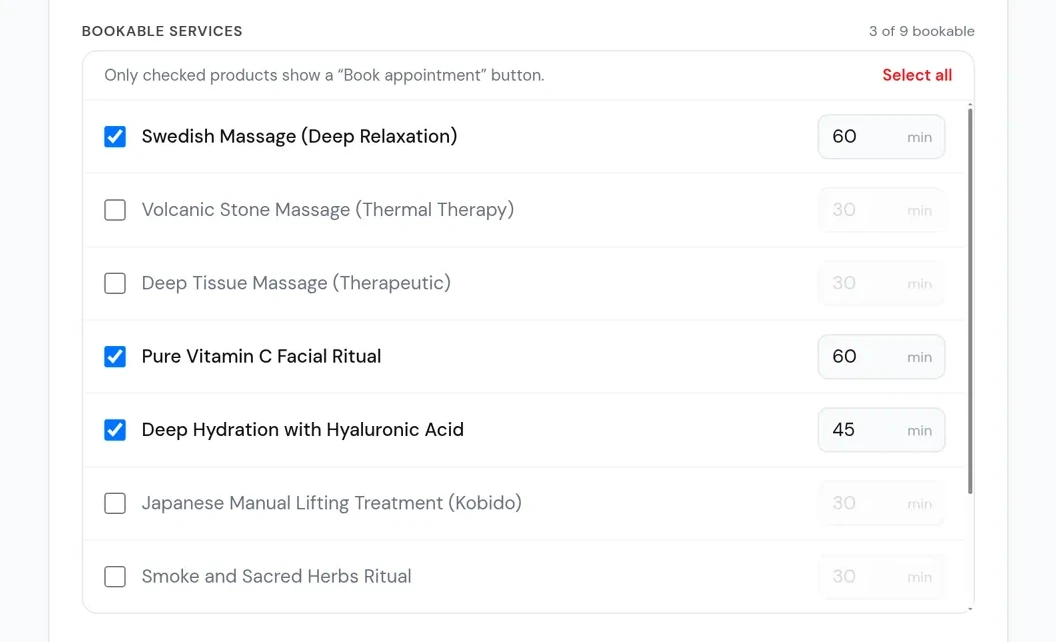
Turn on Take appointments, then tick which services can be booked and give each one a duration: say 30 minutes for a cut or 90 for color. Each service's own duration sets how long its appointment lasts. If you also have ordering turned on, clients can add several services and book them together. You can also change the button label if "Book appointment" isn't how you'd say it.
2. Set your hours and rules
You decide what clients can book:
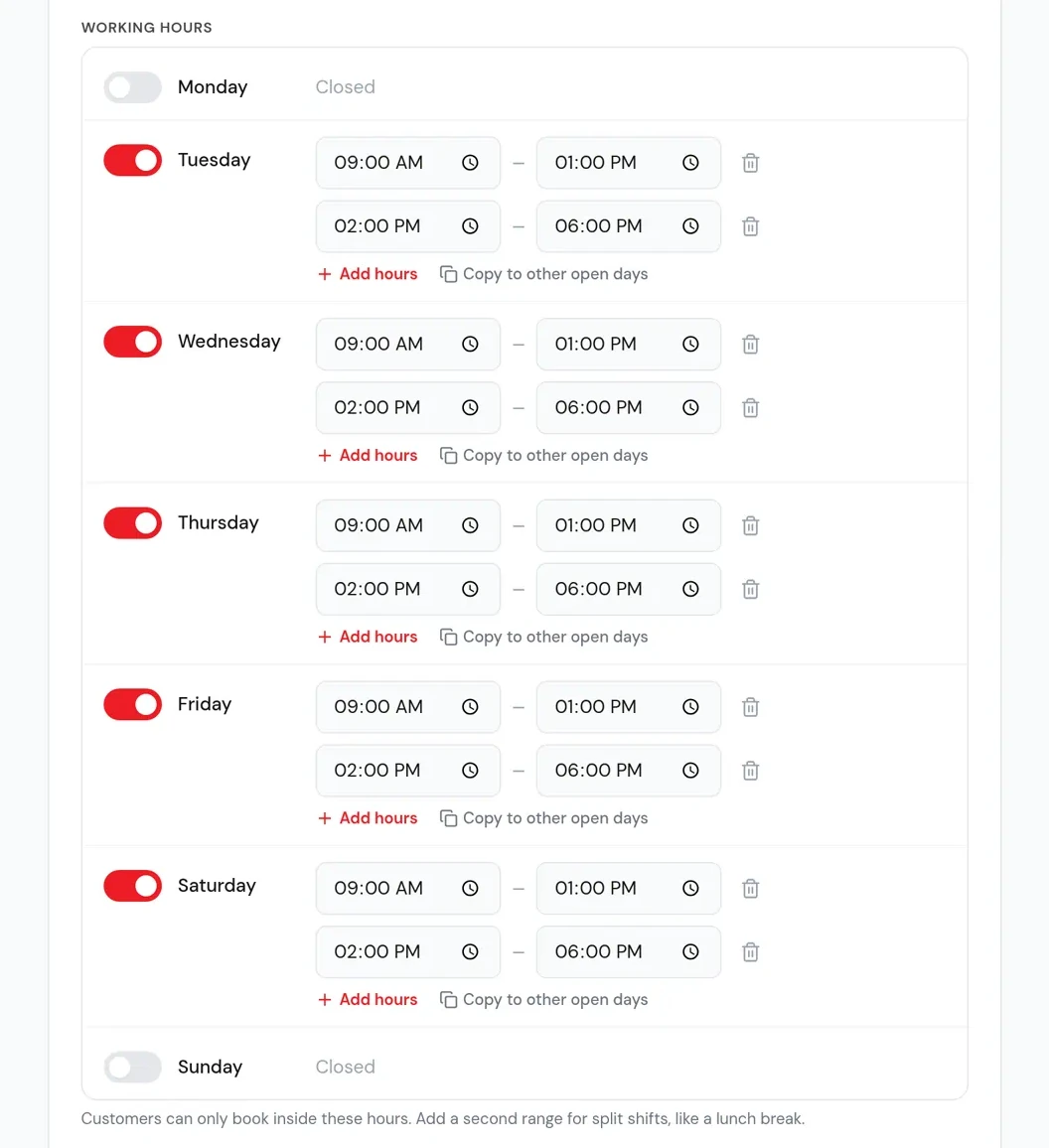
- Working hours for each day, with a second time range for breaks (like lunch), plus Days off to block specific dates
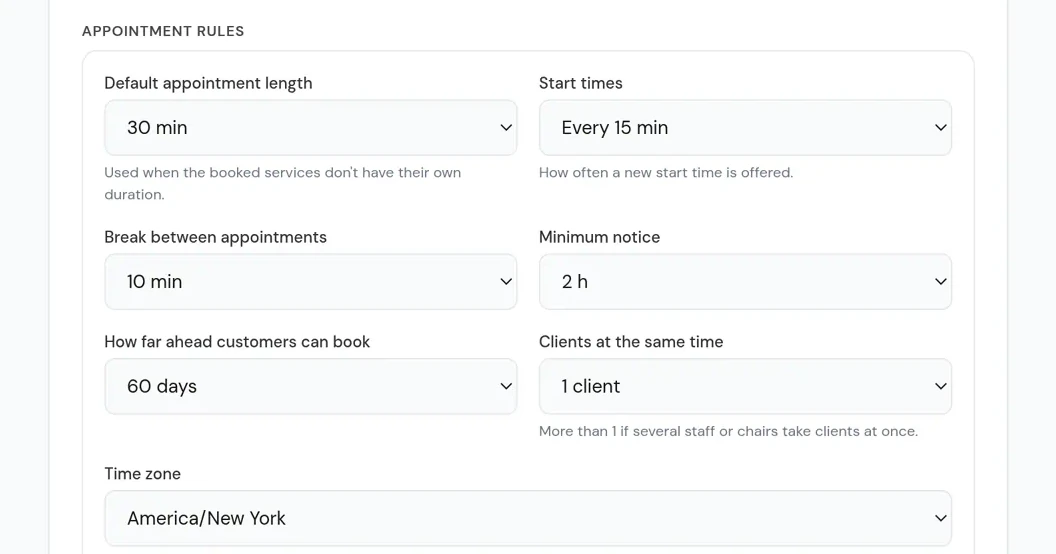
- Buffer time of 5, 10, or 15 minutes after each appointment to sweep up or catch up
- Minimum notice, such as an hour or a day, so nobody books a slot that starts in ten minutes
- Booking window, which sets how far ahead people can book
- Clients at the same time (1 to 10), so several clients can book the same time if you have more than one chair or more than one person working
Clients only ever see times that fit those rules. Slots that are already taken, plus their buffer, are skipped.
3. Share the link where clients already message you
The booking link works anywhere a link works. Good spots for a salon or barbershop:
- A quick reply or pinned message in WhatsApp Business: "Book your next appointment here"
- Your Instagram bio, or a link-in-bio page if you share several links
- The website field on your Google Business Profile
- A printed QR code at the front desk, so clients can book their next visit before they leave
Here's what a client sees after opening the link:
4. Run the day from your dashboard
Every online booking shows up on your Appointments page and in your email with the client's name, phone, services, and time, even if they never message you. That time is then taken, and each booking is checked on the server against your calendar the moment it's made, so two people can't grab the same last slot.
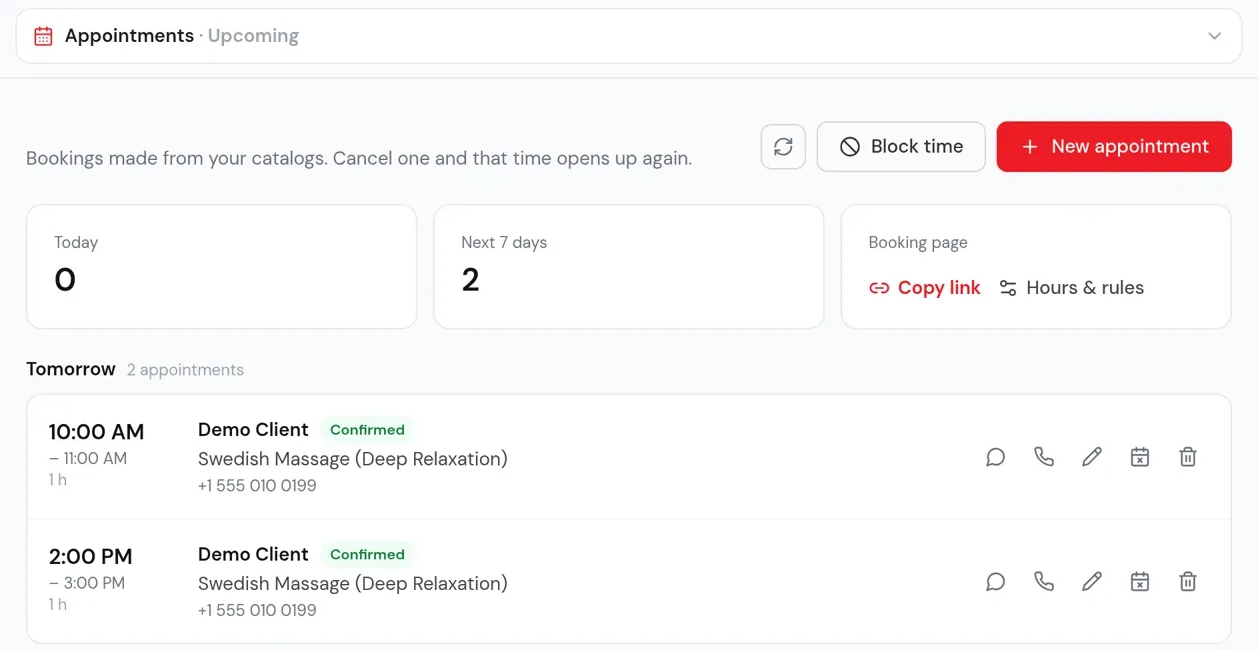
From the Appointments page you can add walk-ins and phone bookings with New appointment, use Block time for lunch, copy your booking link, and switch between Upcoming and History, with Today and Next 7 days counts at the top. Each booking has buttons to message or call the client, edit, reschedule, or delete it, and cancelling a booking frees that time again. The confirmation screen gives clients Google, Outlook, and Apple Calendar buttons, so the appointment lands in their own calendar. Everyone who books also joins your Customers list, with private notes and their appointment history.
What it doesn't do yet
I'd rather you know this before you start a trial than after:
- No deposits or online payment. Booking is free for the client, and they pay you at the appointment as usual. If prepaid deposits are how you handle no-shows, this won't cover that yet.
- No online cancelling or rescheduling by clients. To change or cancel, clients contact you, and you move or cancel the appointment from your dashboard. Cancelling frees the time again for online booking.
- No automatic reminders. Nice Catalogs doesn't send SMS, email, or WhatsApp reminders before an appointment. The calendar buttons help, and a quick WhatsApp the day before still works if reminders matter to you.
- The WhatsApp message comes from the client. You get an email and an Appointments page entry for every booking. A copy on WhatsApp or Telegram only reaches you if you've added your number or username and the client taps to send it.
- No separate staff profiles. "Clients at the same time" (1 to 10) covers several chairs or staff working at once, but there's no separate calendar for each stylist.
What it costs
Appointment booking is included in the Professional plan at $10/month: unlimited bookings, no commission, and no charge per appointment or per client. The same plan includes unlimited catalogs and products, a custom domain, analytics, and Apple and Google Wallet loyalty cards. The Basic plan ($5/month) doesn't include booking. Every plan starts with a 7-day free trial, with $0.00 due today. Full details are on the pricing page .
Is this the right setup for your shop?
It's a good fit if:
- You're a solo stylist or a small salon or barbershop, and most clients find you through Instagram, WhatsApp, and word of mouth
- You already send prices by chat and want your service menu and booking in one link
- You want fewer "what time works?" messages without setting up a chatbot
Look elsewhere for now if you need deposits at booking, automatic reminders, per-stylist calendars, or a marketplace that sends you new clients. For more on how the catalog works for salons, see Nice Catalogs for salons .
Tips for a smooth switch
Tell your regulars. Send one message to your usual clients: "You can now pick your own time here," with the link. Pin it.
Keep durations honest. If a color appointment really takes two hours with the consultation, set two hours. Tight durations push your whole day late.
Reward repeat visits. The same Professional plan includes digital loyalty cards for Apple and Google Wallet.
FAQ
Do my clients need to download an app?
No. Booking happens in the browser on any phone or computer. There's no account to create and no password.
Do I need the WhatsApp Business API or a chatbot?
No. You share an ordinary link. If you've added your number, the client can send you the booking from their own WhatsApp (or Telegram) with one tap after booking.
Can clients pay a deposit when they book?
Not yet. Booking is free for the client, and they pay you at the appointment.
Does the booking screen work in Spanish?
Yes. It works in English or Spanish and uses your catalog's theme, colors, and fonts.
How much does it cost?
$10/month on the Professional plan, with unlimited bookings and no per-booking fees. There's a 7-day free trial.
Try it with your own calendar
You don't need to change how you talk to clients. Set your hours, mark a few services as bookable, and send the link to one regular this week. You'll know quickly whether it saves you messages.
Start your 7-day free trial , or read the full appointment booking feature page first.