A PDF price list is a nice thing to send and a miserable thing to work with. The moment you want the same products in a catalog, a spreadsheet or an online shop, you are retyping names, descriptions and prices one row at a time.
This guide is about getting product data out of a PDF: the name, the description and the price of each item, in a form you can check, fix and reuse. I tested the free PDF converter on Nice Catalogs with a made-up price list on November 17, 2026, and I'll show exactly what it picked up, what it missed, and what to do when a PDF will not cooperate.
Short answer: how to get product data out of a PDF price list
- Check that your PDF is a simple list: one product per line, with the name, a short description and the price.
- Upload it to the free PDF to catalog converter . No account is needed to preview.
- Compare the detected names, descriptions and prices with the PDF. Fix anything wrong later in the dashboard.
- If the PDF is a grid, a designed brochure or just will not read well, put the data in a spreadsheet, save it as a CSV and use the CSV converter .
- Create a free account to import the products and publish them as a catalog.
What "product data" means (and what a PDF hides)
When a person looks at a price list, they see a layout. When software looks at it, it has to guess which text is a product name, which line is the description and which number is the price. Every product needs the same few fields:
- Name: "Juniper Blend 12 oz".
- Description: "Medium roast, notes of cocoa and toasted almond." Size, ingredients or what it is for.
- Price: "$14.50". One price per product.
- Section: "Whole Bean Coffee". The heading the product sits under.
A spreadsheet stores these in columns, so it is easy to read. A PDF only stores text at positions on a page. That is why copying a PDF into Excel often gives you one big messy column. A converter that understands price lists does the guessing for you.
The sample price list I used
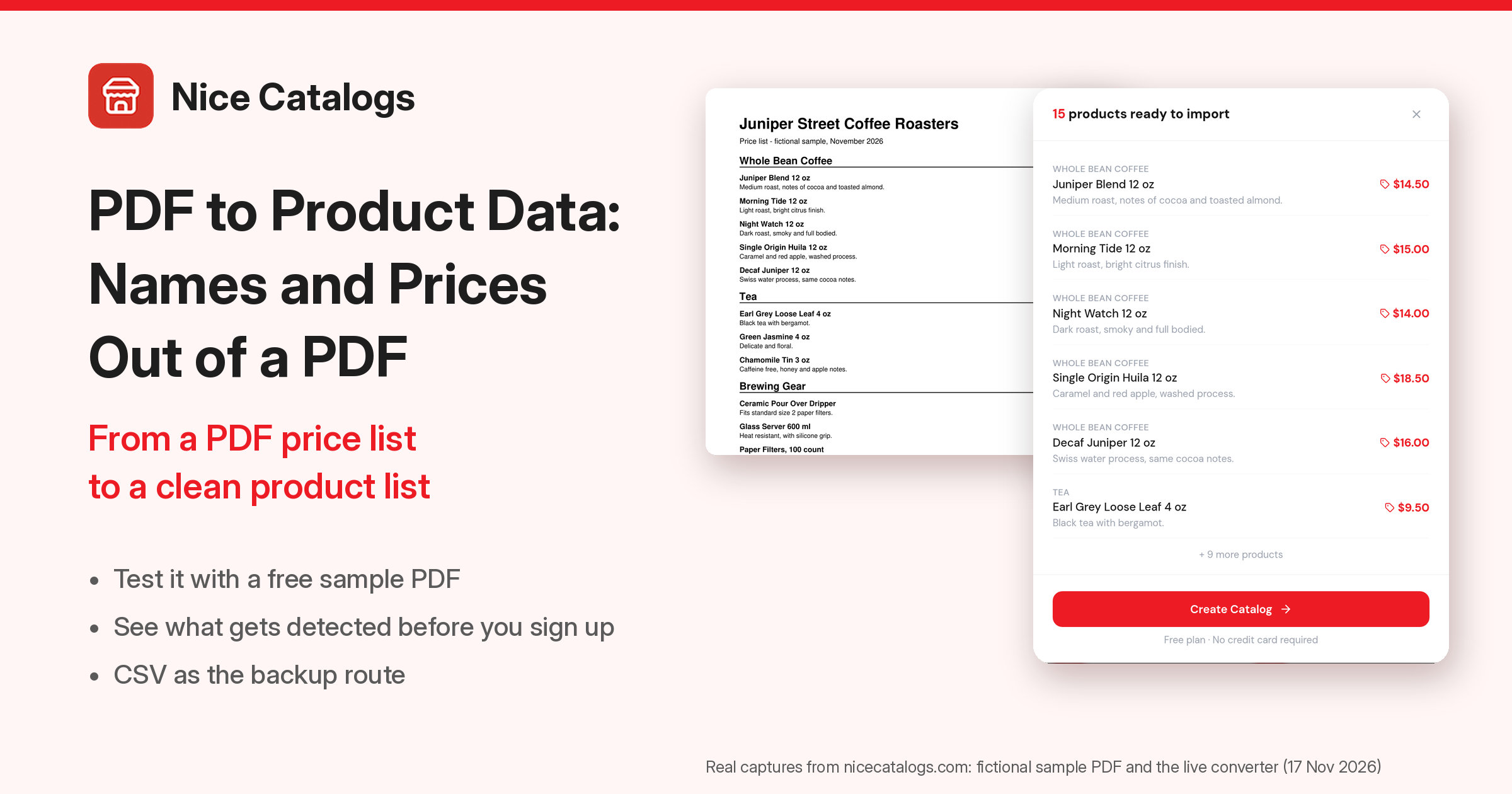
To test this without using anyone's real data, I made a one-page PDF for a fictional shop, Juniper Street Coffee Roasters: 15 products in four sections (coffee, tea, brewing gear and treats), each with a name, a short description and a price. It is a plain list, the kind most small businesses already have.
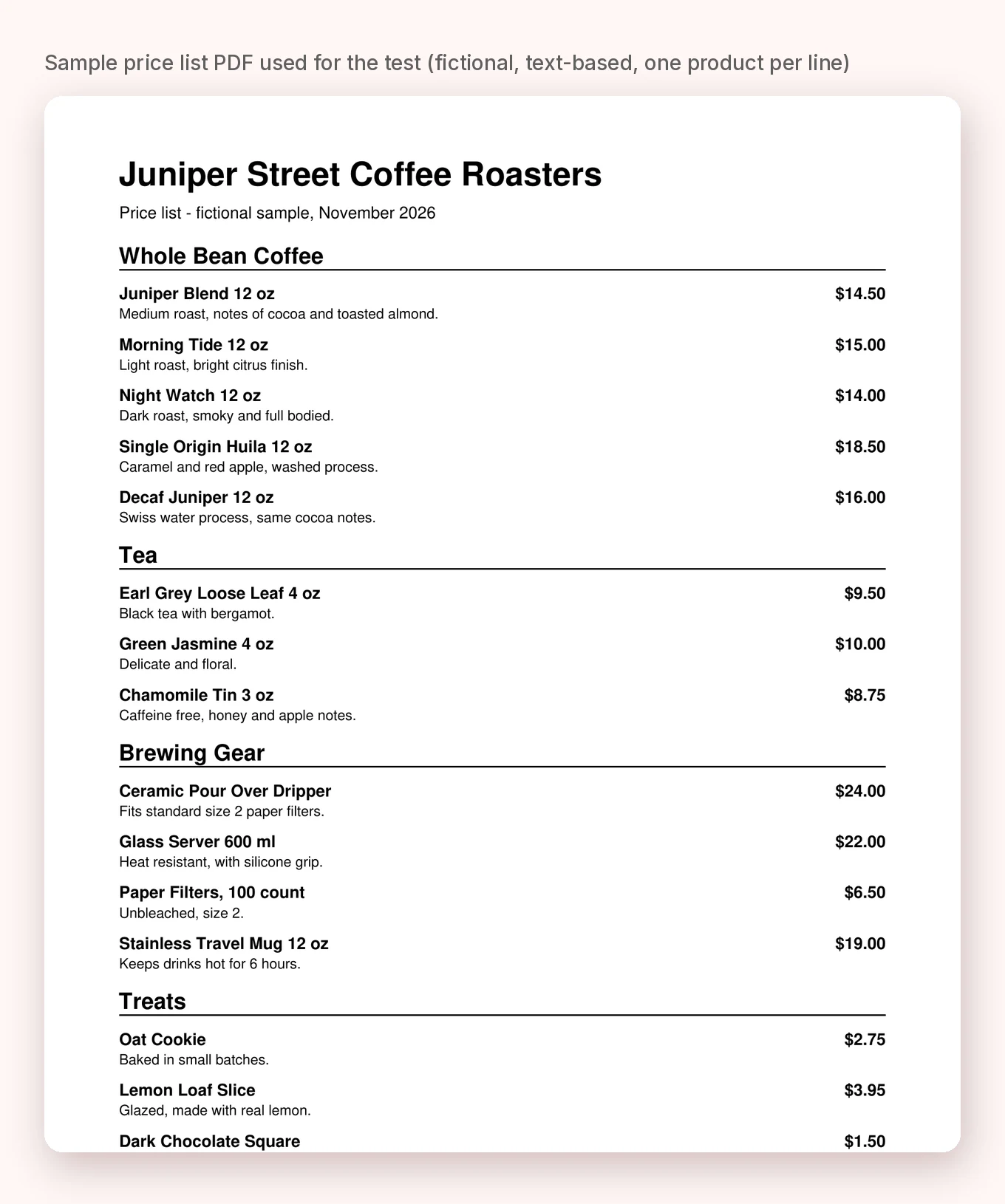
If you want to try the same thing, use your own file. Anything you upload goes through the same steps below.
Step 1: Upload the PDF
Open the free PDF to catalog converter and drop your file on the page. The page says PDF only and a maximum of 5 MB, and that you don't need an account to preview.
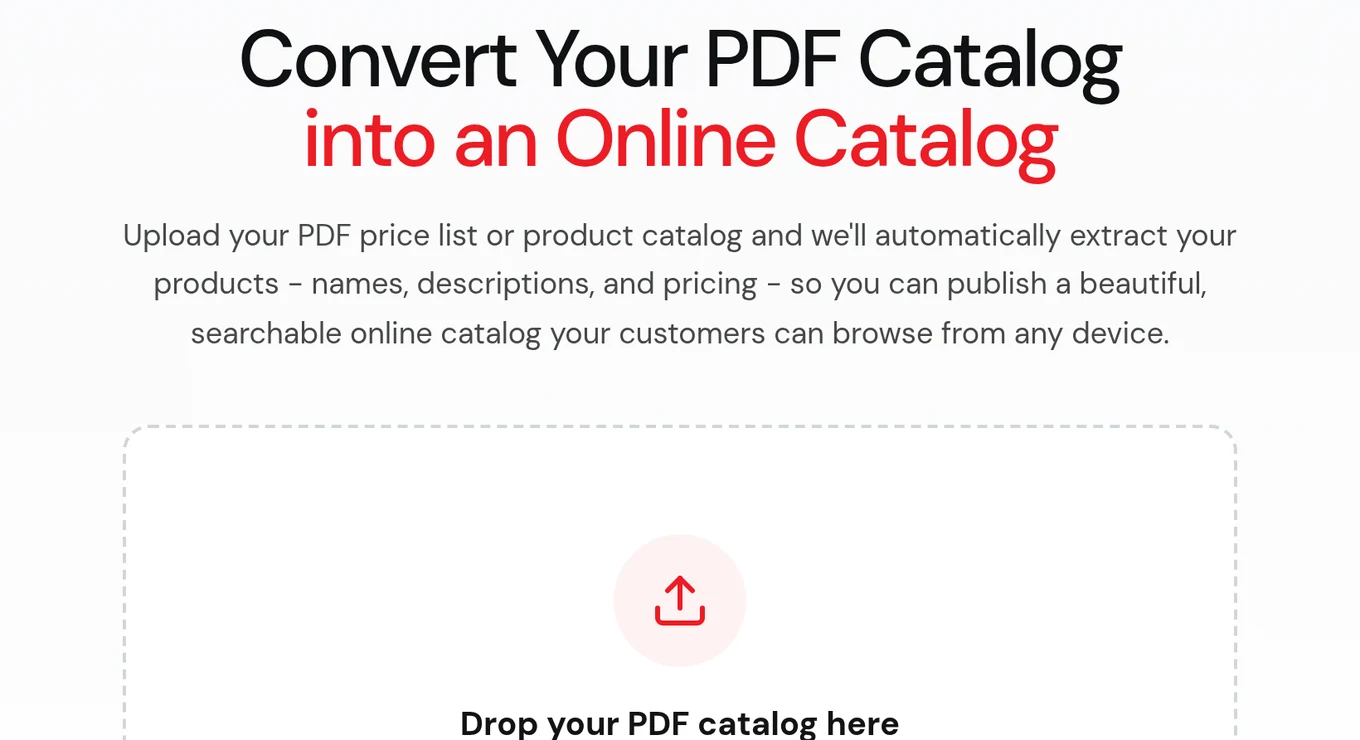
One thing I noticed while testing: the file is sent to the site to be read (it is not processed only inside your browser, the way the CSV tool is). So don't upload a PDF with information you wouldn't want to send to a web service. For a price list, that is usually not an issue.
Step 2: Check what was detected
For my sample, the page answered with "15 products detected": all 15 products, in the right sections, with the right descriptions and prices. The first cards look like this:
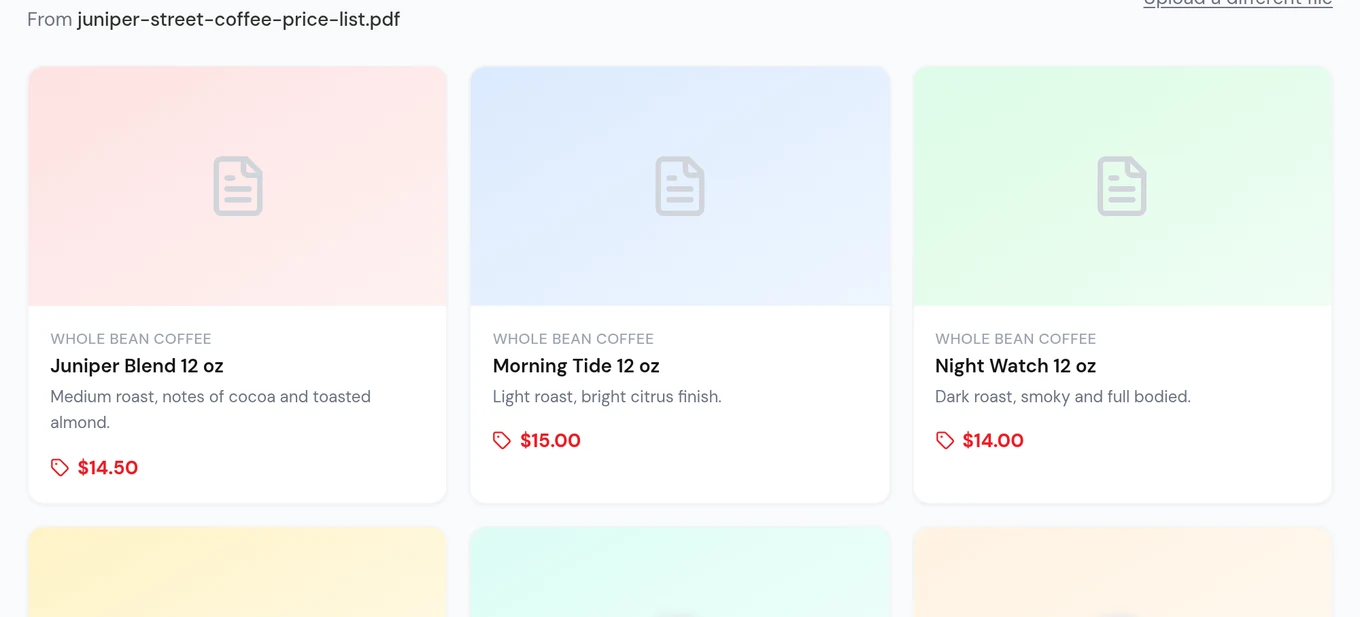
Two things to know about this preview:
- You only see the first few products in full. In my test the first three cards were clear and the rest were blurred, and the import summary lists the first six with a line saying "+ 9 more products". So the preview confirms that the converter understood your file, but it is not a place to review all your data.
- Prices keep the way they are written. My PDF said $14.50, and the converter showed $14.50.
When you press Create Catalog, you get the import summary:
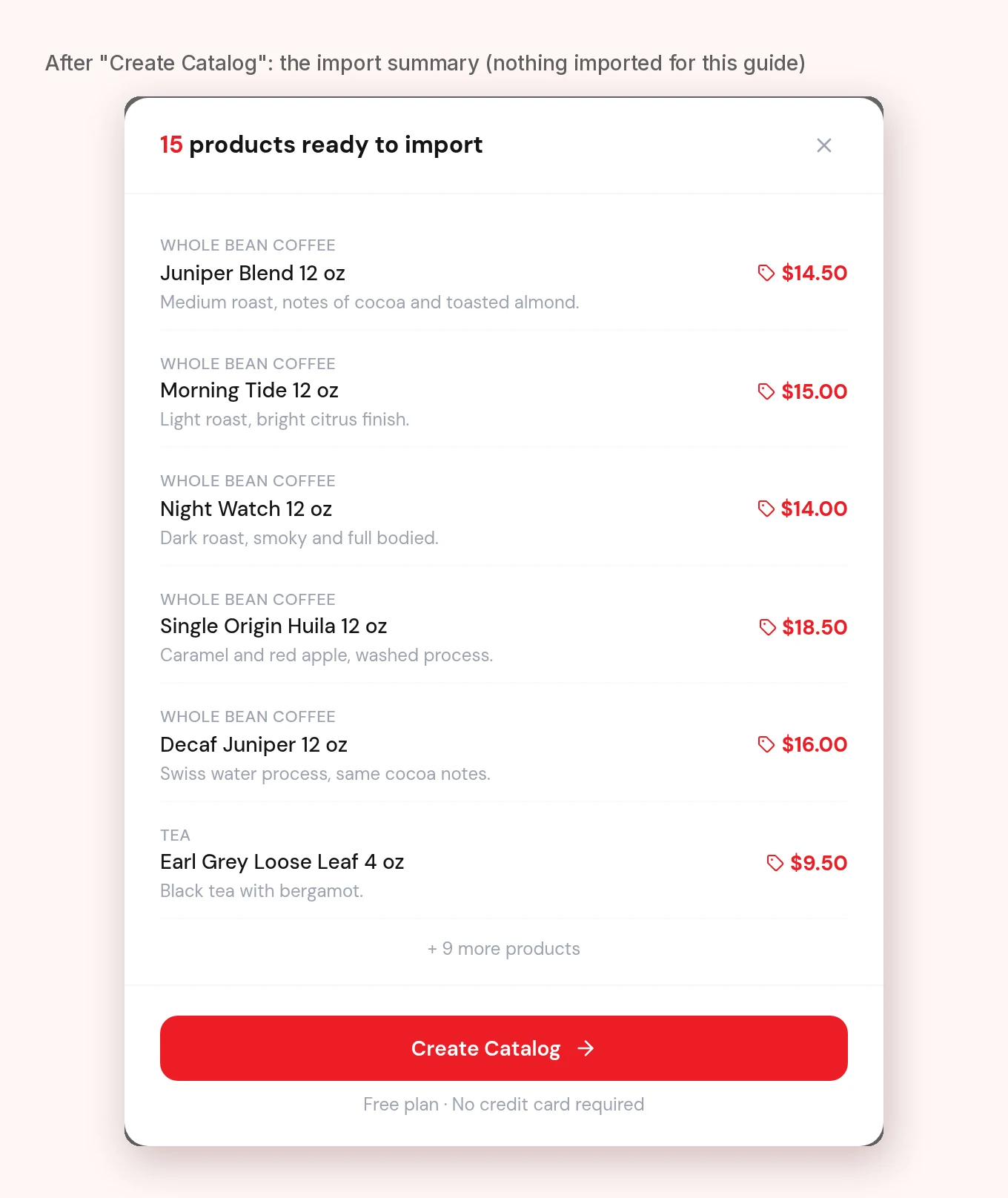
The button says "Free plan · No credit card required". Fifteen products fit well inside the Free plan limit (see the plan section below).
What it handled in my tests (and what it did not)
I ran four files through the converter. All of them were my own fictional price lists, not real business files, and each is one test, not a guarantee. This is what I saw:
- Plain list with section headings (text PDF): 15 of 15 products, with sections, descriptions and prices.
- Table with columns (SKU, item, notes, price): 15 of 15 products with name, description and price. There were no section headings in that file, so the section field was empty. The SKU column was not used as a product name.
- A PDF that is only a picture of the page (no selectable text, just an image of my sample list): 15 of 15 products with sections. That surprised me, because an earlier guide on this blog said scanned PDFs always failed. In my test on November 17 it worked. A real phone photo or a blurry scan is a harder test, and I did not try one.
- A 3-column grid of product cards: in an earlier test on November 3, 2026, with a different sample, the converter found 4 products and mixed up names and descriptions. I did not repeat that one today. Treat grids and designed brochures as the case most likely to need the CSV route.
I also didn't test very long PDFs, files in other languages, or PDFs with several prices per product (sizes, wholesale and retail). Check those carefully if that is what you have.
What you can't do with the converter alone
Here is the honest limit. On the converter page I did not find a button to download the detected products as a file. The page ends in Create Catalog, and that leads to a sign-in step:
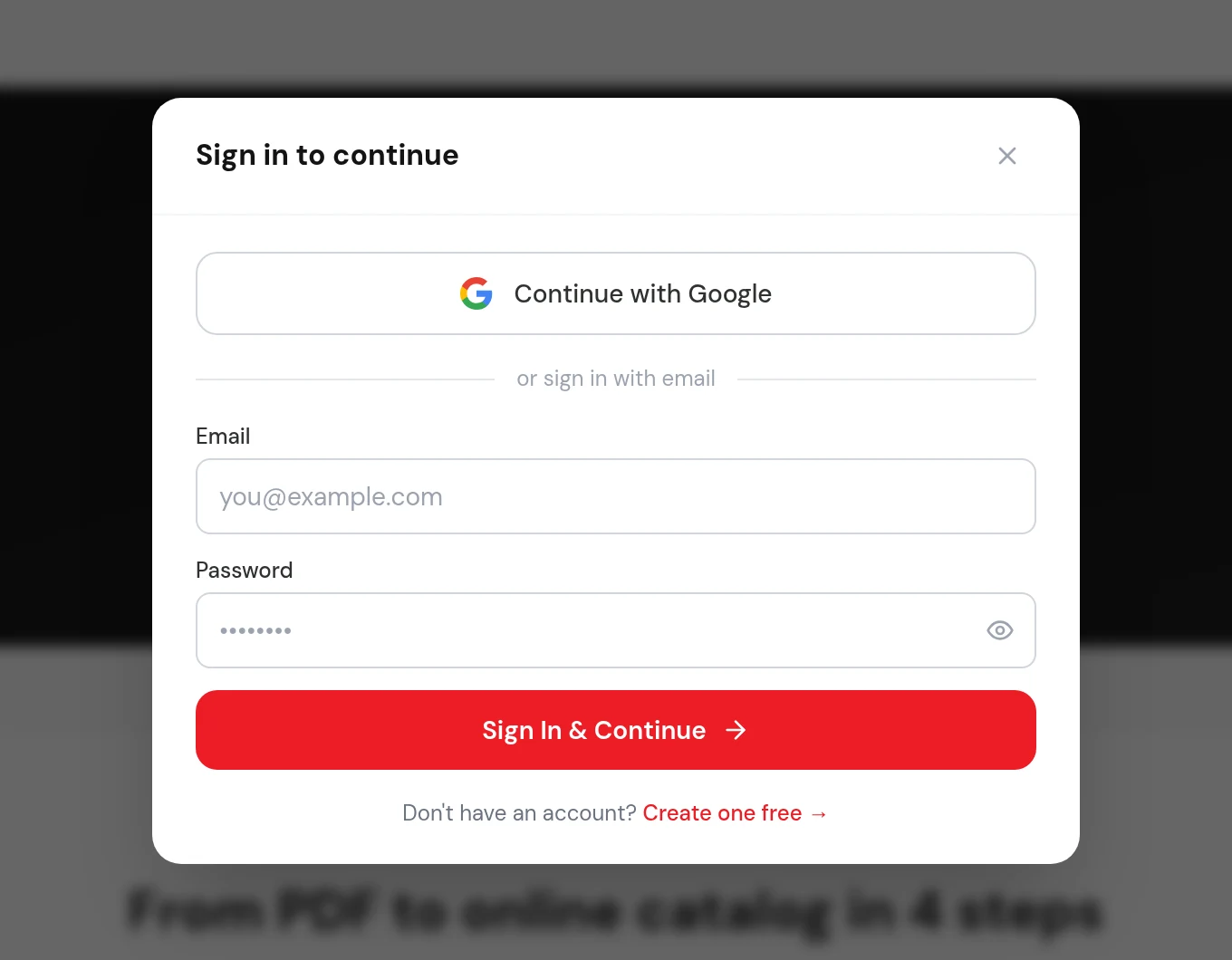
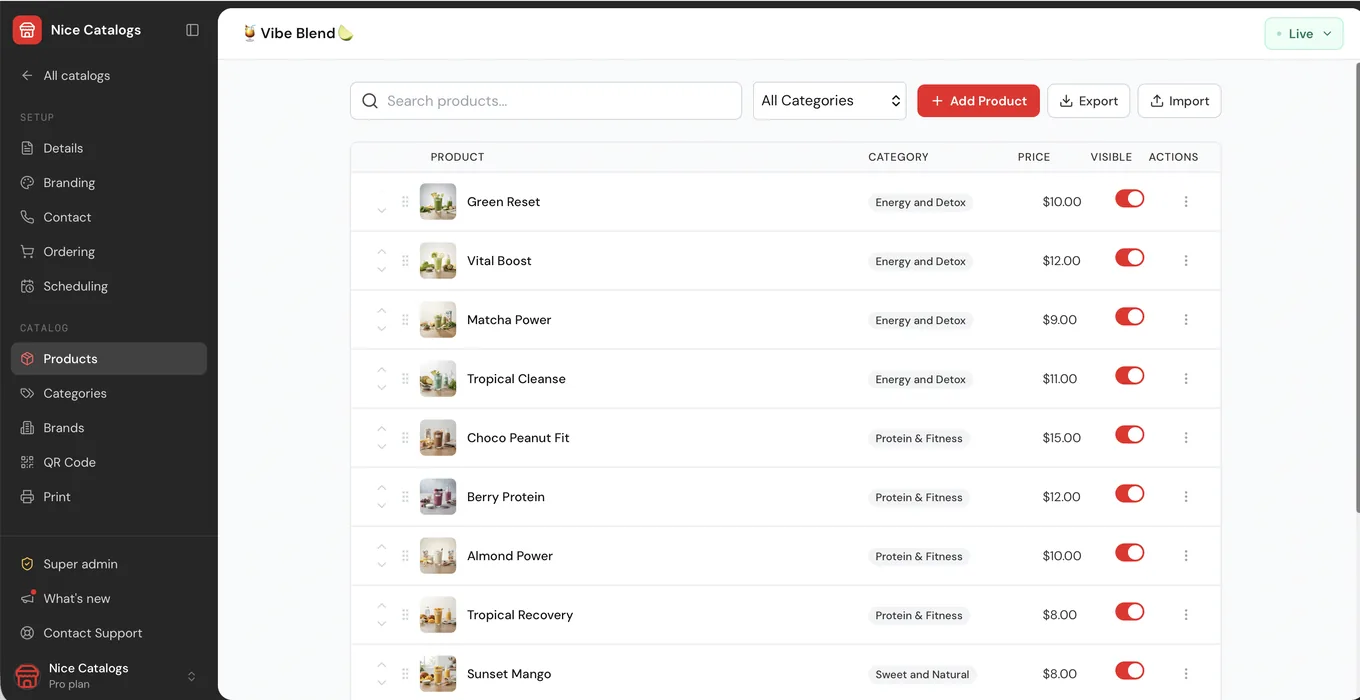
I stopped there on purpose: no account was created and nothing was imported while writing this guide. So I can't tell you how the full list looks after you sign in, or promise that you can get a CSV from the converter. What I can show is that once you have an account, the dashboard's Products page has Import and Export buttons, a search box, a category filter and a Visible switch for each product. I didn't test Export for this guide.
The reliable route: PDF to spreadsheet to CSV
If you want the data in a spreadsheet, or the PDF converter does not read your layout, the CSV route is more predictable because you control every cell:
- Get the rows into a spreadsheet. Best case, you still have the original Excel or Google Sheets file. If you only have the PDF, select the text and paste it into a sheet. How clean the paste is depends on how the PDF was made, so expect to tidy it up. Another option is to ask whoever designed the PDF for the source file.
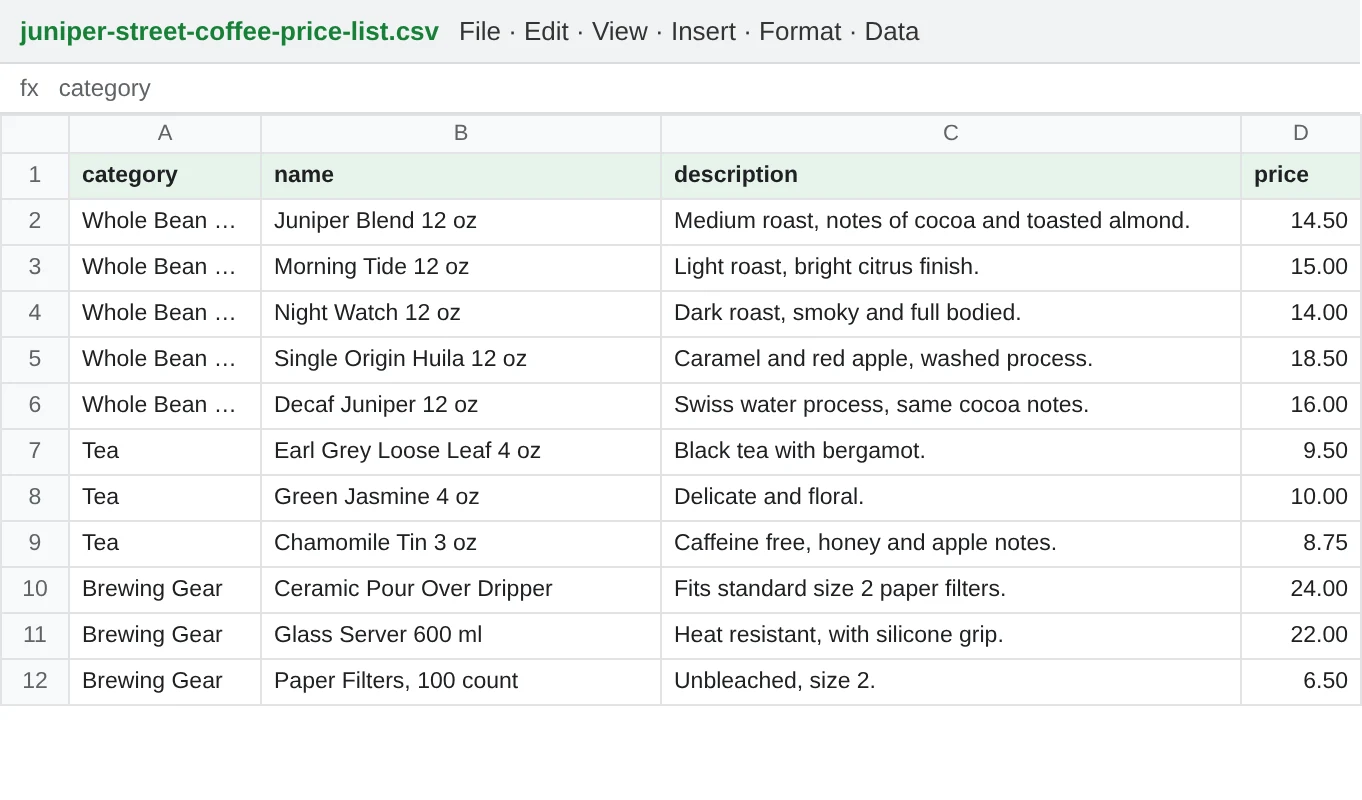
- Use one row per product with four columns: category, name, description, price.
- Write prices as plain numbers, like 14.50, without the currency symbol.
- Save as CSV and upload it to the CSV to catalog converter .
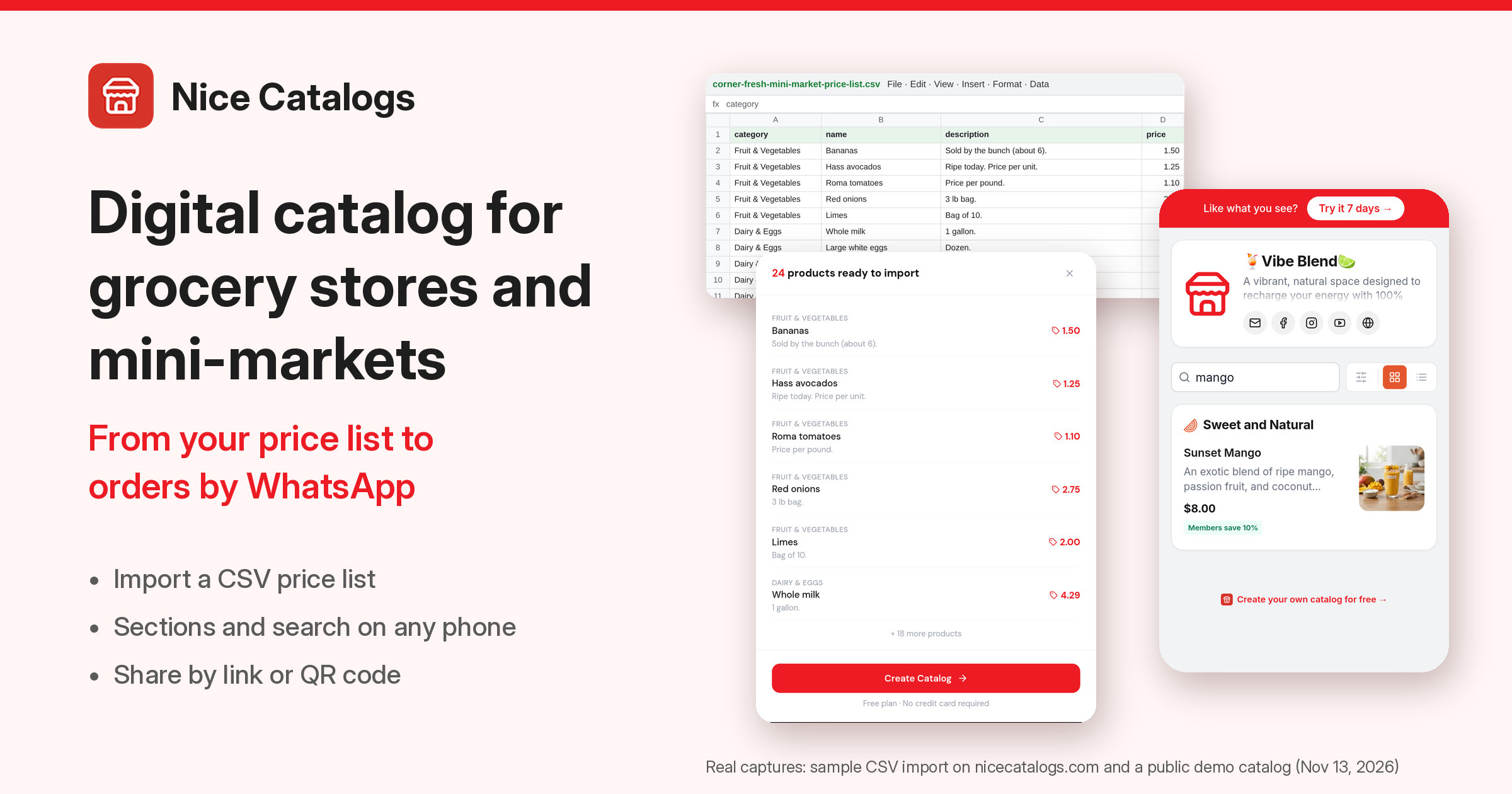
I wrote a CSV with the same 15 products and uploaded it:
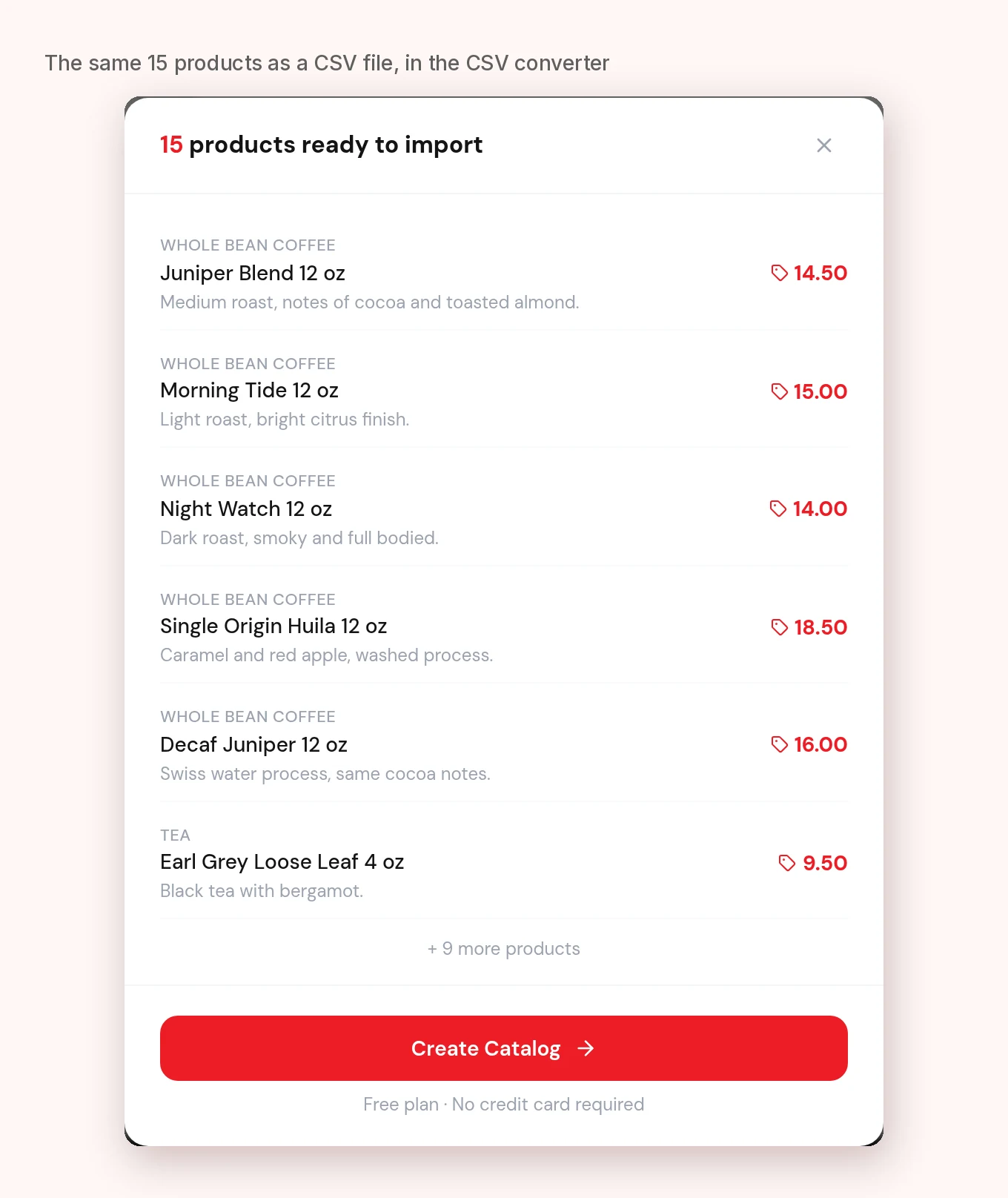
The converter answered "15 products ready to import", with the same sections, names, descriptions and prices. This time the prices show as plain numbers (14.50), exactly as typed.
The CSV tool accepts files up to 10 MB and recognizes common column names: name, title or product name; description, desc or notes; price, cost or unit price. For the full walkthrough, read CSV to online catalog . If you read Spanish, there is also convertir Excel o CSV a catálogo online .
A quick checklist to clean your product data
Whichever route you use, a few minutes of cleaning pays off:
- One product, one name. "Juniper Blend 12 oz" everywhere, not "JB 12" in one place and "Juniper Blend (12oz)" in another.
- Units in the name or description. Size, weight or count is what stops "how much is it?" messages.
- One price per row. If you have sizes or wholesale prices, make a separate row for each.
- Sections that make sense. Five to ten is easier to browse than thirty.
- Check every price once. A converter saves typing, but a wrong price costs you more than the time it takes to look.
- Add photos afterward. PDFs and CSVs rarely carry them. The catalog gets much better with even a few.
After the import: make it a real catalog
Once the products are in your account, you can group them, add photos and publish a link customers can open on any phone. For the full process, my guide on how to turn a pdf to online catalog covers editing, sharing and the plan details. If you were moving a flipbook, see moving a retail catalog from Flipsnack .
If you want customers to order from the catalog, WhatsApp ordering lets them build a cart and send the order to your chat. It is included in the Basic and Professional plans. You can also open a live demo catalog to see what customers get, without signing up.
Which plan do you need?
As of November 17, 2026, the pricing page shows:
- Free, $0 forever: no credit card, 1 catalog with up to 25 products, a public catalog URL, all themes and QR code export. Public pages show a small "Powered by Nice Catalogs" badge.
- Basic, $5/month: up to 3 catalogs with up to 100 products, WhatsApp and Telegram ordering, appointment booking, password protection and no branding.
- Professional, $10/month: unlimited catalogs and products, a custom domain, analytics, loyalty cards, a customer list with saved orders and AI tools.
Basic and Professional include a 7-day free trial. The Free plan has no trial because it is free. The pricing page has the full comparison, and you can sign up free when you are ready. If your list has more than 25 products, you need Basic or Professional to publish all of them.
Bonus: a free tool for the reviews you'll want next
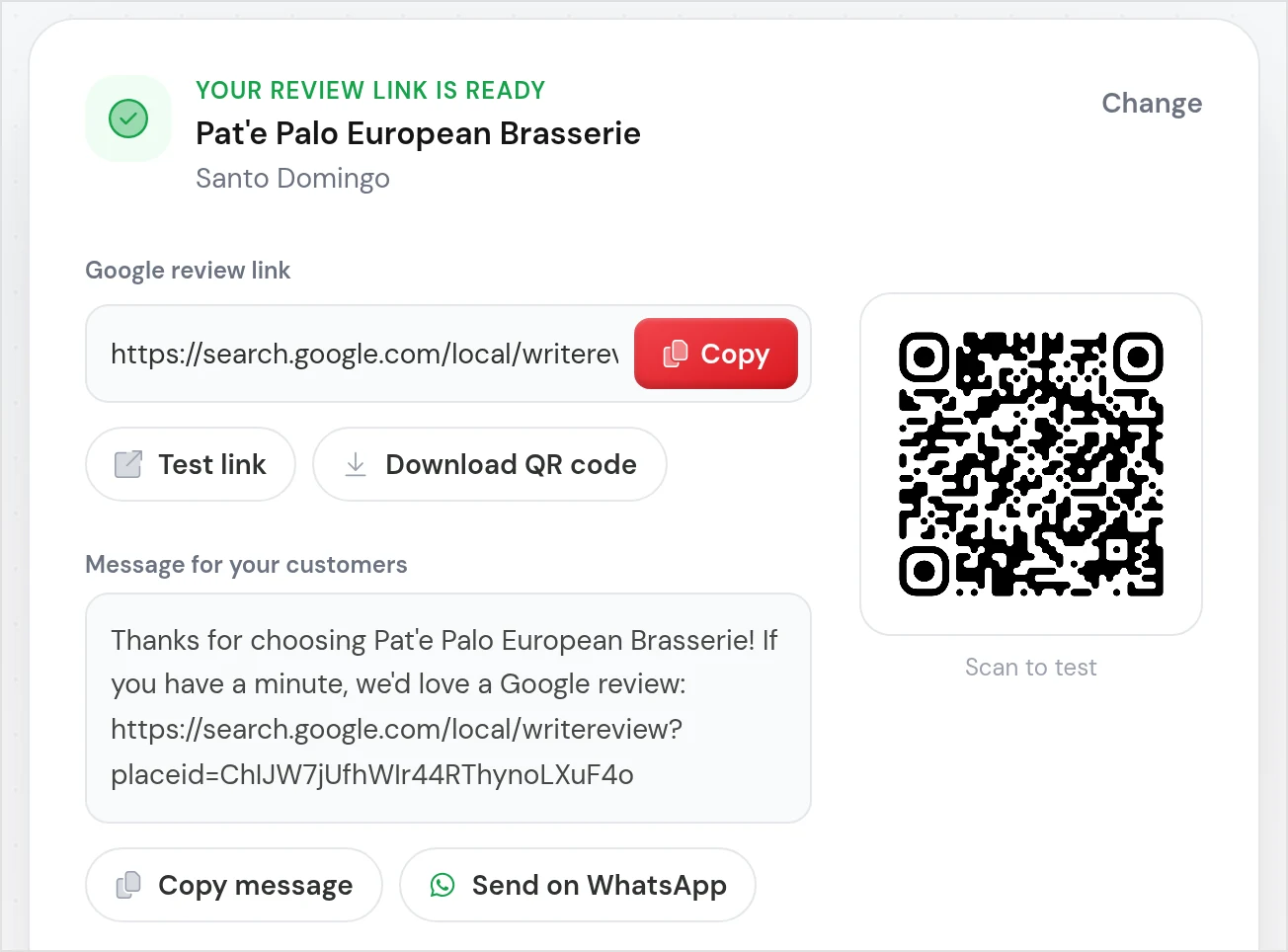
Once your catalog is live, the next thing most small businesses want is more Google reviews. The free Google review link generator gives you a direct link to your review form, a QR code you can print and a message ready for WhatsApp. No sign-up is needed.
Frequently asked questions
Can I get product data out of a PDF for free?
You can upload a PDF to the PDF to catalog converter and preview the products without an account. In my tests the preview showed what was detected, but I did not find a download button for the data on that page. To get a file, the dependable way is to build a CSV in a spreadsheet.
Does it work with scanned PDFs?
In one test, a PDF that was only an image of my price list was read correctly. I did not test photos taken with a phone or poor scans, so try your own file before counting on it.
What if the converter says no products were detected, or mixes up the data?
Use the CSV route. Put one product per row with category, name, description and price columns, save as CSV and upload it to the CSV converter.
Does it keep my sections and categories?
When the PDF had section headings, they came through as categories in my test. When the file was a table with no headings, the section was empty, so add one in your CSV or in the dashboard.
How many products can I have?
Up to 25 on the Free plan, 100 per catalog on Basic and unlimited on Professional.
Do my customers need an app?
No. They open your link in the browser on any phone or computer.
Try it with your own price list
Take the PDF you already send to customers and upload it to the free PDF converter . If it reads your list, you are minutes from a catalog. If it doesn't, the CSV route will get you there with the same data.