A grocery store or mini-market changes more prices in a week than most shops do in a year. That is exactly why a printed flyer or a PDF price list goes stale so fast, and why regulars keep calling to ask "do you have it?" and "how much is it now?".
A digital catalog fixes that with one link: your products, sections and current prices on any phone, no app to install, and a cart that sends the order to your WhatsApp. This guide shows how to build one from the price list you already have, with real screenshots of each step, plus the honest limits so there are no surprises.
Short answer: how to put a grocery catalog online
- Export your price list as a CSV file (from Excel, Google Sheets or your inventory system).
- Upload it to the free CSV to catalog converter and check the preview.
- Sign up, import the products, and organize them by aisle: produce, dairy, bakery, pantry, drinks, household.
- Turn on WhatsApp ordering (Basic or Professional plan) so customers can send a full shopping list.
- Share the link in WhatsApp groups and print the QR code for the door and the counter.
What makes a grocery catalog "easy to access"?
When shoppers ask which grocery retailers have easy-to-access digital catalogs, they usually mean something simple: can I see what you carry and what it costs, on my phone, before I go? For a small store, that comes down to five things:
- One link, no app. Customers tap a link or scan a QR code and the catalog opens in their browser. No download, no account.
- Sections that work like aisles. Fruit and vegetables, dairy and eggs, bakery, pantry, drinks, household. People jump straight to the part they need.
- Search. Someone looking for limes shouldn't scroll past 80 products to find them.
- Prices that match the shelf. If the price on the phone is wrong, trust is gone. Updating has to take seconds.
- A simple way to order. For most neighborhood stores, that means WhatsApp, because that is where customers already talk to you.
A digital catalog for grocery stores built with Nice Catalogs covers all five. Here is how to set one up.
Step 1: Start from the price list you already have
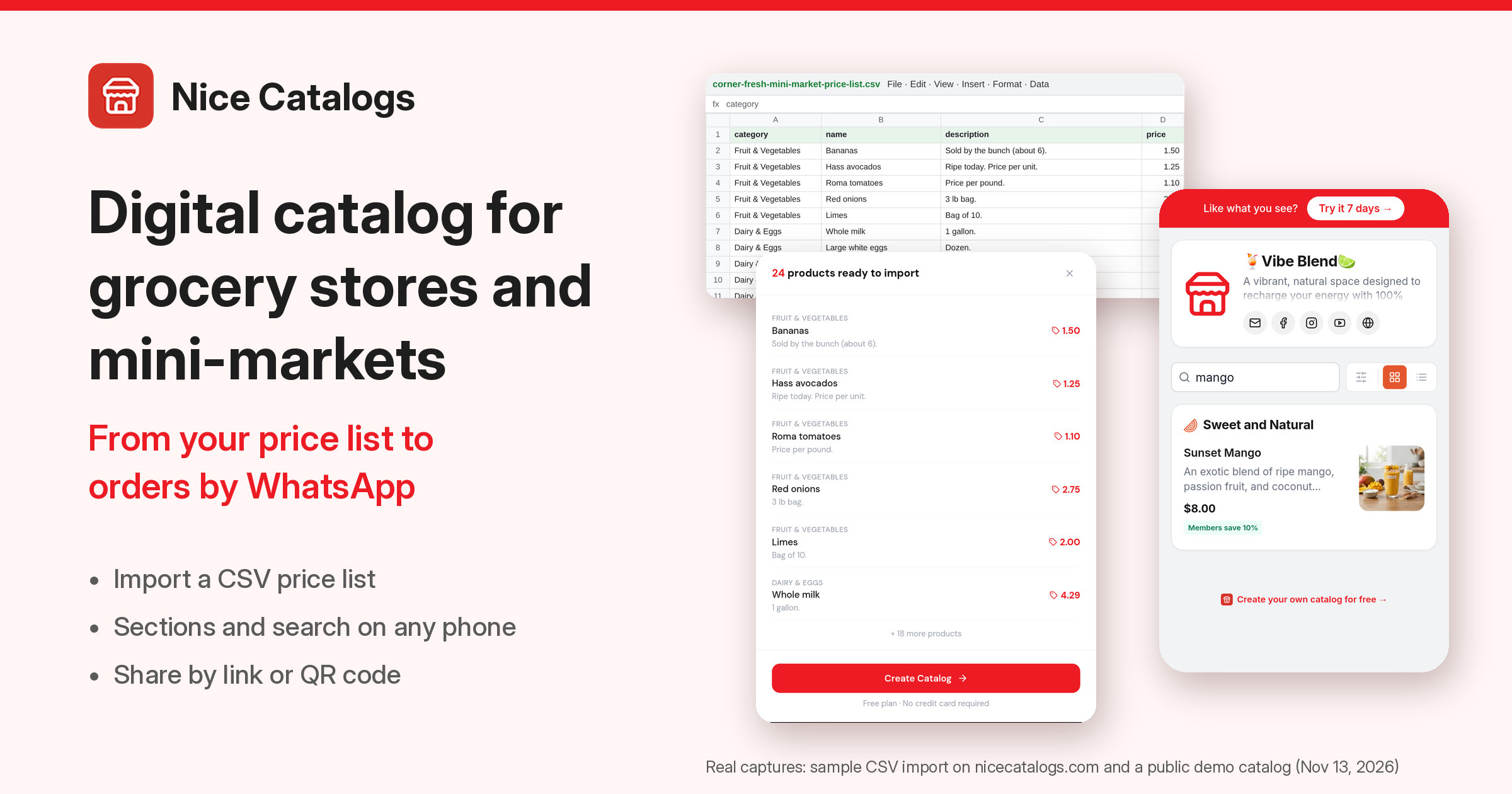
You don't have to type products one by one. If your price list lives in Excel, Google Sheets or a point-of-sale export, save it as a CSV file. Four columns are enough: category, name, description and price.
The example in this guide is a made-up store, Corner Fresh Mini-Market, with 24 products across six categories. Units go in the description ("Dozen", "1 gallon", "Price per pound"), which matters a lot in grocery.
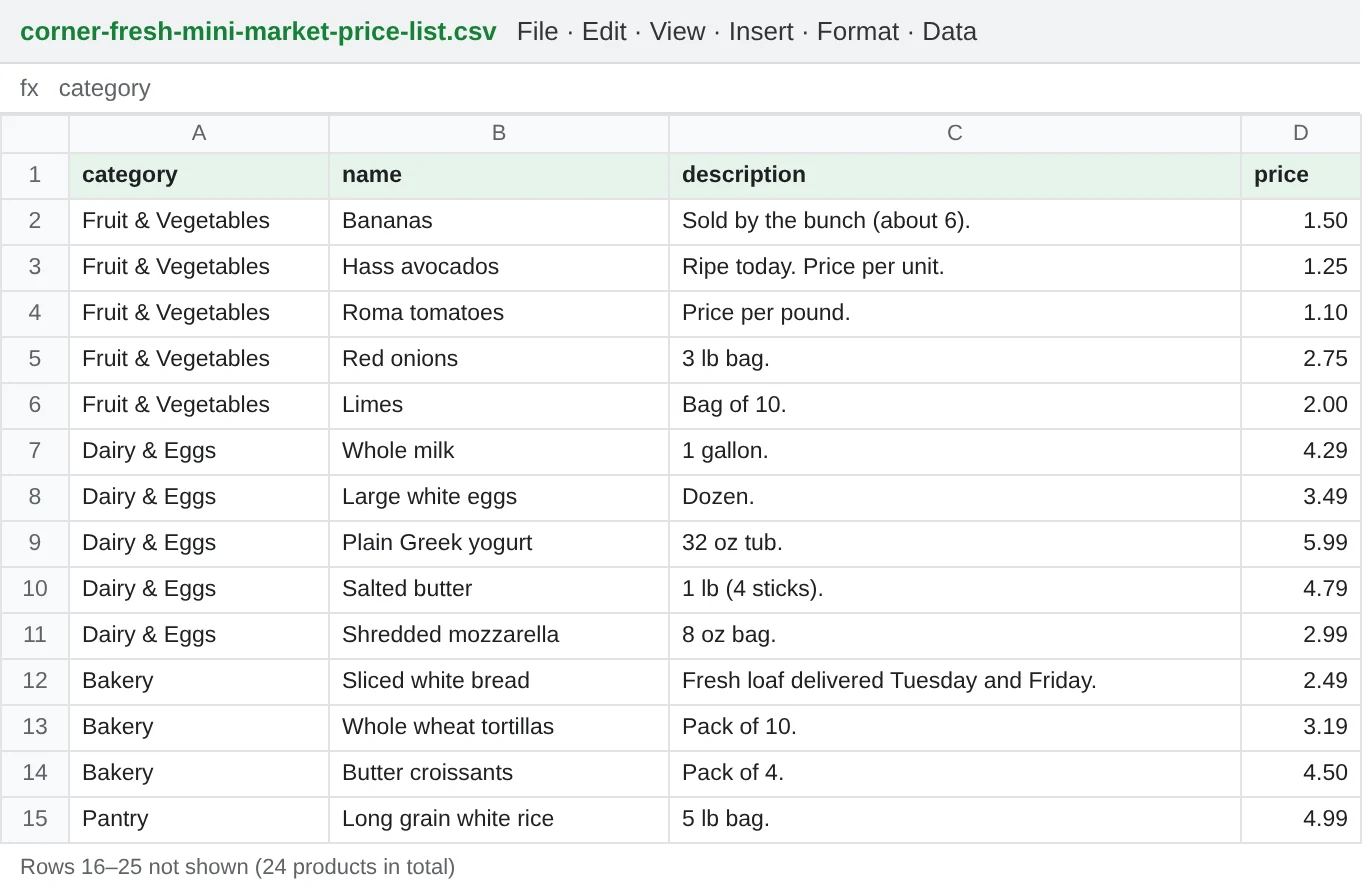
The CSV converter recognizes common column names: name, title or product name for the product; description, desc or notes for the description; price, cost, unit price or retail price for the price. A category column groups the products, so your aisles come through on their own.
Drop the file on the page and a preview appears right away. In a test on November 13, 2026, it read all 24 products, each with its category, name, description and price, and the button underneath said "Free plan · No credit card required".
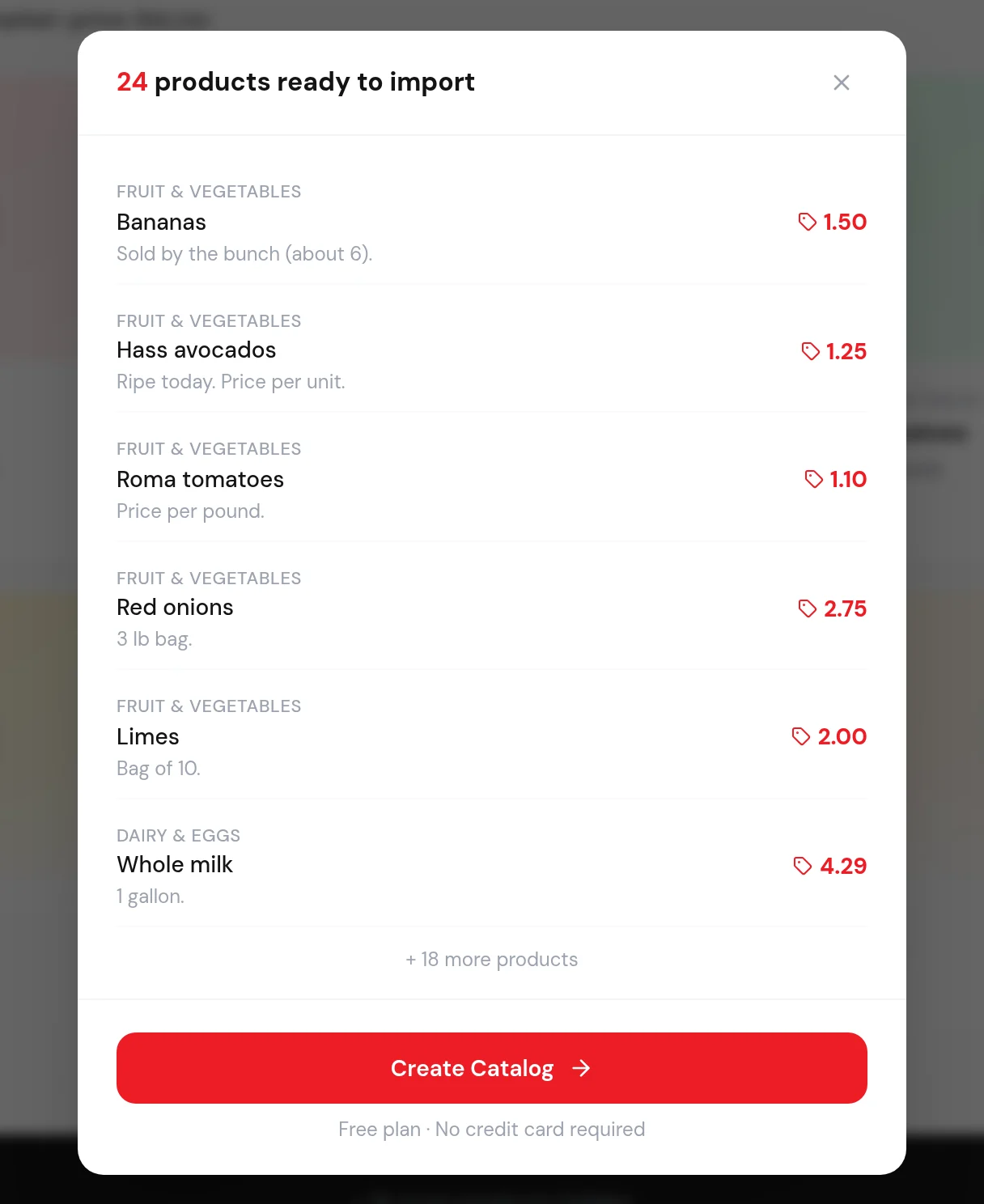
Two small things to know from that test: prices show exactly as they are written in your file (the sample says 1.50, not $1.50), and the preview still worked with every upload request blocked in the test browser, so the file is read in your browser. Nothing is imported until you sign in.
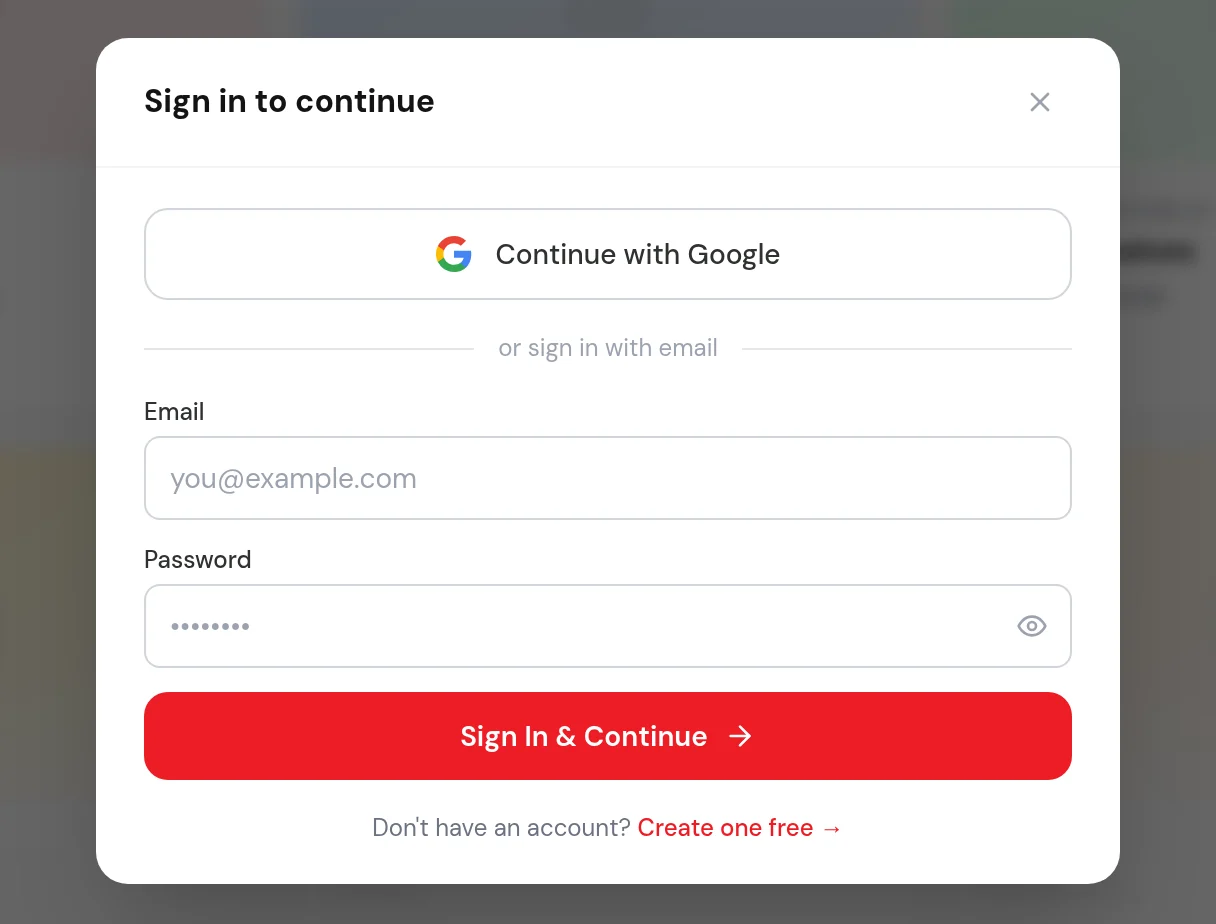
When you press Create Catalog, the next step is signing in or creating an account. The screenshots stop there: nothing was imported and no account was created.
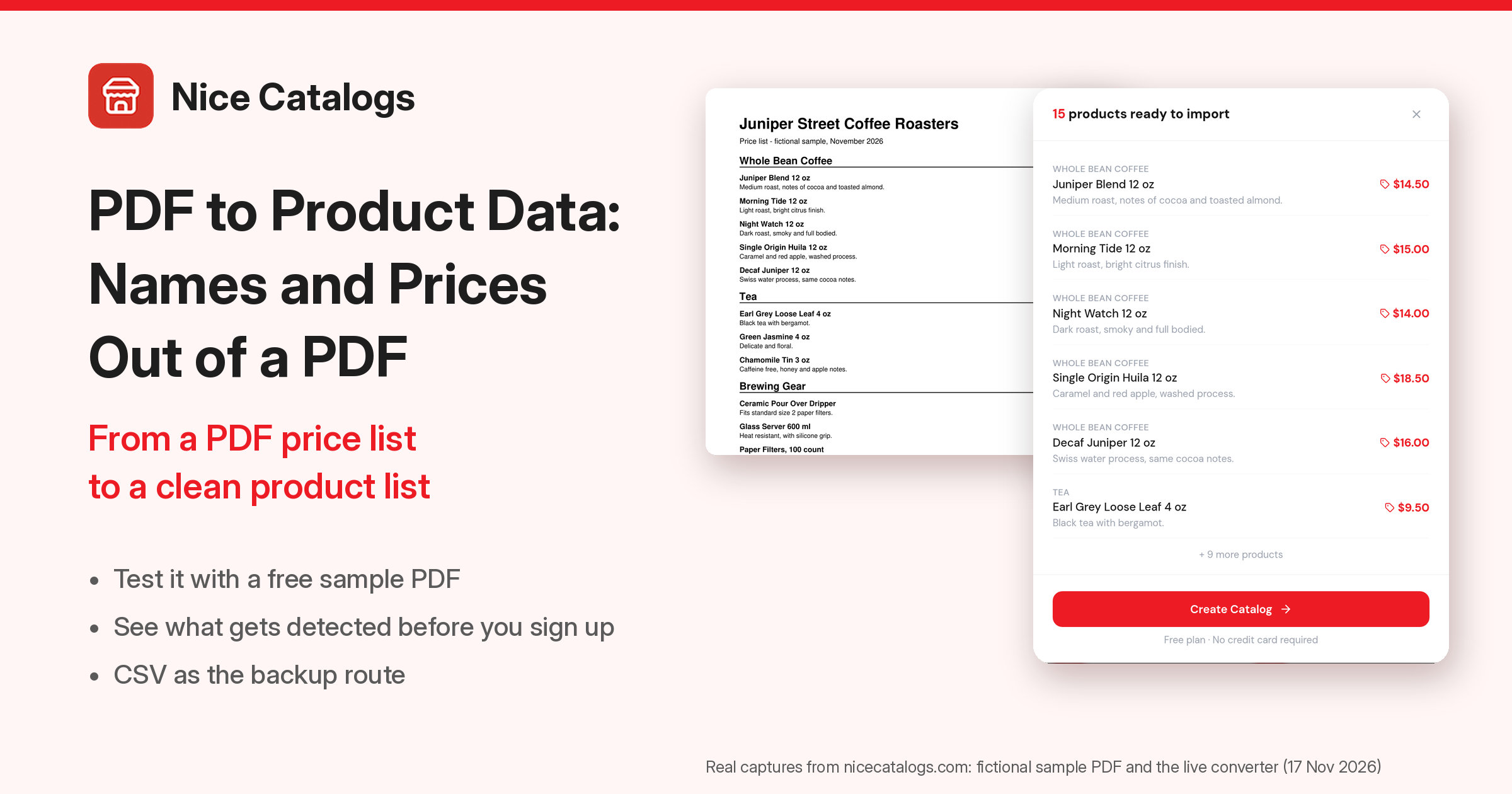
If your price list is a PDF instead, there is also a PDF to catalog converter . See how to turn a PDF into an online catalog for what to expect, and the CSV to online catalog guide for more about columns and file formats.
Step 2: Organize it by aisle and make it easy to search
Once the products are in, think like a shopper walking in the door. Name your sections the way people name aisles, and keep the list short enough to scan: six to ten sections works better than thirty.
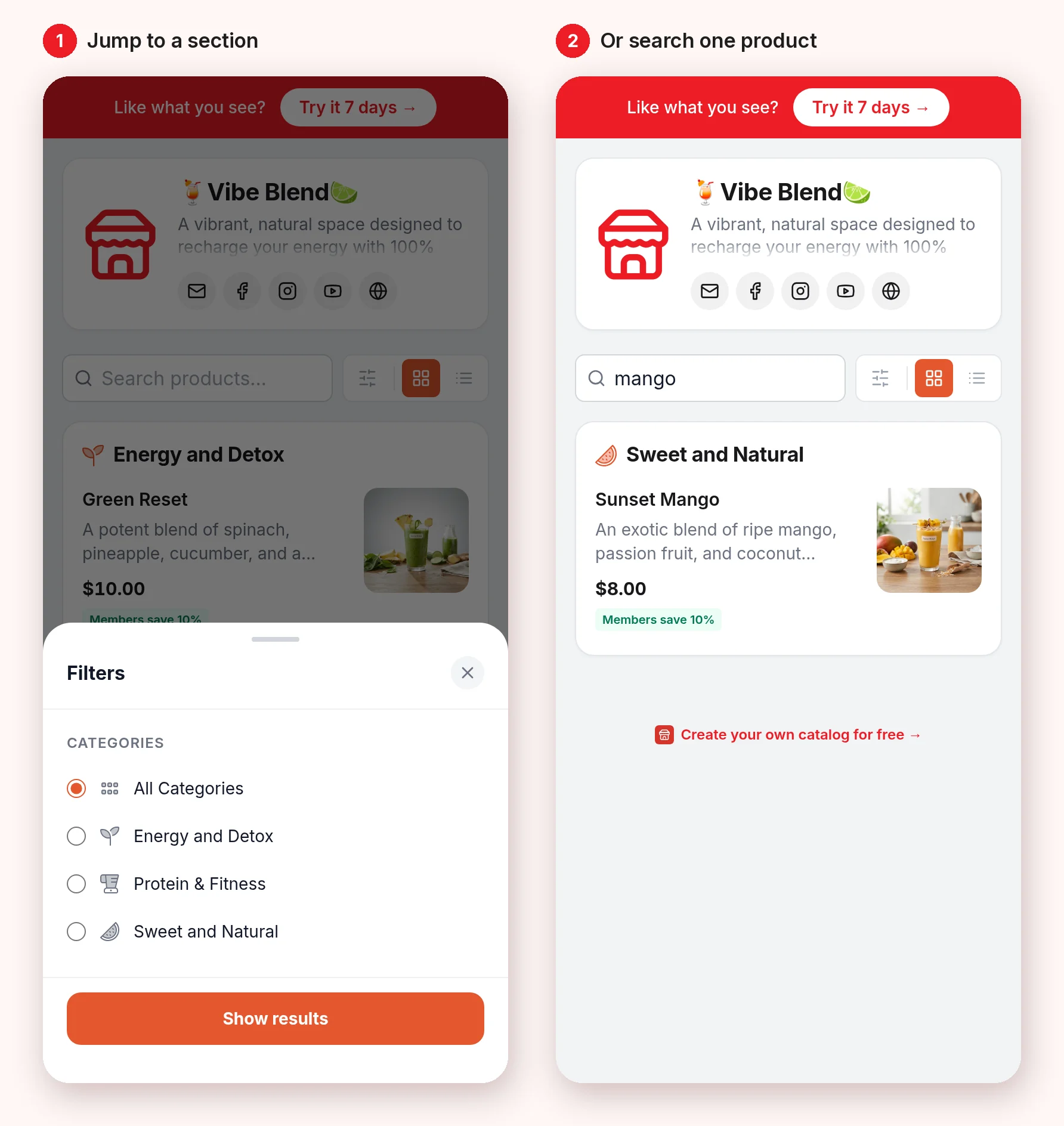
On the customer side, each section shows as a block with photos, names and prices. A filter button opens the list of sections, and a search box finds one product by name. The screenshots below are from a public Nice Catalogs demo (a smoothie bar, not a grocery), but a grocery catalog uses the same layout.
A few grocery-specific tips:
- Put the unit in the name or description. "Eggs, dozen" or "Rice, 5 lb bag" saves a lot of questions in the chat.
- Add photos for the products people compare. Brands of coffee, oil or detergent. For loose produce, a clean photo of the item is enough.
- Keep a "This week's specials" section. It gives regulars a reason to open the link again every week.
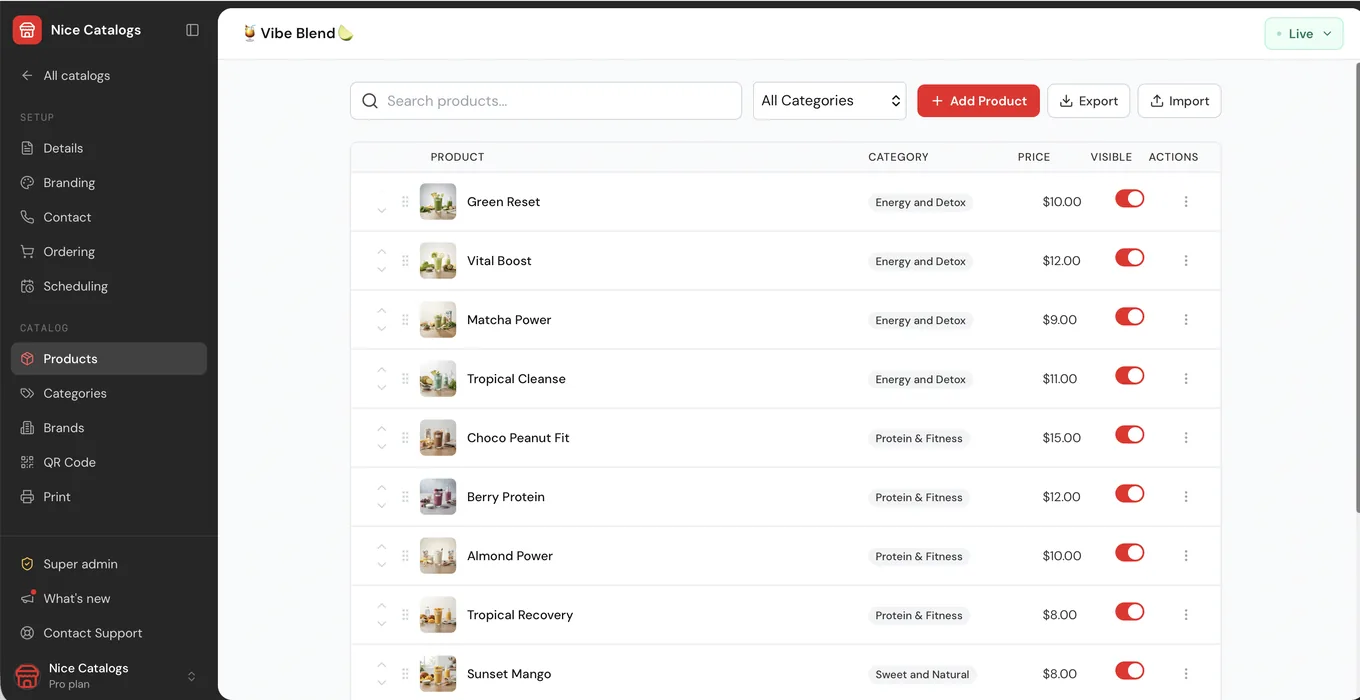
In the dashboard, the Products page lists everything with its category, price and a Visible switch, and has Import and Export buttons for when you update the whole list from a spreadsheet.
Step 3: Keep prices and stock honest
This is where a digital catalog beats paper. When a delivery arrives or a supplier raises a price, change it in the dashboard and the next person who opens the link sees the new price. The link and the QR code stay the same, so nothing has to be reprinted.
When you run out of something, switch off Visible for that product so customers don't order it, and switch it back on when it's restocked. A quick routine helps: check the catalog when you open, after each delivery, and before you share the link in a group.
Step 4: Turn on WhatsApp ordering
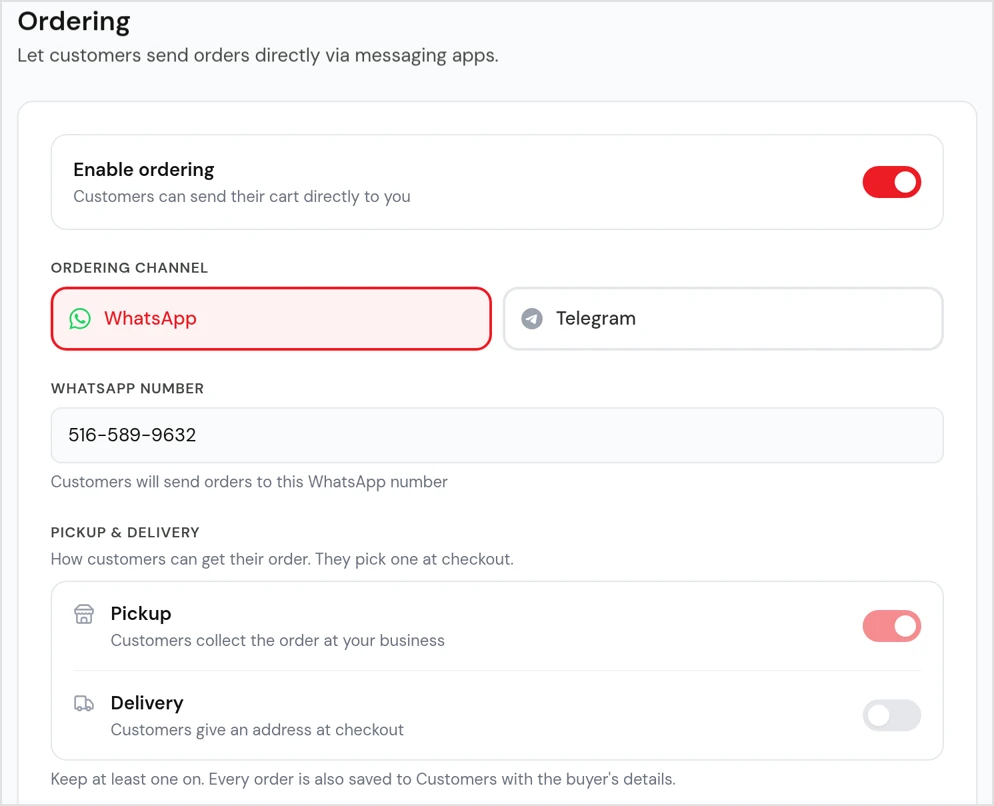
With ordering on, every product gets an add button and the catalog gets a cart. In the catalog's Ordering settings you switch ordering on, pick WhatsApp (or Telegram), enter the number orders should go to, and choose whether customers can pick Pickup, Delivery or both. With delivery on, customers give an address at checkout.
The customer fills the cart, adjusts quantities, adds their name and phone, picks pickup or delivery, and taps Send Order via WhatsApp. WhatsApp opens with the whole order already written, itemized with a total, and the customer just presses send.
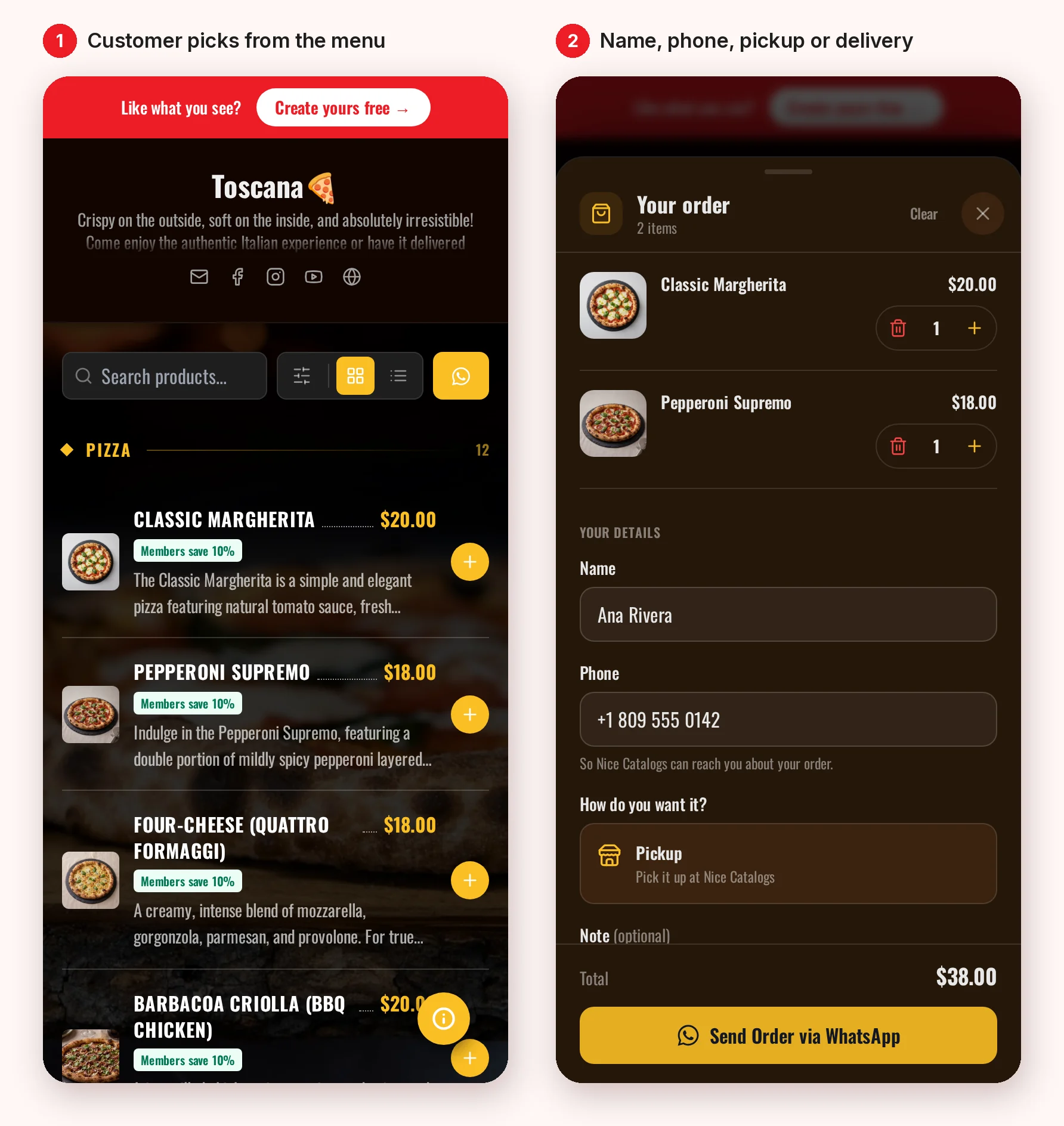
The WhatsApp ordering page shows what lands in your chat: one line per product with quantity and price, the total, then name, phone and order type. For a grocery order that means packing is just reading down the list.
A few things to set expectations:
- Payment happens outside the catalog. Nice Catalogs sends you the order; it does not take the payment. You settle it the way you already do: cash on delivery, card on pickup, a bank transfer or a payment link sent in the chat. That's also why there is no commission per order.
- Any WhatsApp works. Orders go through a normal wa.me link, so a personal or Business account is fine, and customers don't need anything new.
- WhatsApp ordering is on the Basic and Professional plans, not on Free.
For a full walkthrough of the setup, see how to run a product catalog and take orders on WhatsApp .
Where your orders end up
The order still arrives in WhatsApp, and you confirm payment and packing there. On the Professional plan, the same order is also saved in Orders, where you can move it from New to In progress, Ready and Completed, search, filter and export a CSV. The dashboard does not track payment, so you still close that in the chat.
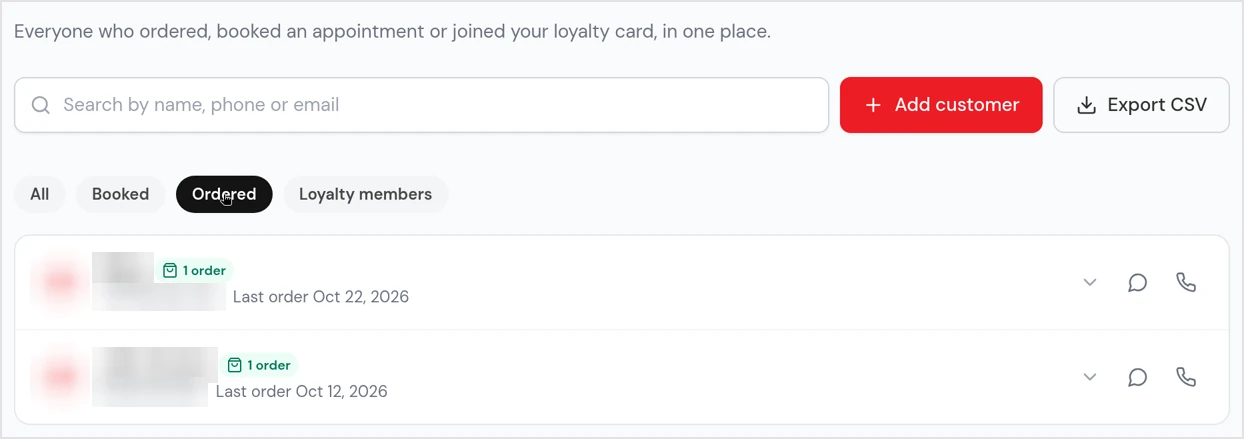
On the Professional plan, every order is also saved in Orders (you can track it from New to Completed, search and export a CSV) and under Customers with the buyer's details, so you can filter the people who ordered and open their recent orders. The analytics dashboard counts orders sent. On Basic, ordering still sends the message to WhatsApp, but the Orders dashboard and customer list are on Professional. Neither plan tracks payment in the dashboard.
If you get more than a handful of orders a day, labels in WhatsApp Business and a simple routine go a long way. The guide to managing WhatsApp orders covers confirming, payment and pickup or delivery step by step.
Step 5: Share it where your customers already are
A catalog only helps if people open it. The good news for a neighborhood store is that the channels are free:
- WhatsApp groups and status. Post the link when the weekly specials change. Regulars save it and come back to it.
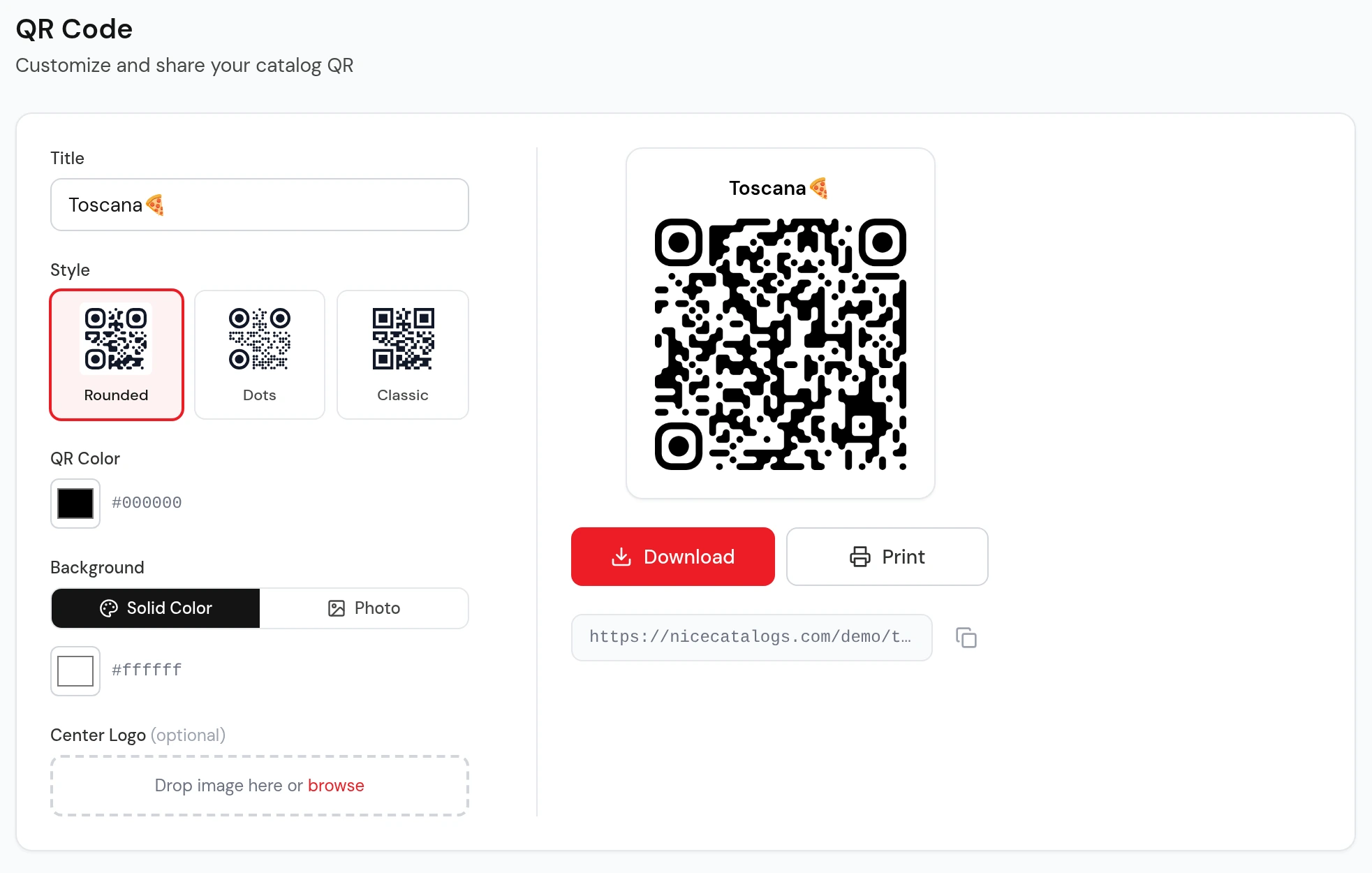
- A QR code at the door and the counter. Every plan includes QR code export. In the dashboard you can pick a style and colors, add a title and download or print it.
- Your Google Business Profile and Instagram bio. Paste the same link so people who find you online see your products too.
- Replies. When someone asks "do you have…?", answer with the link instead of a photo of the shelf.
More ideas in send your product catalog as a link, not a PDF .
Bonus: turn happy regulars into Google reviews
Plenty of people check the rating before they try a new store nearby. Reviews from your regulars help, and asking takes seconds once you have the right link.
The free Google review link generator finds your business, gives you a link that opens your Google review box, a QR code to print next to the register, and a ready message to send on WhatsApp after a delivery. It's free, with no sign-up and no email, and the link points straight at Google.
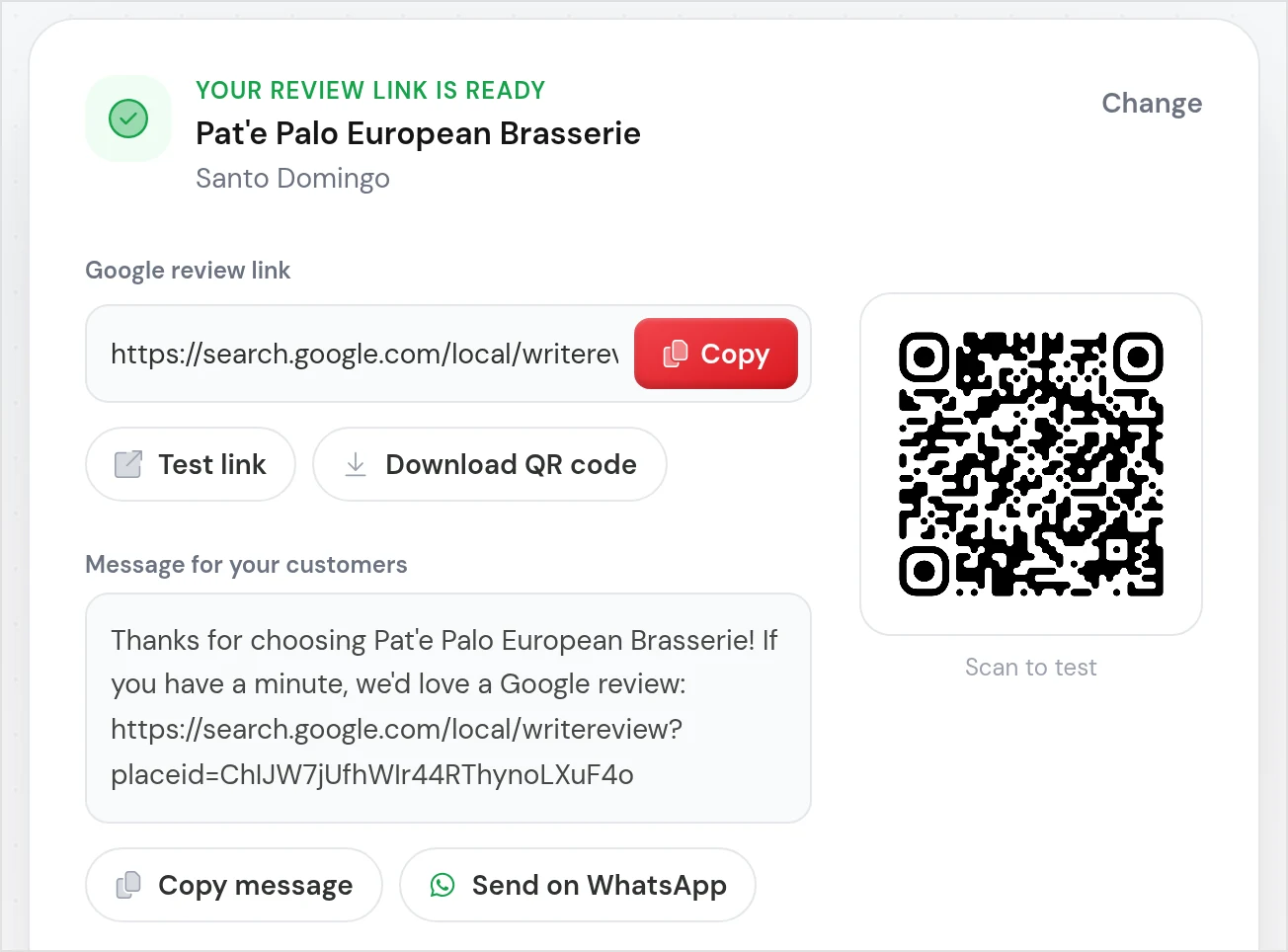
For where to place the code and how to print it, see how to make a free QR code for Google reviews .
Which plan fits a grocery store or mini-market?
Prices as listed on the pricing page today:
- Free, $0 forever. 1 catalog with up to 25 products, a public link you can customize, every theme and QR code export. No credit card. Public pages show a small "Powered by Nice Catalogs" badge. Good for a short list of best sellers or weekly specials, but there is no WhatsApp ordering.
- Basic, $5/month. Up to 3 catalogs with up to 100 products each, WhatsApp and Telegram ordering, link-in-bio page, Google reviews tools, password protection, and no Nice Catalogs branding.
- Professional, $10/month. Unlimited catalogs and products, custom domain, analytics, customer list and saved orders, loyalty cards, printable PDF menus and AI tools for photos and descriptions.
Basic and Professional come with a 7-day free trial (you add a card, and nothing is charged for 7 days). Paying yearly takes 20% off both paid plans.
The honest math for grocery: a full mini-market often carries a few hundred products. That fits Professional, or Basic if you split it into catalogs of up to 100 (for example, fresh food, pantry, household). Many stores start smaller: put the 50 to 100 products people ask about most online first, and add more once the orders come in.
If you ever cancel a paid plan, your account goes back to Free: your oldest catalog stays live with its first 25 products, and the rest is made private, not deleted.
Frequently asked questions
Do customers need to download an app?
No. They tap the link or scan the QR code and the catalog opens in their browser. They don't need an account to browse.
Can I import my price list from Excel?
Yes. Save the sheet as a CSV file and upload it to the CSV converter . You'll see the products before you create an account.
Can I keep wholesale prices private?
On Basic and Professional you can protect a catalog with a password, which is handy for a wholesale list you only share with business customers. More in password-protected catalogs .
Can customers pay online?
Not through the catalog. The order arrives in WhatsApp and you agree the payment there.
Is WhatsApp's own catalog enough?
It can work for a few products. For a long price list with sections that changes every week, a separate catalog link is easier to keep current. Both are compared in WhatsApp Business catalog alternative for shops .
Is there a Spanish version?
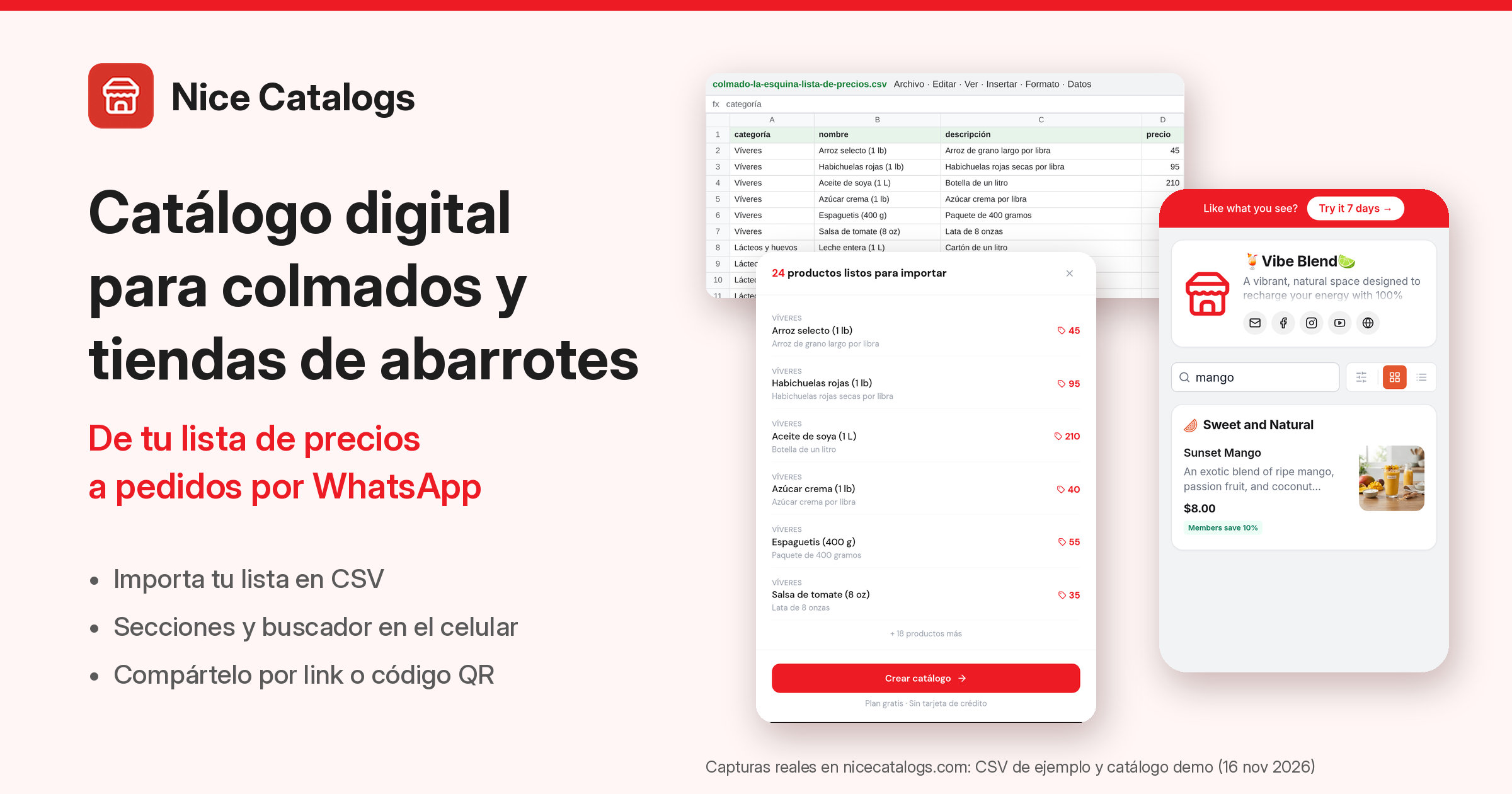
Yes. If many of your customers speak Spanish, see catálogo digital para tiendas de abarrotes .
Start with your price list
You probably already have everything you need: a spreadsheet of products and a WhatsApp number your customers know. Upload the list to the free CSV converter to see your catalog take shape, then start free and upgrade when you want WhatsApp orders. Plans and limits are on the pricing page .