A QR code for Google reviews is one of the easiest ways to turn "that was great" into a posted review. The customer points their phone camera at the code, and Google's review box for your business opens with the stars ready to tap. No searching for you on Maps, no hunting for the reviews tab.
You can make one for free in about a minute, without signing up for anything. This guide shows how, step by step, with real screenshots of our free Google review link generator . Then it covers the part most guides skip: where to put the code, how big to print it, and when to ask, so people actually scan it.
Short answer: how to make a free QR code for Google reviews
- Open the free Google review link generator and type your business name.
- Pick your business from the list and press Get link.
- Press Download QR code to save the QR code as a PNG image.
- Scan the printed code with your own phone before you put it out.
That's it. Below is each step in detail, with what you'll see on screen.
Step 1: Find your business
Type your business name in the box and pick it from the list. The suggestions come from Google Maps, so you'll see the name and the area under it. If you have more than one location, check the area before you pick.
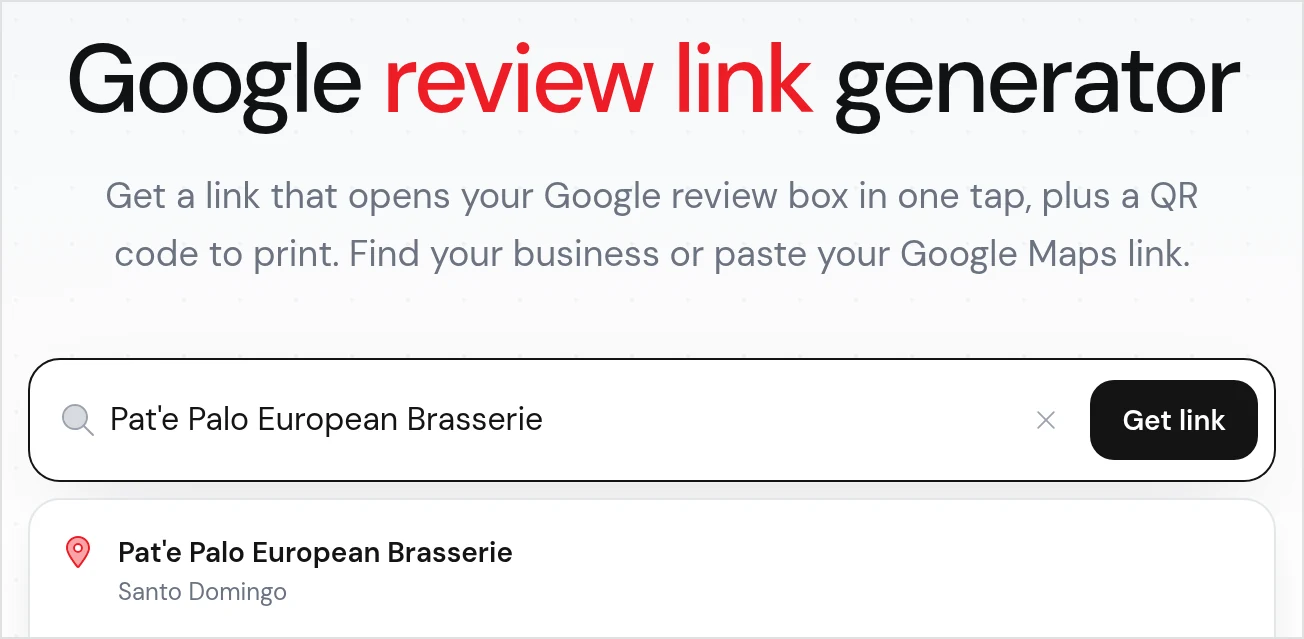
If your business doesn't show up, the tool page gives two tips: add your town or street to the name, or open your listing in Google Maps, tap Share and paste that link instead. We tested the paste route with a Google Maps link and it built the same review link.
One small thing to know: when you paste a link, the tool doesn't show your business name. The card says "Your Google business" and the ready-made message starts with "Thanks for choosing us!". If you plan to send that message, add your name to it first.
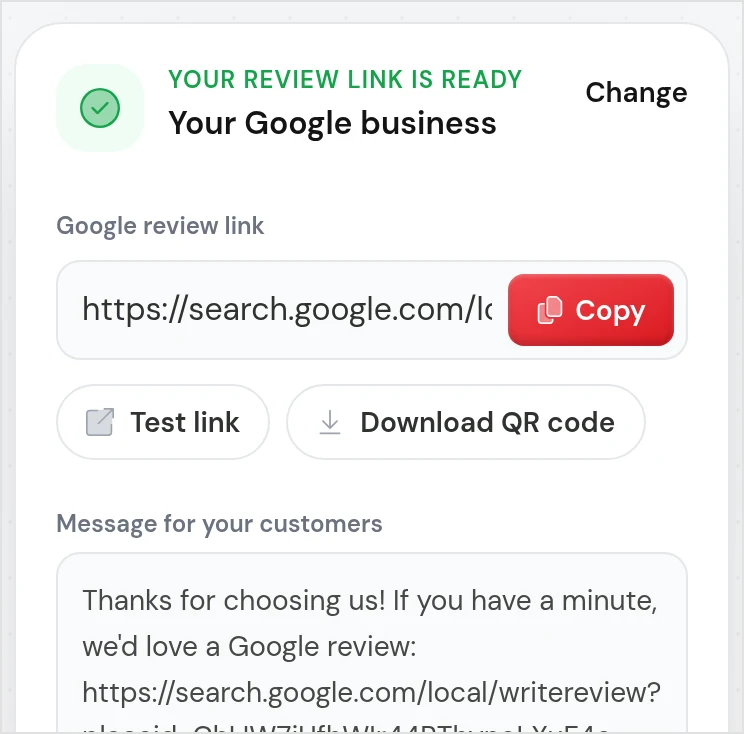
The search only finds businesses that have a Google Business Profile. If you don't have one yet, create your free profile with Google first, then come back.
Step 2: Get your review link and QR code
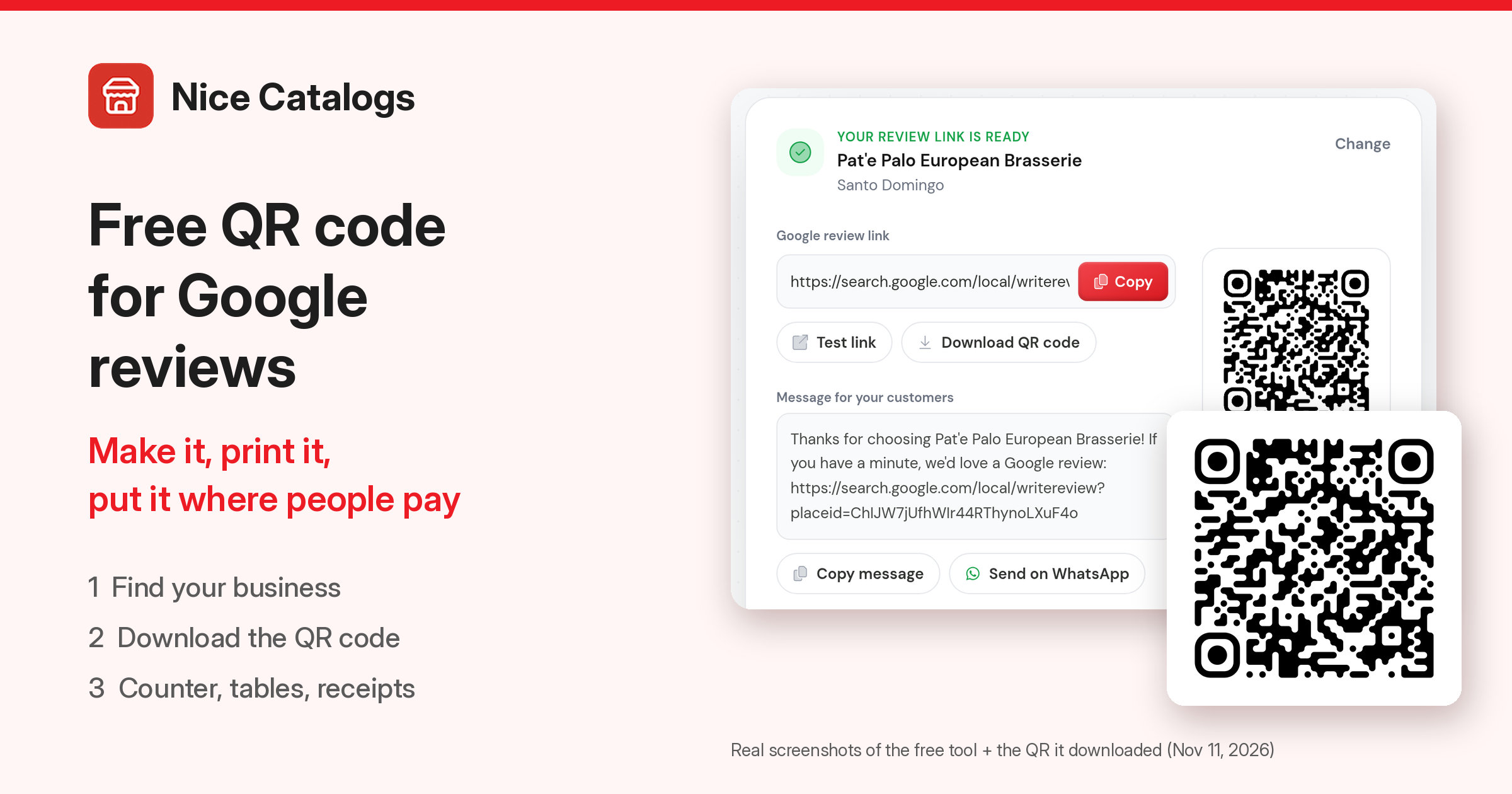
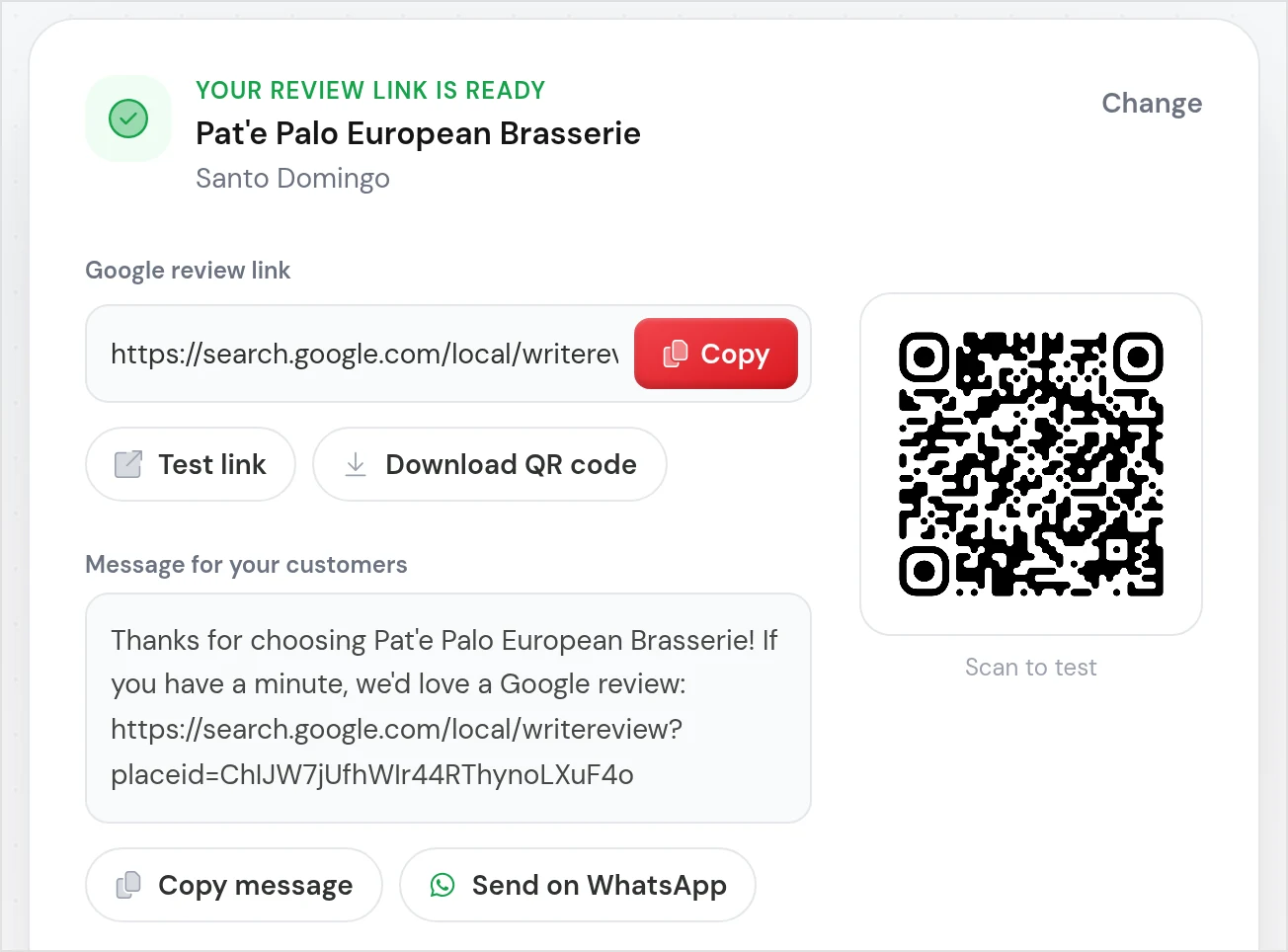
Press Get link. The result card shows everything in one place:
- Google review link with a Copy button. In our test it was a search.google.com/local/writereview address with your place ID at the end.
- Test link, which opens the review page so you can check it's the right business.
- Download QR code, which saves the code as an image.
- Message for your customers, a ready-made text with the link inside, plus Copy message and Send on WhatsApp.
- A small preview of the QR code with "Scan to test" under it.
It's free, with no sign-up, no email and no limit on how many people you send the link to. The link points straight at Google, so it keeps working even if you never use Nice Catalogs.
Step 3: Download the QR code and test it
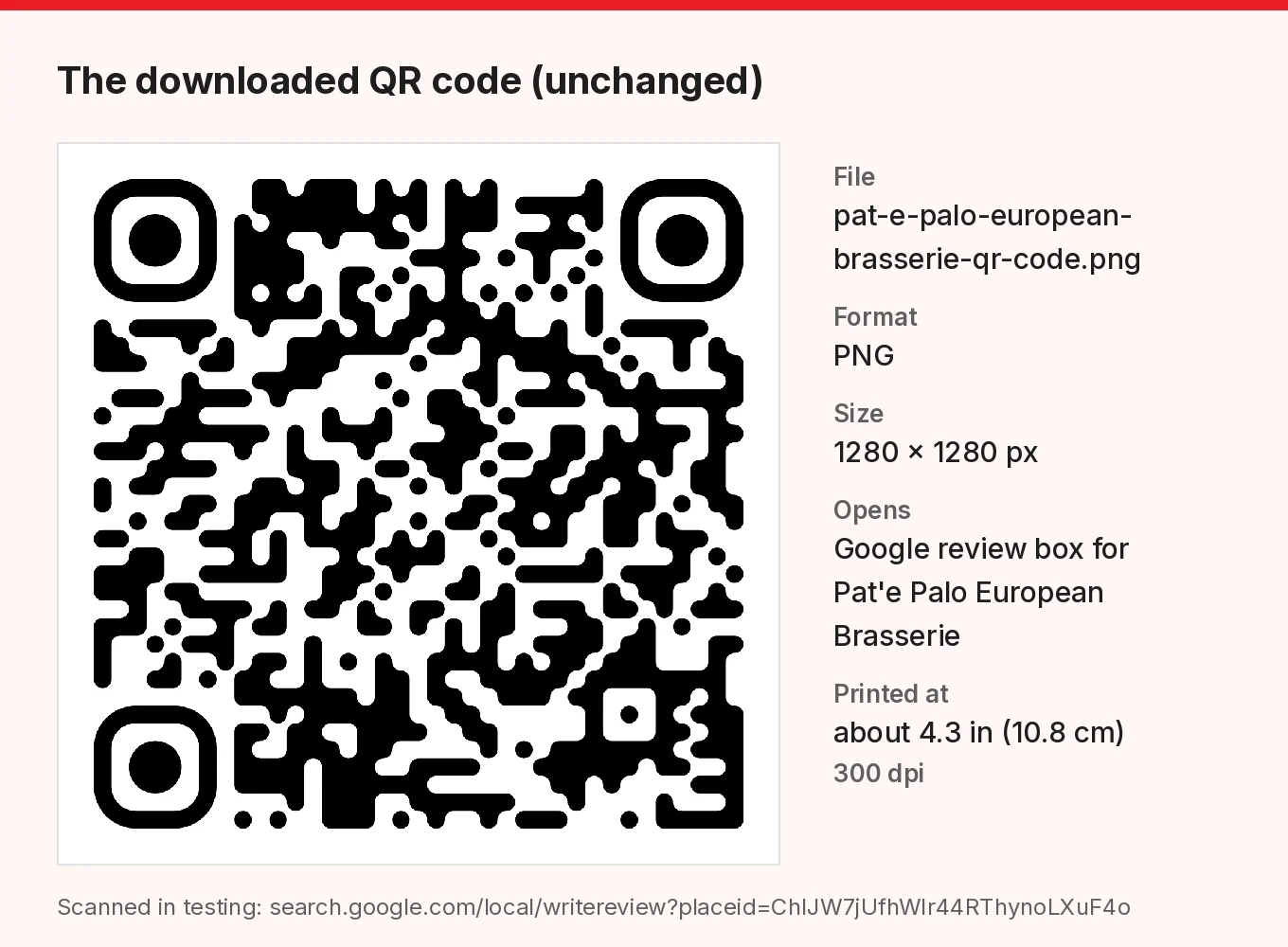
Download QR code saved a PNG file named after the business. Ours was 1280 × 1280 pixels, black on white, with rounded dots. We scanned the downloaded file and it opened the same Google review address as the link.
Before you print a batch, do a real-world test:
- Print one copy at the size you plan to use.
- Scan it with two different phones (an iPhone and an Android if you can) from where a customer would stand or sit.
- Check that it opens the review box for the right business, not a similar name nearby.
On a phone that isn't signed in to Google, the review page asks the person to sign in first. That's expected: Google says customers must be signed in to a Google Account to leave a review. Most people already are.
Can't I get a review QR code from Google itself?
Yes. Google Business Profile has its own option: go to your Business Profile, select Read reviews, then Get more reviews, and copy the link or save the QR code. Google's help page notes that review QR codes can only be generated on a computer browser , not on a phone. It's done from inside your own Business Profile.
Use whichever is easier for you. The free generator is handy when you're on your phone, when the person making the sign isn't the profile owner (a manager or a designer, say), or when you also want a ready-to-send message for WhatsApp or text. Both point customers at the same place: your Google review box.
Where to put your Google review QR code
A review QR code only works where a happy customer has a free hand and a spare minute. Google's own suggestions are receipts, thank-you emails, the end of a chat, and a printed QR code in your store. Here's how that looks in practice.
At the counter or till
The classic spot. A small stand or sticker next to where people pay catches them right after a good experience, often while their phone is already out to pay. Keep it at eye level and away from clutter like card machines and tip jars, so it's easy to see and to scan.
On table tents
Good for restaurants, cafés and bars, where guests sit for a while. If your tables already have a menu QR code, label both clearly ("Menu" and "Review us on Google") and keep them apart, so nobody opens the wrong one. If you're setting up a menu QR too, see why a QR code menu helps restaurants .
On receipts and invoices
Printed receipts are small, so give the code its own corner with a one-line label. For invoices and email receipts, use the link instead of the QR code: a tappable link beats a code on a screen the customer is already holding.
On packaging, bags and takeaway orders
A sticker on the bag or box reaches people at home, when they've had time to enjoy what they bought. This works well for bakeries, takeaway, gift shops and anyone who ships orders.
On appointment cards and after a service
Salons, spas, barbers and clinics can print the code on the back of appointment cards or on a small card at the reception desk. Even better, send the link in a message after the visit with the ready-made text from the tool. If you run a salon or a café, our pages for salons and for cafés show what else Nice Catalogs does for those businesses.
On screens and online
A QR code on a TV menu board or a tablet at the counter works the same as a printed one. Online, skip the QR code and use the link: on your website, in your email signature, and in your link in bio page .
How big to print it (and other print tips)
There's no single right size, because it depends on how far away people will be when they scan. These tips keep it simple:
- Start from a test print. The quickest way to choose a size is to print one, stand where your customers stand, and scan it. If it takes more than a second or two, print it bigger.
- Know your file. The downloaded PNG is 1280 pixels wide. At 300 dpi, a common setting for sharp print, that's about 4.3 inches (10.8 cm). For a bigger poster, ask your print shop to scale it without smoothing, then test the proof.
- Keep the white border. The file comes with a thin white margin. Don't crop it, and don't place the code on a busy photo or a dark background; leave clear space around it.
- Don't stretch or squash it. Resize it with the corners locked so it stays square.
- Dark on light. Keep the dots black on white, as the file comes. Inverted or low-contrast colours can be harder to scan.
- Watch the glare. Shiny lamination under bright lights can hide part of the code. A matte finish is safer near windows and spotlights.
- Add a label. A code on its own doesn't say what it does. A short line like "Enjoyed your visit? Scan to review us on Google" tells people what happens when they scan.
When to ask (timing beats clever signs)
The best QR code in the world doesn't help if nobody mentions it. A calm, one-line ask at the right moment does more than a big sign:
- Right after a good moment: when a customer thanks you, compliments the food, or loves their haircut.
- At the end of the visit, not in the middle of it. Nobody wants to write a review while waiting for their order.
- In a message after the service, for appointments and deliveries. The tool's ready-made message ("Thanks for choosing … If you have a minute, we'd love a Google review") is a good start; send it once, not three times.
Keep it to a friendly mention, with no pressure. The goal is to make it easy for people who already want to say something.
Stay within Google's rules
Google is clear about what businesses can't do when they ask for reviews. From the Google Maps content policy and the Business Profile help page :
- No incentives. Don't offer discounts, free items, payment or any other reward in exchange for a review. Google calls this fake and misleading content and says it's strictly prohibited. That includes your loyalty program: keep digital reward cards for visits and purchases, never for reviews.
- Ask everyone the same way. Google doesn't allow businesses to discourage negative reviews or selectively ask only the happy customers.
- No pressure on the spot. Google says businesses shouldn't require or pressure customers to leave a review while on the premises, or ask for specific content, such as naming a staff member.
A QR code on the counter, offered to everyone, fits these rules well. Google also points out that a mix of positive and negative feedback often feels more trustworthy, and recommends replying to reviews.
Using Nice Catalogs already?
The free generator works for any business, whether or not you use Nice Catalogs. If you do have an account, the Reviews section of your dashboard also has a printable QR code where you choose the title, colours and background. Note that this code opens a review screen on your Nice Catalogs page first, not Google directly; see how review requests work . For a code that goes straight to your Google review box, use the free generator .
For the bigger picture beyond the QR code (asking at the right time, replying, building a weekly routine), read our guide on how to get more Google reviews for a small business . Restaurants setting up a digital menu can start on our page for restaurants .
FAQ
Is the Google review QR code really free?
Yes. The Google review link generator has no sign-up, no email and no limit on how many people you share the link with. You can download the QR code and print it as many times as you like.
Does the QR code expire?
The code we downloaded holds the Google review link itself, not a redirect through our site, so it doesn't depend on Nice Catalogs to keep working. If your Google listing changes (for example, a new business profile after a move), make a new code and test it.
Do customers need a Google account to leave a review?
Yes. Posting a review on Google needs a Google account, and Google says customers can set one up with a non-Gmail email address. On a phone the link opens Google Maps or the browser, and most people are already signed in.
Can I make a review QR code without a Google Business Profile?
No. The generator only finds businesses that have a Google Business Profile, because the review box belongs to that profile. Create your free profile with Google first.
Can I put my logo on the free QR code?
The free generator gives you a plain black-and-white code, with no logo or colour options. Plain codes are also the easiest to scan. Nice Catalogs accounts can customise the title and colours of the dashboard QR code, which opens their Nice Catalogs review screen.
Can I offer a discount to customers who leave a review?
No. Google prohibits offering discounts, free goods or any other incentive in exchange for reviews. Ask everyone, keep it friendly, and let the experience speak for itself.
Make your code now
Open the free Google review link generator , find your business, download the QR code, and test one print today. Put it where people pay, mention it once, and let your happy customers do the rest.